- 1. The video is finished, but the upload is still waiting
- 2. Break the upload into its steps
- 3. What becomes automatic and what stays manual
- 4. Every upload comes down to three steps: place, check, upload
- 5. What was verified through the live YouTube API
- 6. First-time setup, and who this fits
- 7. Summary and what to read next
1. The video is finished, but the upload is still waiting
You finished the edit on a weeknight. The export is done. And the file still sits on your drive until the weekend, because uploading it feels like one more job after a full day at your day job.
If you keep a channel going alongside a full-time job, or as a side project, you probably know this pattern. Uploading is not one big task. It is a pile of small ones, and most of them are the same typing and clicking you did last time. That is exactly the kind of work that gets postponed on a tired evening.
This article breaks the upload into its steps. Then it shows which of those steps collapse into a single command once you have built the workflow from the “YouTube Auto-Upload Builder Pack for Solo Creators” on your own computer, and which steps stay manual. Everything here is based on the README.md and How_to_Use.md files that ship in the pack.
One thing up front: what this pack reduces is the upload chore. It does not promise more views, subscribers, or revenue.
2. Break the upload into its steps
Write down what you do after a video is finished, and the list looks something like this:
- Pick the video file and wait for the upload bar
- Copy the title, description, and tags from a notes file and paste them in, one field at a time
- Set the thumbnail
- Add the video to a playlist
- Set the date and time it goes public
- Answer the declarations, such as whether the video is made for kids
None of these is hard. But you move between screens and repeat the same actions for every single video, and that is what makes the whole thing feel heavier than it is.
Here is a small experiment before you read on. Time one upload from start to finish, from choosing the file to closing the browser tab. Your own number tells you more than any estimate could about whether automating this step is worth an evening of setup.
3. What becomes automatic and what stays manual
The workflow uses the YouTube Data API v3. An API is the official door a program uses to operate a service, in this case YouTube, without anyone clicking through the website. You put the video, the thumbnail, and one text file that holds the upload details (video_meta.md) into a folder, run a command, and the script does the following in one go.
| Step | After the build |
|---|---|
| Uploading and waiting | Automatic once you run the command. The script uses a resumable upload, which continues after a dropped connection |
| Title, description, tags, category, language, privacy, made-for-kids declaration | Sent from what you wrote in video_meta.md |
| Thumbnail | The image in the folder is set. Images over 2 MB are compressed to a 1280×720 JPEG before sending |
| Playlists | The video is added to the playlists you list under playlist_ids |
| Scheduling | You give a time in your computer’s local time. The video is uploaded as private and set to go public at that time |
| AI disclosure and paid promotion | Both flags are sent. The API may not apply them in every case, and the script prints a warning when that happens |
Some work stays with you.
- Making the video and the thumbnail. The pack does not create or edit videos.
- Writing the title and description. You still think of the words. What changes is that they live in one file per video instead of being pasted into a web form.
- Reading the check result and running the command.
- Reviewing the video in YouTube Studio after the upload.
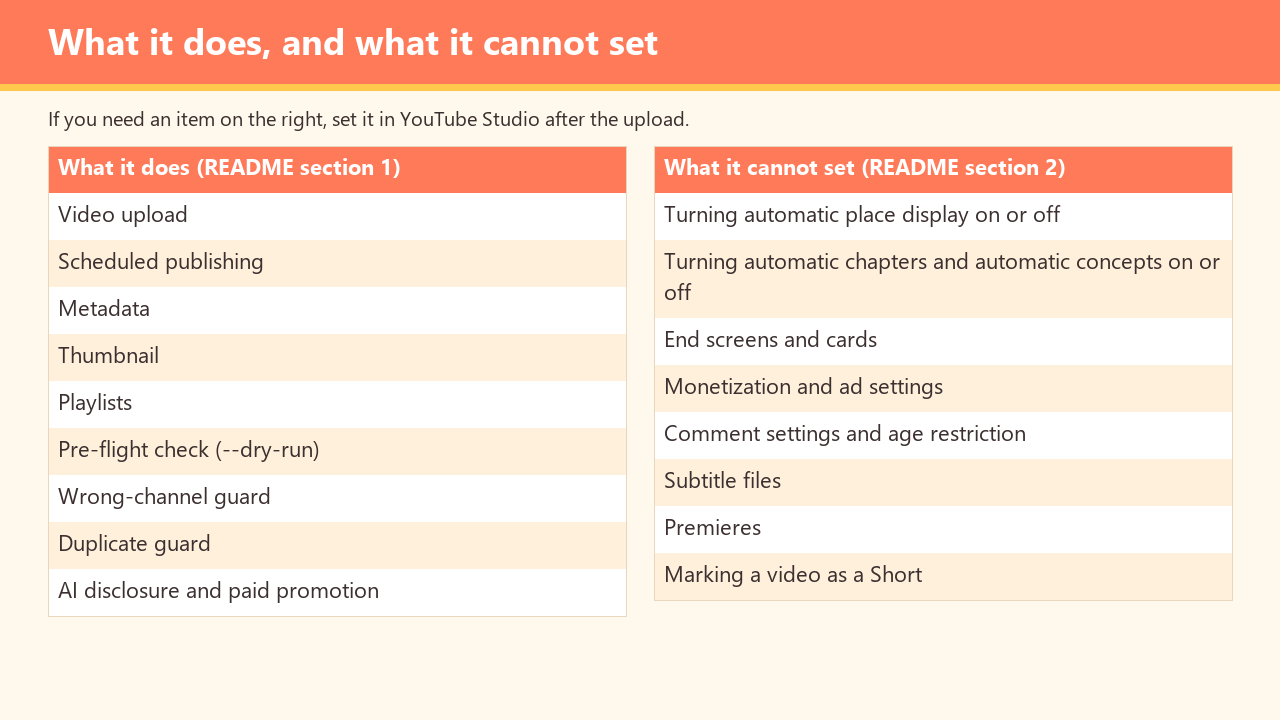
- Settings the script does not set. Automatic place display is a setting the API cannot change. The script does not change automatic chapters or automatic concepts either (as of November 2026, no matching API field was found). It also does not set monetization and ad settings, end screens and cards, comment settings and age restriction, subtitle files, or Premieres, and it does not mark a video as a Short (YouTube classifies short vertical videos on its own). If you need any of these, you set them in YouTube Studio after the upload.
- Signing in again about once a week. The first time you upload, you allow the script to post to your channel, and that permission is saved in a file called a token. According to the bundled guides, while the app you register in Google Cloud is in “Testing” status, the token expires 7 days after you sign in. That is how Google designed it. Signing in again through the browser takes roughly a minute (an estimate from the troubleshooting guide).
So the honest summary is not “everything becomes automatic”. It is “the part where you repeat the same input for every video collapses into one command”.
4. Every upload comes down to three steps: place, check, upload
This is what one video looks like after the build is finished. You type the commands into a terminal, the text window where you give your computer instructions by typing instead of clicking.
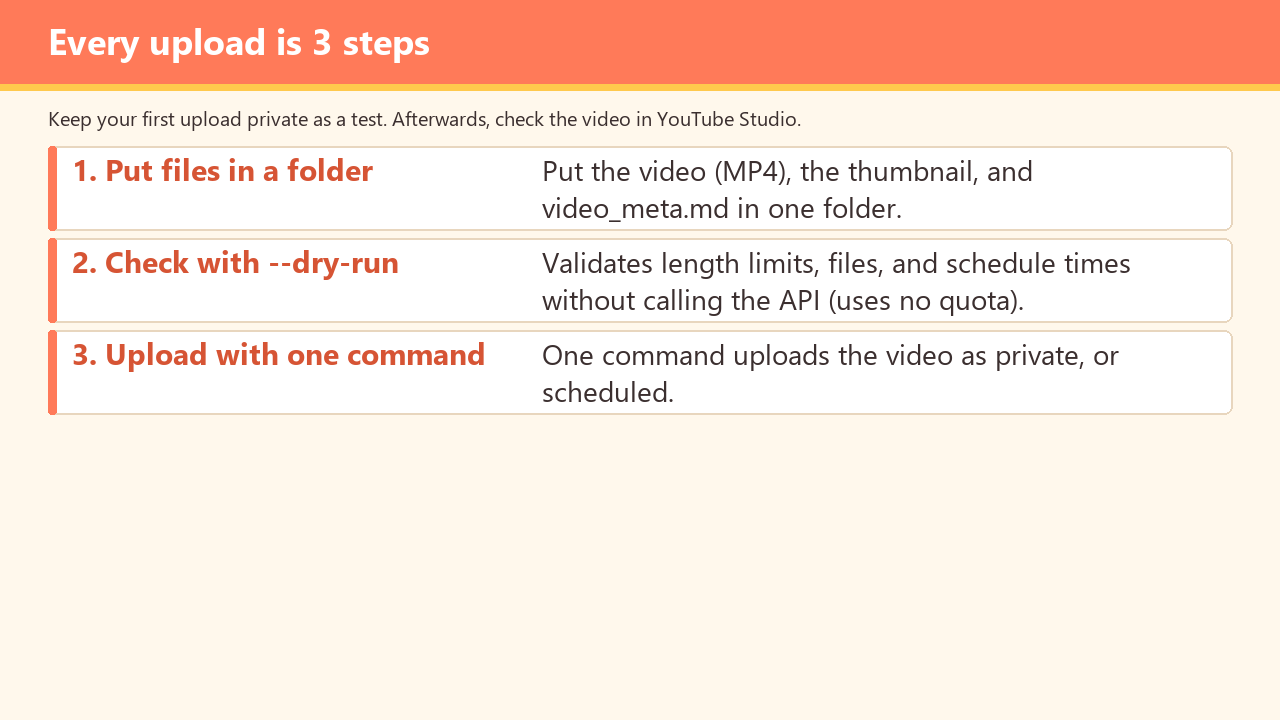
Step 1: Put the files in a folder. Make one folder per video and put the MP4 and the thumbnail image in it. Then this command creates a template for the upload details:
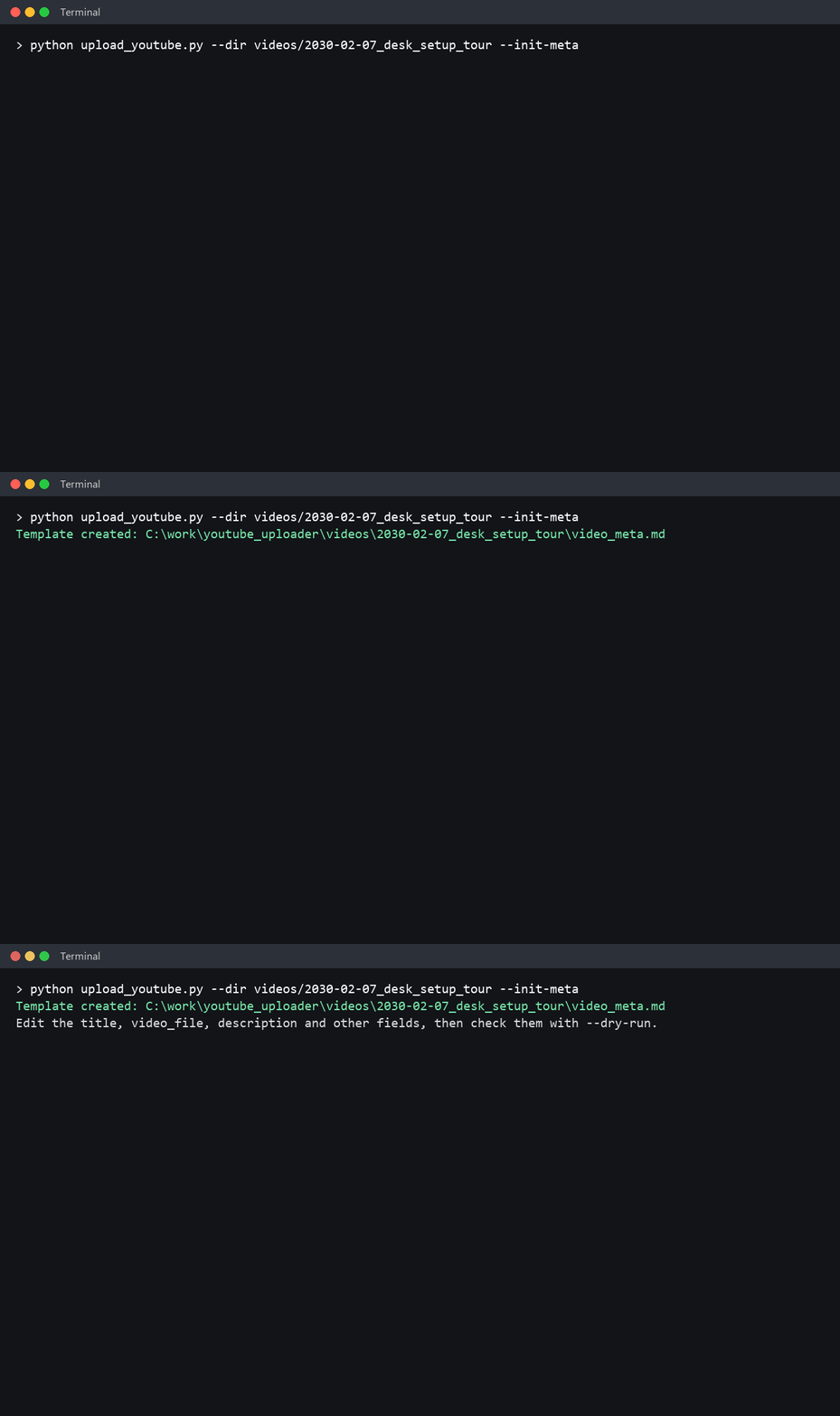
python upload_youtube.py --dir videos/2030-01-31_weekend_camp_vlog --init-meta
The script answers with a line that starts with Template created: followed by the path of the new file.
Open the new video_meta.md and edit it. Everything between the two --- lines is settings. Whatever you write below the second --- is sent to YouTube as the description.
---
title: "Solo Camping by a Winter Lake (Sample)"
channel_title: "Weekend Camp Notes"
category_id: "19"
made_for_kids: false
language: "en"
privacy_status: "private"
tags:
  - "camping"
  - "vlog"
---
Whatever you write here is sent to YouTube as the description.
The template arrives with category 22 (People & Blogs), language en, AI disclosure off, and privacy set to private, so you only change what differs for your channel.
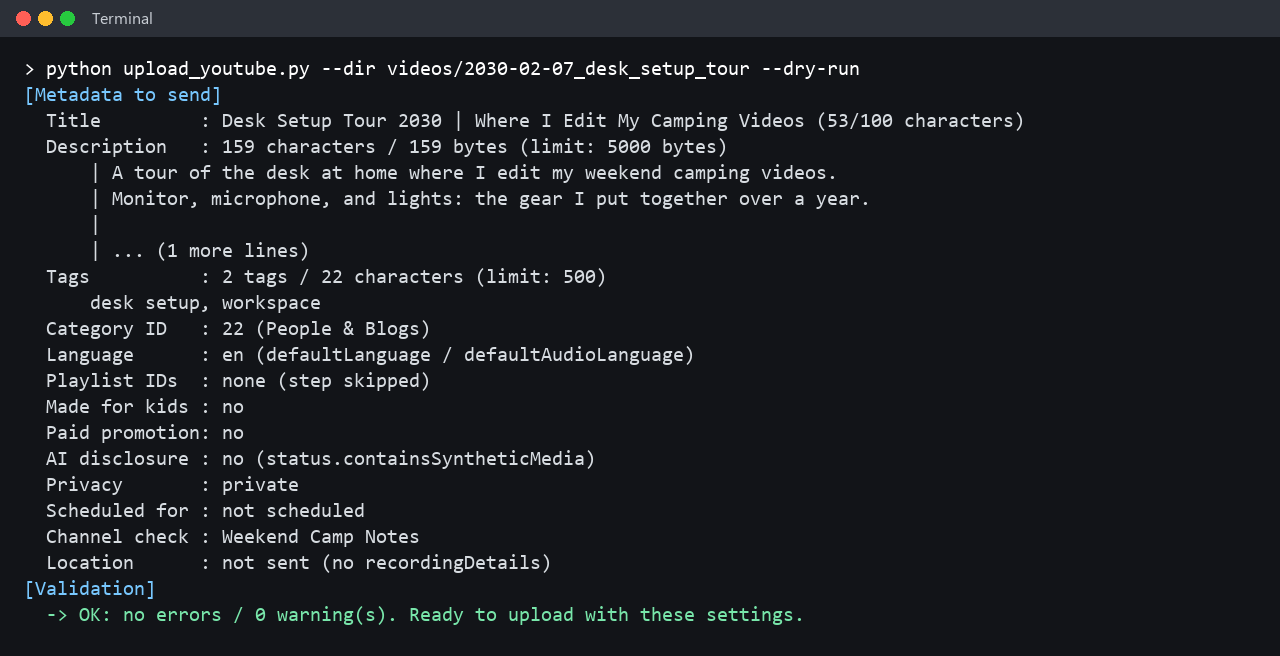
Step 2: Check. A dry run is a rehearsal: --dry-run checks everything without sending anything to YouTube. It looks at the title length, the description length, whether the files are there, whether a scheduled time is in the future, and more. Because it does not call the API, it also uses none of your quota, the daily limit on how much you can use the YouTube Data API.
python upload_youtube.py --dir videos/2030-01-31_weekend_camp_vlog --dry-run
When nothing is wrong, the last line reads:
-> OK: no errors / 0 warning(s). Ready to upload with these settings.
If something needs fixing, the last line starts with -> NG: instead. NG (no good) means there is at least one error, and each error is listed above that line in plain English.
Step 3: Upload. Run the same command without --dry-run. To schedule the video instead, add a time in your computer’s local time, such as --schedule "2030-01-31 21:00".
python upload_youtube.py --dir videos/2030-01-31_weekend_camp_vlog
Uploading to channel: Weekend Camp Notes
(output shortened)
  Uploading... 100.0% (done)
  Video uploaded: video_id = XXXXXXXXXXX
  Thumbnail set: thumbnail.jpg

=== UPLOAD COMPLETE ===
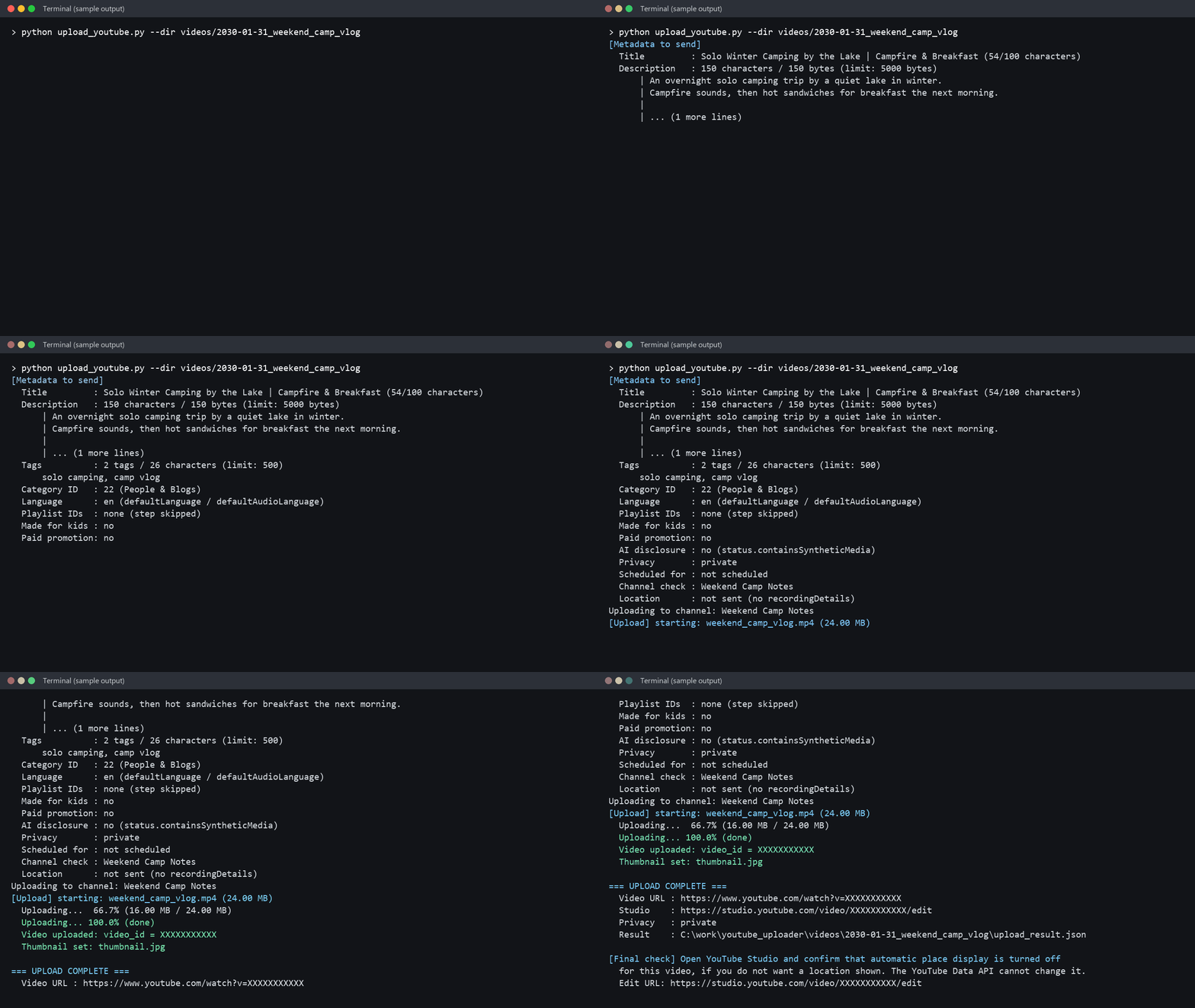
After you run the command, the progress is printed as it goes, so you can step away from the keyboard. Keep your computer from going to sleep while a large file uploads. When it finishes, open the “Edit URL” printed at the end and review the video in YouTube Studio with your own eyes.
5. What was verified through the live YouTube API
The following were checked by uploading private test videos through the live YouTube API (November 2026, on Windows):
- Creating the template (
--init-meta) and the pre-flight check (--dry-run) - Video upload, with the title, description, tags, and category applied
- Setting the thumbnail (automatic compression was confirmed with the Japanese-language build of the same script)
- Sending the AI disclosure flag
- Scheduling: the scheduled time was accepted and stored. The moment of going public was not observed
- The wrong-channel guard (continues on a match, stops on a mismatch) and the duplicate guard
The following are implemented, but were not verified against the live API:
- Adding the video to playlists
- Automatic retries on connection errors (up to 5 times)
- The first browser sign-in, and what happens when the token has expired
- The fallback when the API rejects the AI disclosure or paid promotion flag
- Scheduling from a computer set to a time zone other than Japan Standard Time
- macOS
That second list matters. If one of those features is central to how you work, plan to test it yourself with a private video before you rely on it.
6. First-time setup, and who this fits
Every upload is three steps, but the first time involves preparation. The package gives two separate estimates: allow 20 to 30 minutes for the Google Cloud setup (free, done in your browser), and allow 30 to 60 minutes for the first-time setup if you are new to Google Cloud. Both are estimates, and your computer and your experience will move them in either direction.
You build the workflow by pasting the included master prompt into an AI coding agent such as Claude Code or Cursor, which then sets up the reference code step by step. You can also skip the AI and set it up by hand.
This is not a finished app that works the moment you install it, and it is not a hosted service. It is a builder pack: reference code, a prompt, and guides for assembling the workflow on your own computer. It tends to fit people who:
- Want the upload step to take less attention, so more of the evening goes to making the next video
- Already use Claude Code, Cursor, or a similar agent
- Are fine installing Python and running commands in a terminal
It is not a good fit if you want hands-on support (there is none), if you are looking for a finished app with its own screen, or if you want video creation and editing automated too. What the first-time setup actually involves is covered here: Nervous About the Terminal and Google Cloud? What Setup Involves
7. Summary and what to read next
- Uploading is a pile of small tasks. The upload itself, the title and description, the thumbnail, playlists, scheduling, and the declarations collapse into one command.
- Writing the words, reviewing the result in YouTube Studio, and the settings the script does not set stay manual.
- Start by timing one of your own uploads. Then decide.
The full picture of the product is in the overview article.
- Overview: YouTube Auto-Upload Builder Pack: One Folder, One Command, Scheduled
- The folder rule and how to use
--dry-run: One Folder, One Video: Catch Upload Mistakes With a Dry Run - Scheduling, thumbnail compression, playlists, and AI disclosure: Schedule, Thumbnail, Playlist, AI Disclosure: One File per Video
- What the API can and cannot set, and the current quota rules: What the YouTube API Sets Automatically, What It Doesn’t, and Quota
- If you are afraid of posting mistakes: Afraid of YouTube Auto-Upload Mistakes? 4 Guards and Their Limits
- If the terminal and Google Cloud make you nervous: Nervous About the Terminal and Google Cloud? What Setup Involves
The product page is below. It is a builder pack with no support, a personal license for one person, $19 one-time.
Get it on Gumroad: https://ainavi.gumroad.com/l/youtube-auto-upload-builder-pack-solo
YouTube is a trademark of Google LLC. This product is not provided, endorsed or sponsored by Google LLC or YouTube.
コメント