Exporting the video is not the last step. The upload chores come after it, and for many people with a day job, that is where a finished video stalls. This article walks through the YouTube Auto-Upload Builder Pack for Solo Creators: what it lets you build on your own computer, what it does not do, what was checked against the live YouTube API, and what the personal license covers. API details and screen names here are as of November 2026, and Google and YouTube can change them.
- 1. Why a Finished Video Still Sits on Your Drive
- 2. What the Builder Pack Lets You Build
- 3. Three Steps for Every Video
- 4. Three Guards Against Upload Mistakes
- 5. What Was Verified Through the Live YouTube API, and What Was Not
- 6. What the Script Does Not Set, and the Daily API Limits
- 7. What’s in the ZIP (11 Files) and What First-Time Setup Takes
- 8. Who It Fits, Who It Doesn’t, and What the Personal License Covers
- 9. Related Articles and the Product Page
1. Why a Finished Video Still Sits on Your Drive
After the edit is done, this is what is still waiting for you:
- Pick the file and wait for the upload bar to finish
- Copy the title, description, and tags out of a notes file, one field at a time
- Set the thumbnail and add the video to a playlist
- Schedule the publish date and time
- Click through the declarations, such as whether the video is made for kids
None of it is hard. It is small, repetitive work that comes back with every video. Time one upload from start to finish to see what it costs you.
One thing to be clear about before going further: what this pack reduces is the upload chore. It does not promise more views, subscribers, or revenue.
2. What the Builder Pack Lets You Build
The pack lets you build a workflow on your own computer (Windows or macOS) in which you put a video file (MP4), a thumbnail, and a metadata file called video_meta.md into one folder, run one command, and the video is uploaded to YouTube as private or scheduled. It uses the YouTube Data API v3. An API is the official door that lets a program, instead of a person clicking in a browser, operate a service.
It is a builder pack, not a finished app and not a hosted service. You get a Python reference script, a master prompt to paste into an AI coding agent such as Claude Code or Cursor, a Google Cloud setup guide, and a troubleshooting guide. The agent sets up the reference code for your computer step by step, or you can set it up by hand. Either way, fitting the workflow to your own setup is your job.
| Feature | What it does |
|---|---|
| Video upload | Resumable upload in 16 MB chunks that continues after a dropped connection. Temporary errors are retried automatically, up to 5 times |
| Scheduled publishing | Give a time such as "2030-01-31 21:00" in your computer’s local time. The video is uploaded as private and set to go public at that time |
| Metadata | Title, description, tags, category, language, privacy, and the made-for-kids declaration, all in one video_meta.md file per video |
| Thumbnail | Images over 2 MB are compressed to a 1280×720 JPEG before sending |
| Playlists | Adds the video to the playlists you list |
| AI disclosure and paid promotion | Sends both flags. If the API rejects one, the upload continues without it and the script tells you to set it manually |
The script handles .mp4 files. It does not create or edit videos.
3. Three Steps for Every Video
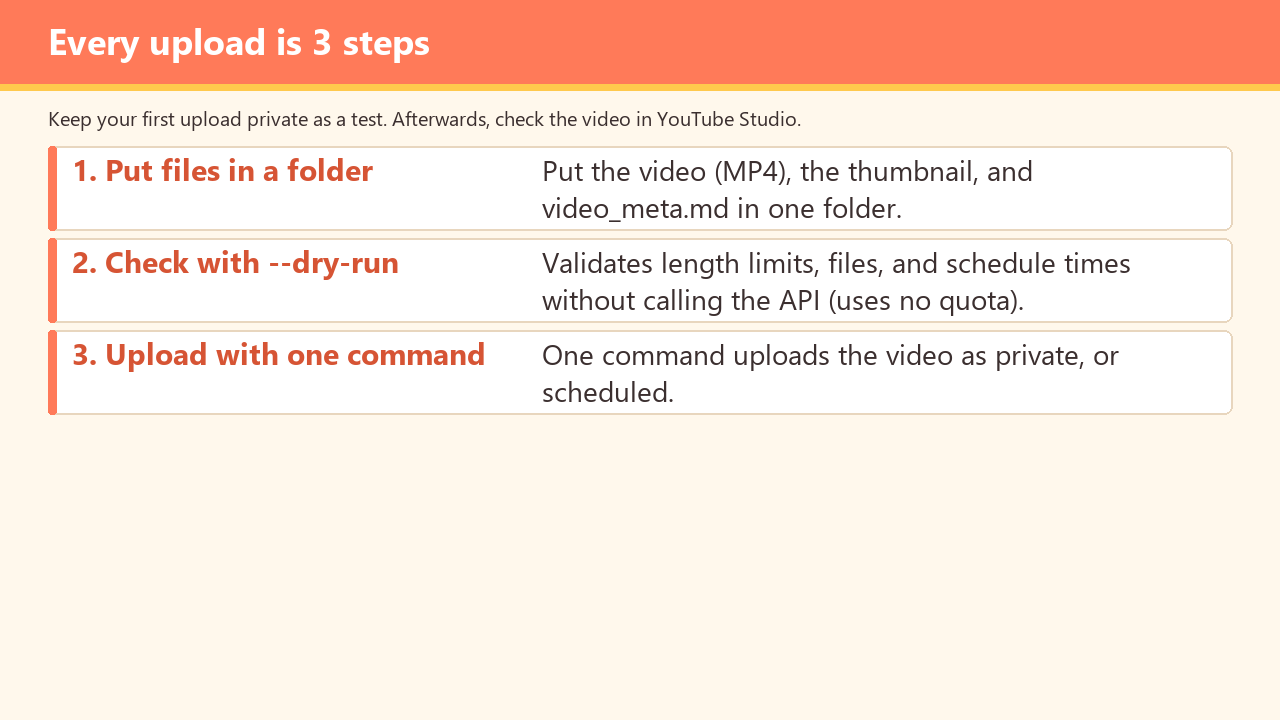
You create one folder per video and run three commands in a terminal, the text window where you type commands instead of clicking.
python upload_youtube.py --dir videos/2030-01-31_weekend_camp_vlog --init-meta
python upload_youtube.py --dir videos/2030-01-31_weekend_camp_vlog --dry-run
python upload_youtube.py --dir videos/2030-01-31_weekend_camp_vlog --schedule "2030-01-31 21:00"
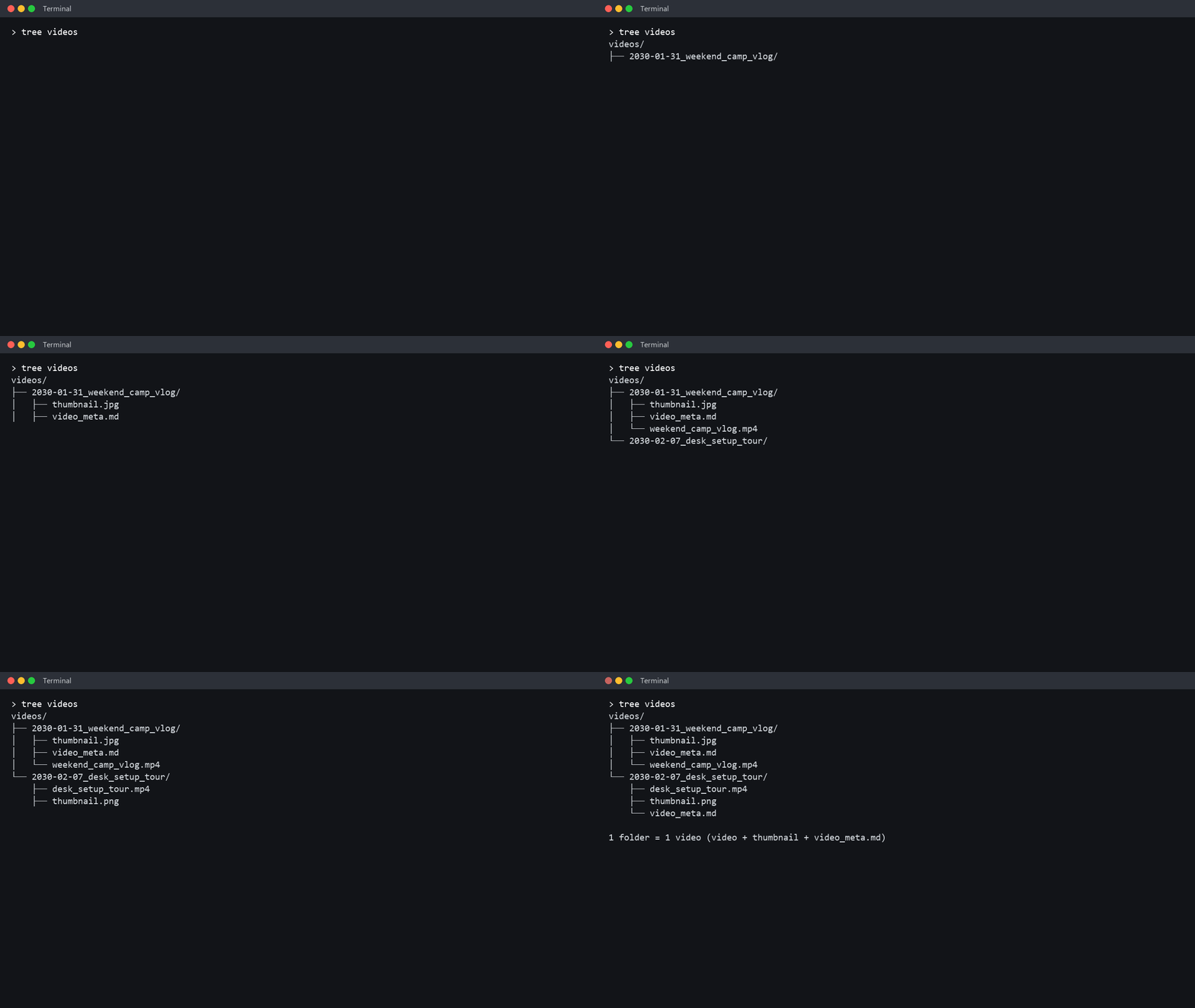
The first command creates the video_meta.md template in the folder. You open it, replace the placeholder title, channel name, and tags, and write the description below the settings.
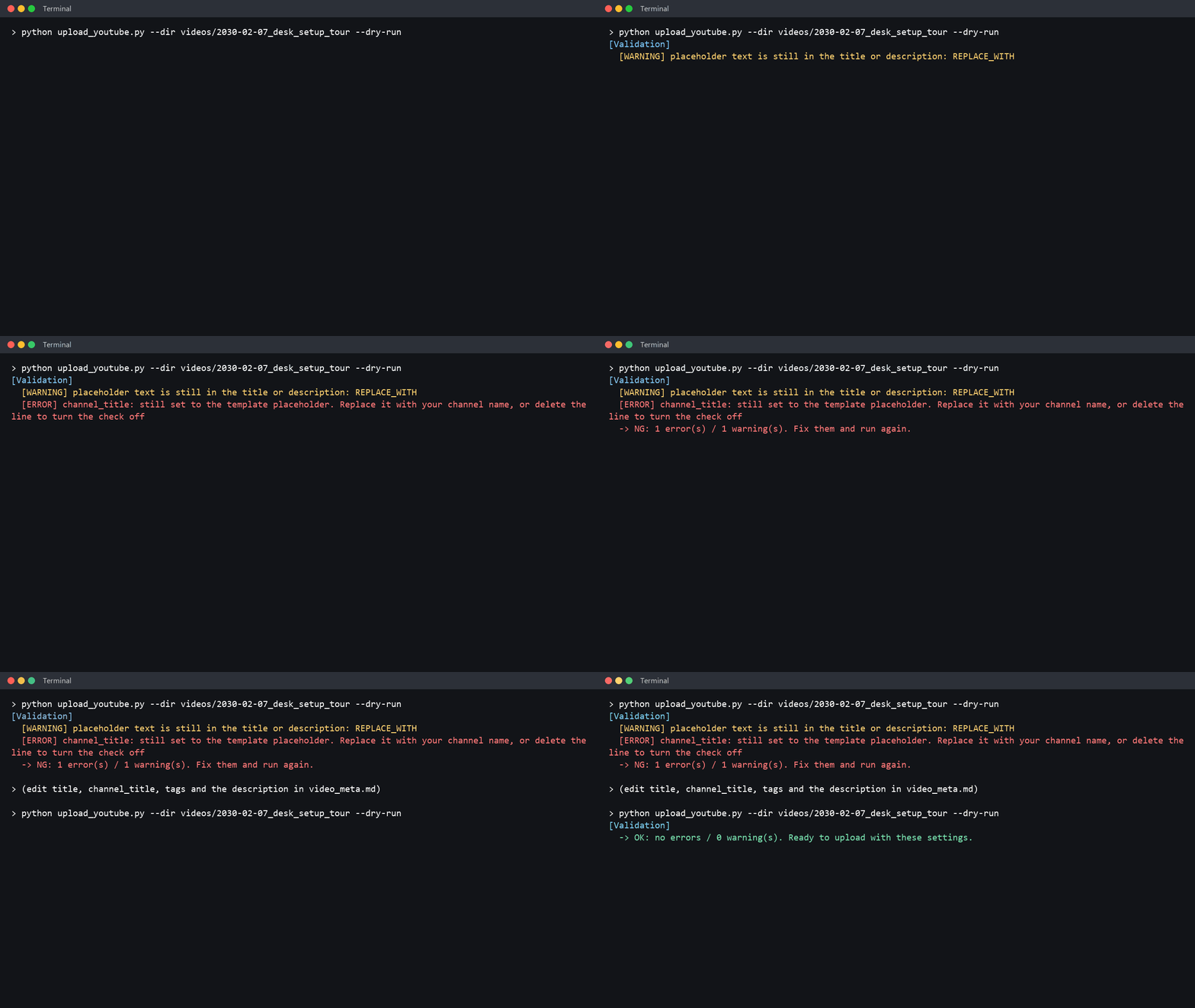
The second command is the dry run: a rehearsal that validates everything and sends nothing. It does not call the API, so it uses no quota (quota is the daily cap on how much you can use the API). It checks the length limits, whether the files exist, and whether the scheduled time is in the future. When something is wrong, the result line starts with -> NG. NG (no good) means there is at least one error to fix before uploading. When everything passes, you see this line:
-> OK: no errors / 0 warning(s). Ready to upload with these settings.
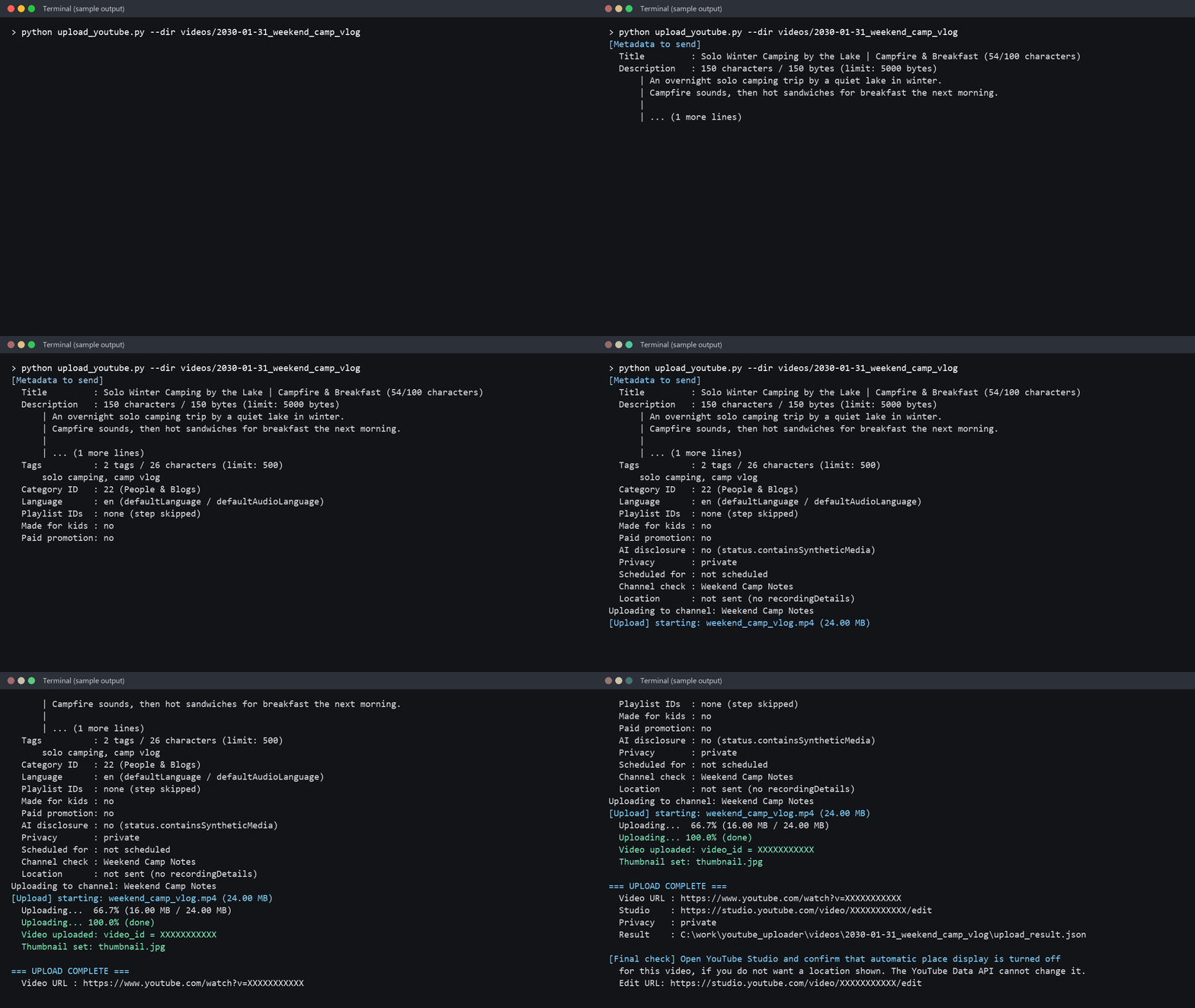
The third command uploads the video as private and stores the time you gave as the scheduled publish time. The time is read as your computer’s local time, using the time zone set in your operating system, so there is no separate time zone setting to fill in. On a computer set to US Eastern time, a dry run with the same --schedule value prints the following line. You can see the UTC time that will be sent before anything is uploaded.
Scheduled for : 2030-01-31 21:00 (UTC-0500) -> publishAt = 2030-02-01T02:00:00Z (UTC)
Product page (Gumroad): https://ainavi.gumroad.com/l/youtube-auto-upload-builder-pack-solo
It is a builder pack with no support, a personal license for one person, $19 one-time.
4. Three Guards Against Upload Mistakes
Automation makes one fear worse: a mistake that happens faster than you can stop it. The script has three guards for that.
It stops if the channel is not the one you expect. You write your channel name in channel_title in video_meta.md. Before any video is sent, the script asks YouTube which channel is signed in. If the name is different, it stops with this message:
[ABORTED] This is not the expected channel (expected: Weekend Camp Notes / actual: ...). Upload cancelled.
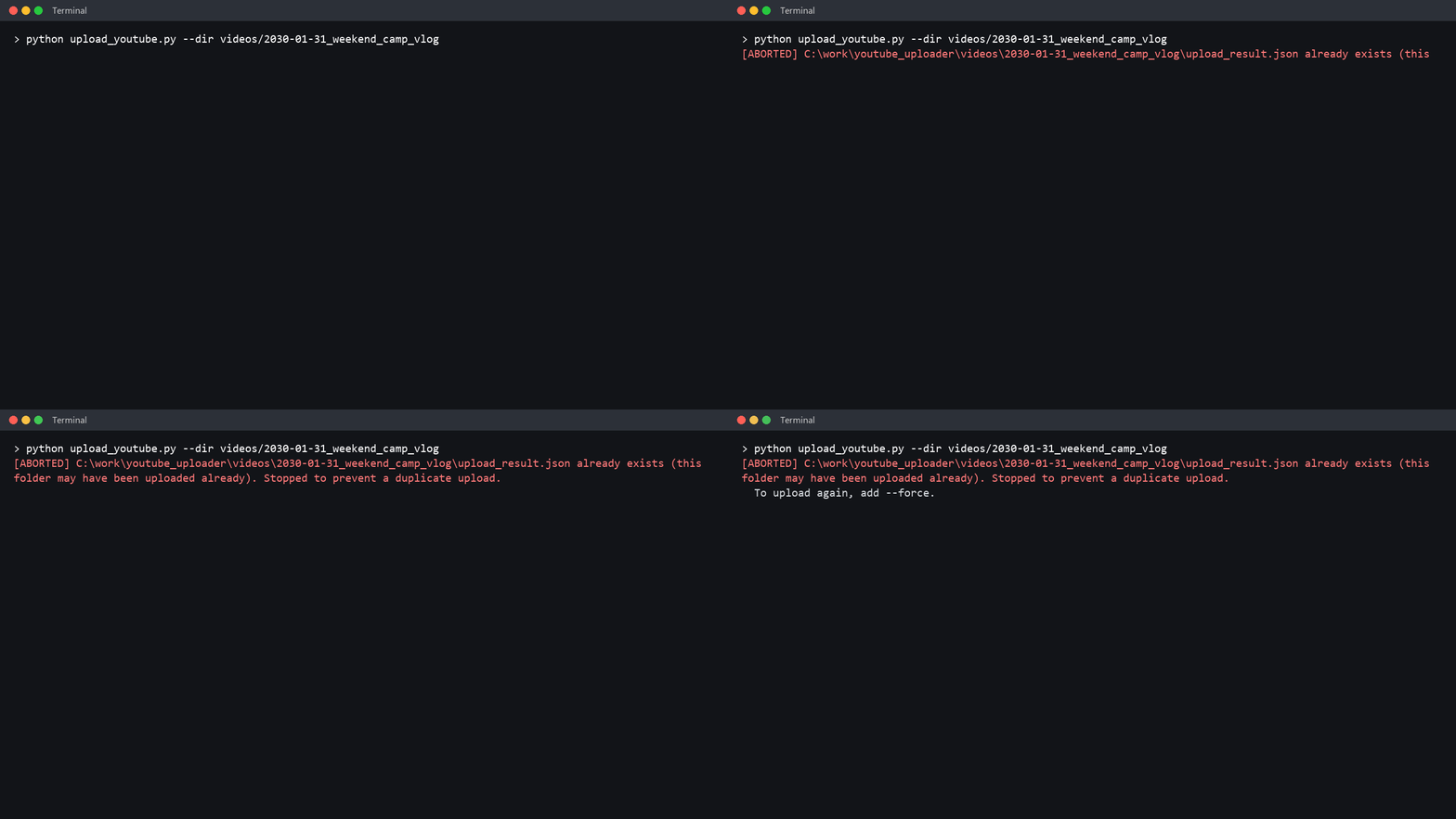
It does not post the same folder twice. After an upload, the folder keeps an upload_result.json file with the video URL, the upload time, and related details. Run the command again in that folder and it stops:
[ABORTED] C:\work\youtube_uploader\videos\2030-01-31_weekend_camp_vlog\upload_result.json already exists (this folder may have been uploaded already). Stopped to prevent a duplicate upload.
  To upload again, add --force.
The default is private. The template ships with privacy_status: "private". The intended first run is one short private test video, then a look at the title, thumbnail, and settings in YouTube Studio with your own eyes, and only then public or scheduled uploads. The master prompt also tells the AI agent to keep the first test private and to wait for your explicit approval before any real upload.
5. What Was Verified Through the Live YouTube API, and What Was Not
The following were confirmed by uploading private test videos through the live YouTube API in November 2026. All of the testing was done on a Windows computer.
- Creating the template (
--init-meta) and the pre-flight check (--dry-run) - Video upload, with the title, description, tags, category, and language applied
- Setting the thumbnail
- Sending the AI disclosure flag
- Scheduling: the scheduled time was accepted and stored. The moment of going public was not observed
- The wrong-channel guard (it continues on a match and stops on a mismatch) and the duplicate guard
Two items were confirmed with the Japanese-language build of the same script, not the English one: automatic thumbnail compression, and AI disclosure showing as “Yes” in YouTube Studio.
The following are implemented, not verified against the live API:
- Adding the video to playlists
- The first-time browser sign-in and the expired-token message
- Automatic retries on connection errors
- The fallback when the API rejects the AI disclosure or paid promotion flag
- Scheduling from a computer set to a time zone other than Japan Standard Time
- macOS
Because scheduling from outside Japan Standard Time was not part of the live test, read the Scheduled for line before you upload, and check the scheduled date in YouTube Studio after your first scheduled upload.
6. What the Script Does Not Set, and the Daily API Limits
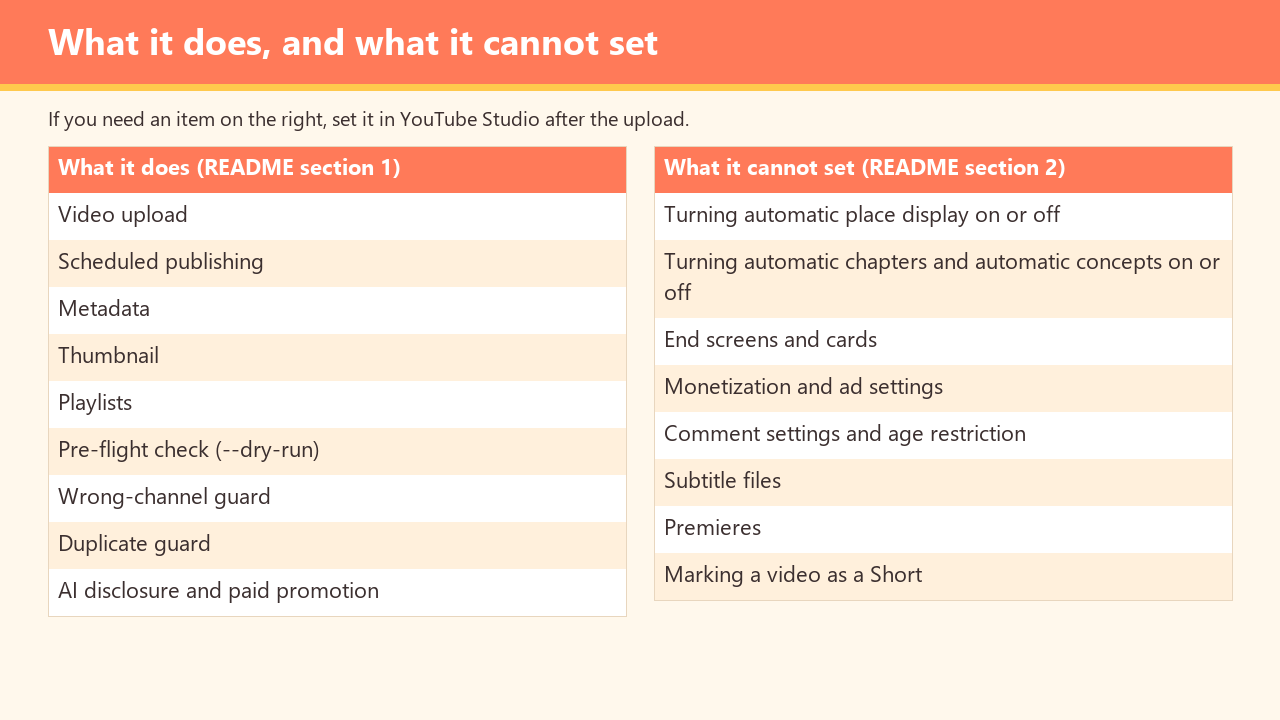
The script does not set the following. If you need them, set them in YouTube Studio after the upload.
- Automatic place display, on or off. The API cannot change that setting
- Automatic chapters and automatic concepts, on or off. The script does not change these (as of November 2026 we found no matching API field)
- End screens and cards
- Monetization and ad settings
- Comment settings and age restriction
- Subtitle files
- Premieres
- Marking a video as a Short (YouTube classifies short vertical videos on its own)
There is also a daily limit on API use. As of November 2026, the official documentation gives video uploads their own allowance of up to 100 calls per day. All other operations share 10,000 units per day. You may still find posts saying that one upload costs 1,600 units, or about six uploads a day. That was the rule in the past. The limits applied to your own project may also differ, so check the Quotas page in the Google Cloud Console. Details: What the YouTube API Sets Automatically, What It Doesn’t, and Quota
One more limit catches people a week in. Before the script can post, you sign in once through the browser with OAuth, a way to give a program permission to act on your channel without giving it your password. That permission is saved as a token, a small file that works like a permit. While your Google Cloud app is in “Testing” status, the token expires 7 days after you sign in. This is how Google designed it, not a fault. You delete one file and sign in again, which the troubleshooting guide puts at roughly a minute (an estimate). Details: 3 YouTube API OAuth Pitfalls for Solo Creators, and How to Fix Them
7. What’s in the ZIP (11 Files) and What First-Time Setup Takes
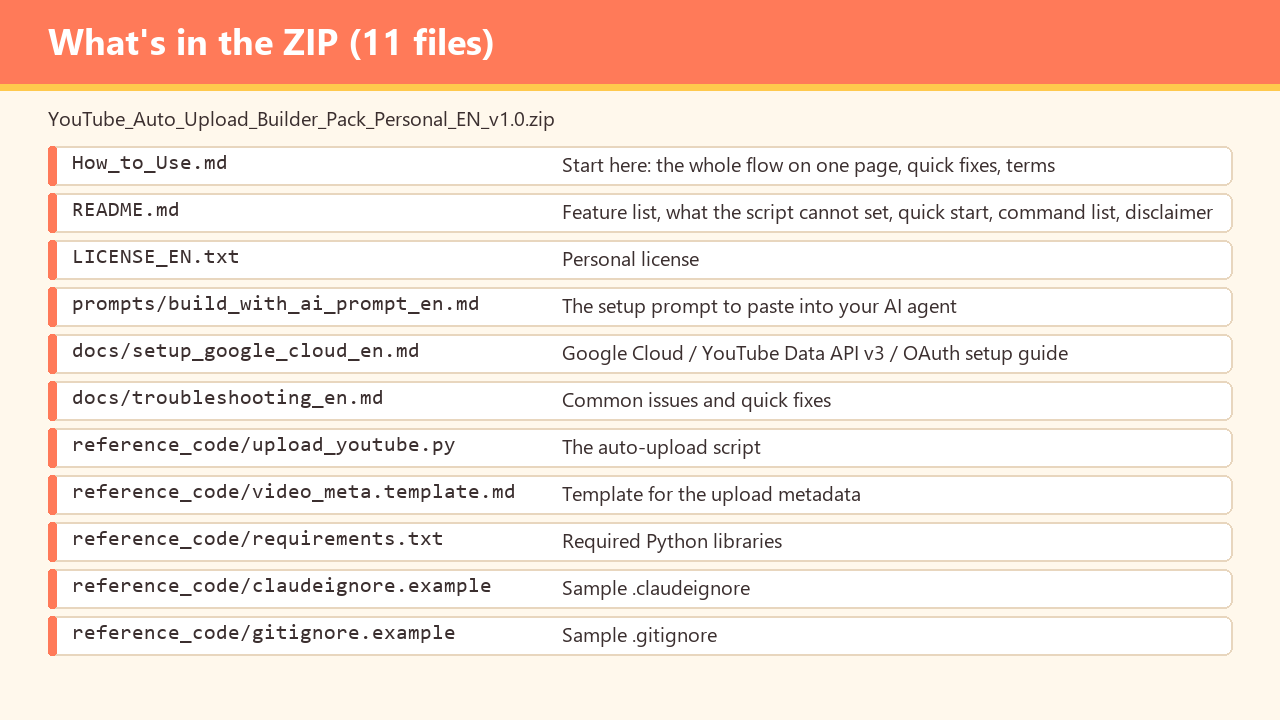
How_to_Use.md: the page to read firstREADME.md: feature list, quick start, command listLICENSE_EN.txt: the personal license agreementprompts/build_with_ai_prompt_en.md: the master prompt for AI agents (8 safety rules, Steps 0 to 8)docs/setup_google_cloud_en.md: Google Cloud, YouTube Data API v3, and OAuth setup (Steps 1 to 6)docs/troubleshooting_en.md: common issues and quick fixes (15 topics)reference_code/: five files (upload_youtube.py,video_meta.template.md,requirements.txt,gitignore.example,claudeignore.example)
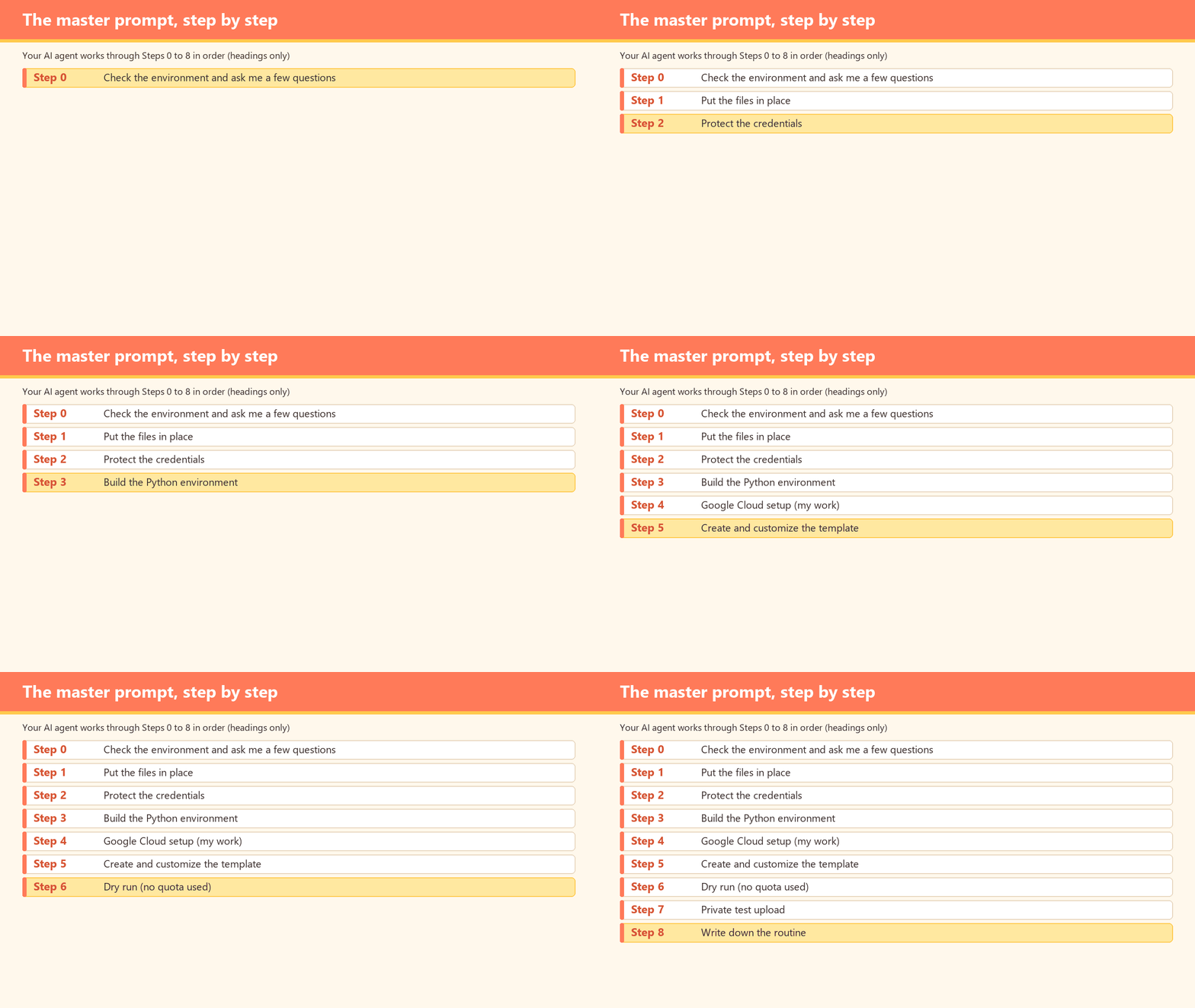
One step of the master prompt creates a virtual environment, a private set of Python libraries that lives inside the project folder and leaves the rest of your computer alone.
What you need:
- A computer running Windows 10 / 11 or macOS
- Python 3.10 or later
- A Google account and the YouTube channel you upload to (custom thumbnails require a phone-verified channel)
- A Google Cloud project, which is free to create
- If you want an AI to build or adjust the workflow, your own account with Claude Code, Cursor, or a similar agent, with its own usage fees
The package gives two time estimates, and they are separate figures from two different files. The README says to allow 30 to 60 minutes for first-time setup if you are new to Google Cloud (an estimate). The setup guide says its Google Cloud steps take 20 to 30 minutes (also an estimate).
To be honest about the entry bar: you need to be comfortable with an AI coding agent, a terminal, and the Google Cloud Console. If all three are new to you, this pack is not a good fit.
The two credential files, client_secret.json and token.json, are keys that can post to your channel. Do not hand them to an AI or to any other person. Put client_secret.json into the secrets/ folder yourself, and do not paste the contents of either file into an AI chat, social media, a help forum, or a public repository.
8. Who It Fits, Who It Doesn’t, and What the Personal License Covers
A good fit
- You keep a channel going alongside a day job or as a side project, and you want the upload step to take less attention
- You run your own channels alone, as a solo creator or freelancer
- You already use Claude Code, Cursor, or a similar AI coding agent
Not a good fit
- You want hands-on support (there is none: no individual Q&A and no setup service)
- You are looking for a finished app with a screen that works as soon as it is installed
- You want video creation, editing, or scripting automated too (this covers the upload step only)
This is a personal license. Only the purchaser, one person, may use it. More than one channel is fine as long as you run each channel yourself, and commercial use on your own channels is allowed, including ad revenue and affiliate links. It is not for teams, companies, or client work. There is no support, and no redistribution or resale: you may not upload the pack to a public repository or resell it as a course or template.
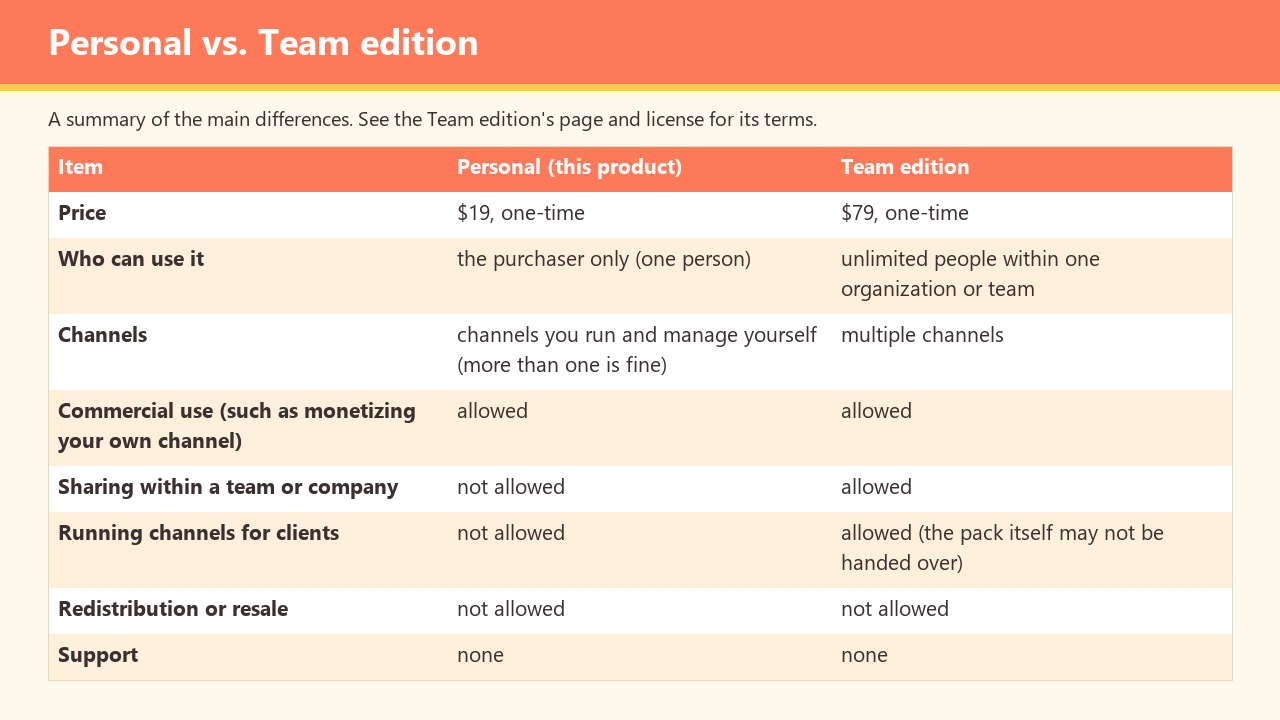
If more than one person will use it, or you want to use it inside a company or to run channels for clients, there is a separate Team edition: https://ainavi.gumroad.com/l/youtube-auto-upload-builder-pack
9. Related Articles and the Product Page
Start with whichever question is on your mind.
- Three places where OAuth setup stalls: 3 YouTube API OAuth Pitfalls for Solo Creators, and How to Fix Them
- What is set automatically, what is not, and the current quota rules: What the YouTube API Sets Automatically, What It Doesn’t, and Quota
- The folder rule and the dry run: One Folder, One Video: Catch Upload Mistakes With a Dry Run
- Scheduling, thumbnail compression, playlists, and AI disclosure: Schedule, Thumbnail, Playlist, AI Disclosure: One File per Video
- The master prompt and keeping credentials away from the AI: Build a YouTube Uploader With Claude Code, Keep Your Keys Private
- When uploading is the chore you keep putting off: Video Done, Upload Postponed? Break the YouTube Upload Chore Down
- When you are afraid of posting by mistake: Afraid of YouTube Auto-Upload Mistakes? 4 Guards and Their Limits
- When the terminal and Google Cloud make you nervous: Nervous About the Terminal and Google Cloud? What Setup Involves
Product page (Gumroad): https://ainavi.gumroad.com/l/youtube-auto-upload-builder-pack-solo
It is a builder pack with no support, a personal license for one person, $19 one-time.
YouTube is a trademark of Google LLC. This product is not provided, endorsed or sponsored by Google LLC or YouTube.
コメント