If you are thinking about automating your YouTube uploads, two questions usually come first: how much of the work becomes automatic, and how many videos you can upload in a day. This article answers both, based on the script and documents included in the YouTube Auto-Upload Builder Pack for Solo Creators. The numbers and screen names are as of November 2026, and Google and YouTube can change them.
- 1. Uploading Through the API Does Not Automate Everything
- 2. What video_meta.md Sets Automatically
- 3. What Is Not Set, and Where to Check in YouTube Studio
- 4. Flags That Are Sent but May Not Be Applied
- 5. The Current Quota Rules (as of November 2026)
- 6. Outdated Advice: 1,600 Units and “Locked to Private”
- 7. What to Do at the Limit, and Where the Dry Run Fits
- 8. Summary and Related Articles
1. Uploading Through the API Does Not Automate Everything
Uploading from a program uses the YouTube Data API v3. An API is the official door that lets a program operate a service in place of a person clicking in a browser. That door does not lead to every room, though. Not everything you can set on the screens of YouTube Studio is set by an upload script.
It helps to sort the upload settings into three groups:
- Settings that are set for you
- Settings that are not set, which you handle in YouTube Studio after the upload
- Flags that are sent, but that the API may not apply in every case
Knowing the three groups in advance prevents the letdown of finding out, after you have built the workflow, that one step is still manual. It also tells you what to look at when you review a video in YouTube Studio.
2. What video_meta.md Sets Automatically
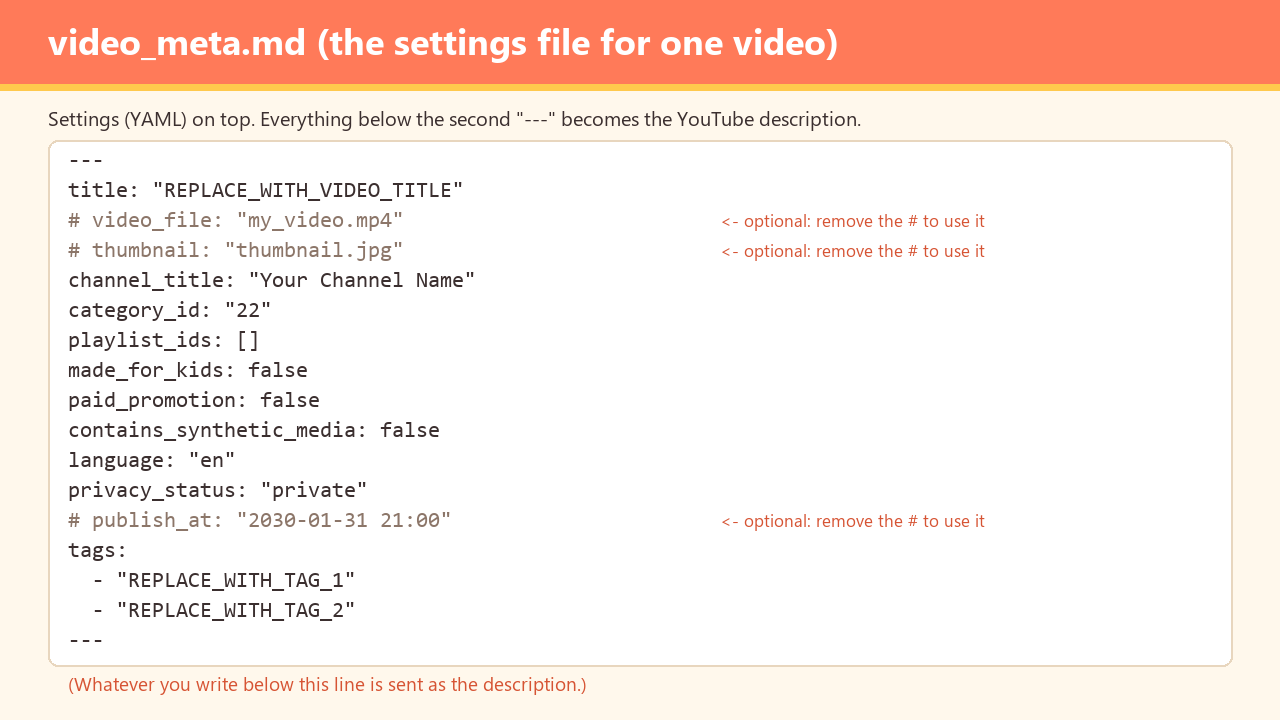
In this pack, you write the settings for each video in a file called video_meta.md, which sits in the same folder as the video. Everything between the two --- lines is settings. Everything below the second --- is sent to YouTube as the description, as is.
---
title: "Weekend Camp Vlog: Breakfast by the Lake"
channel_title: "Weekend Camp Notes"
category_id: "22"
playlist_ids: []
made_for_kids: false
paid_promotion: false
contains_synthetic_media: false
language: "en"
privacy_status: "private"
publish_at: "2030-01-31 21:00"
tags:
  - "camping"
  - "breakfast"
---
The text you write here becomes the description.
| Setting | How you set it |
|---|---|
| Title, description, tags | title, the text below the settings, and tags. Limits: title 100 characters, description 5,000 bytes, tags 500 characters in total |
| Category and language | category_id (the template default is "22", People & Blogs) and language (default "en") |
| Privacy | privacy_status: private, unlisted, or public. The default is private |
| Scheduled publishing | publish_at, or --schedule on the command line, which overrides it |
| Made-for-kids declaration | made_for_kids |
| Thumbnail | An image in the folder. Images over 2 MB are compressed to a 1280×720 JPEG before sending |
| Playlists | The video is added to the playlists listed in playlist_ids |
A note on the description limit: plain English text is about one byte per character, and emoji and non-Latin characters use more.
Two more fields are worth knowing. channel_title is not sent to YouTube. It is a safety check: if the signed-in channel has a different name, the upload stops before anything is sent. video_file and thumbnail are optional and tell the script which files to use when the folder holds more than one candidate.
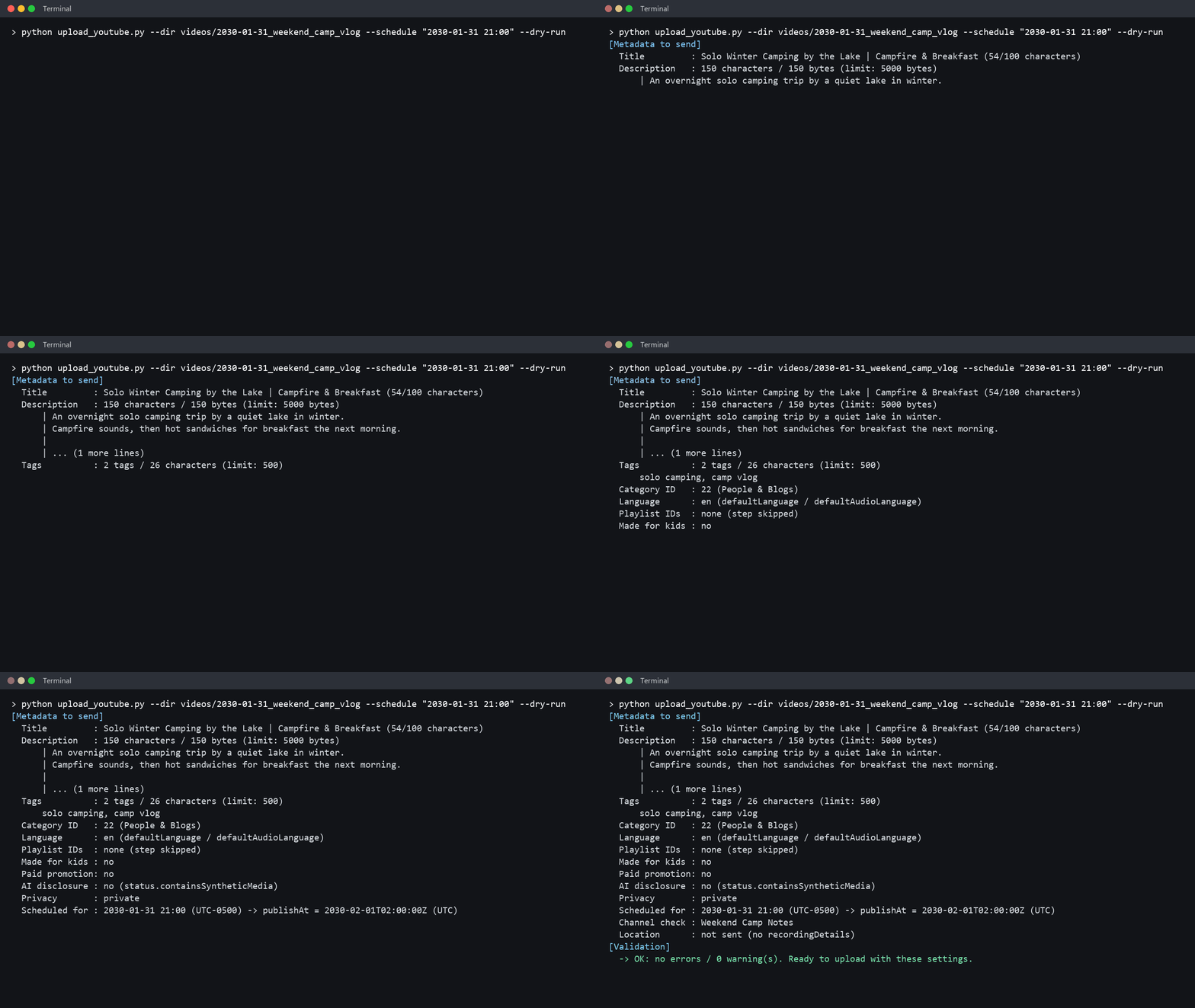
The scheduled time is written in your computer’s local time, using the time zone set in your operating system. The API expects UTC, and the script does the conversion. You can see both before anything is uploaded by running a dry run, a rehearsal that validates the folder and sends nothing. You run it in a terminal, the text window where you type commands. On a computer set to US Eastern time, --schedule "2030-01-31 21:00" prints this line:
Scheduled for : 2030-01-31 21:00 (UTC-0500) -> publishAt = 2030-02-01T02:00:00Z (UTC)
A scheduled video is uploaded as private and set to go public at that time. If you are traveling, or your computer’s time zone is wrong, the result follows the computer, not where your audience is. That is the reason to read the Scheduled for line every time.
What was checked: video upload, the title, description, tags, category, and language being applied, setting the thumbnail, and scheduling were confirmed by uploading private test videos through the live YouTube API, on Windows. For scheduling, the scheduled time was accepted and stored, and the moment of going public was not observed. Automatic thumbnail compression was confirmed with the Japanese-language build of the same script. Adding to playlists, and scheduling from a computer set to a time zone other than Japan Standard Time, are implemented, not verified against the live API.
3. What Is Not Set, and Where to Check in YouTube Studio
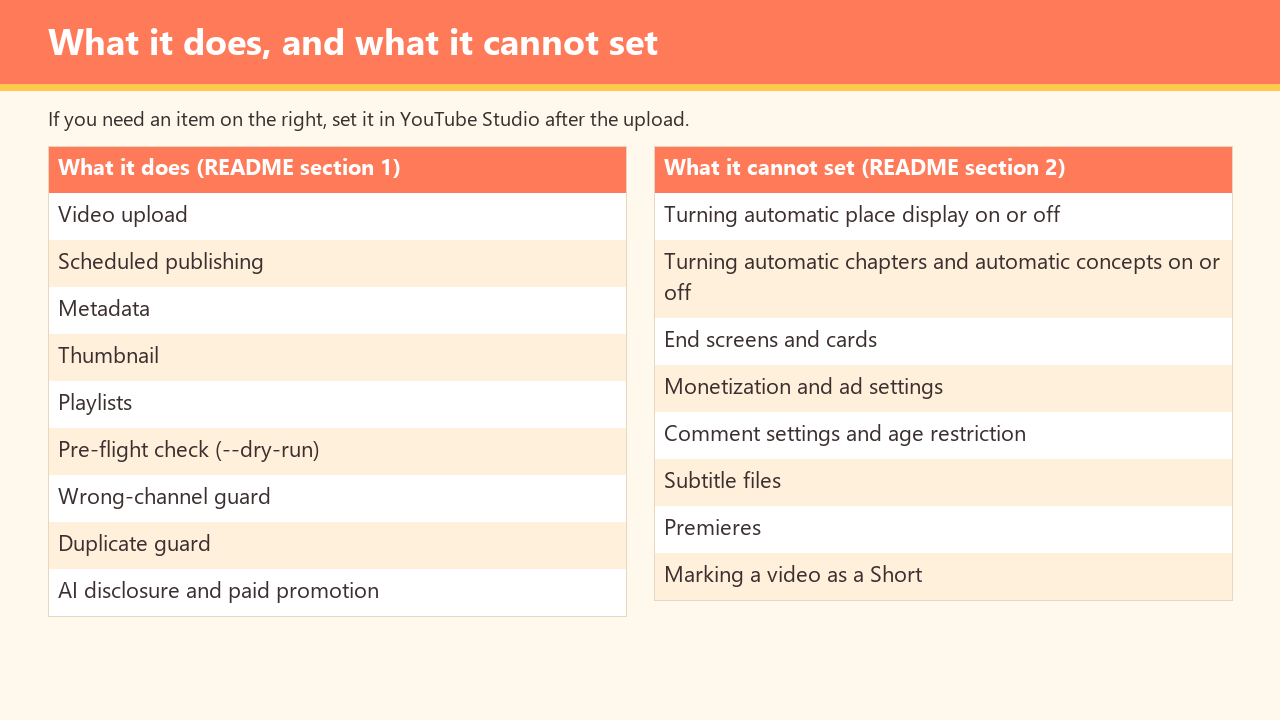
The workflow does not set the following. If you need them, set them in YouTube Studio after the upload.
- Automatic place display, on or off
- Automatic chapters and automatic concepts, on or off
- End screens and cards
- Monetization and ad settings
- Comment settings and age restriction
- Subtitle files
- Premieres
- Marking a video as a Short (YouTube classifies short vertical videos on its own)
Automatic place display needs a little more explanation. The script never sends any location data. However, YouTube has a feature that can detect a place from the video itself and display it, and the API cannot change that setting. For that reason the script prints this reminder when an upload finishes:
[Final check] Open YouTube Studio and confirm that automatic place display is turned off
  for this video, if you do not want a location shown. The YouTube Data API cannot change it.
To check it, open the edit URL printed at the end of the upload, scroll to the bottom of the video details page, and click “Show more” to open the advanced settings. Find the place-related option (such as “Allow automatic places”). If you do not want a place shown, turn it off and save. The name and position of this option can change with YouTube Studio updates.
The options for automatic chapters and automatic concepts sit in the same place. The script does not change these (as of November 2026 we found no matching API field). If you want them off, set them there at the same time.
If you film near your home or workplace, check this on your first few uploads.
4. Flags That Are Sent but May Not Be Applied
Two declarations are sent with the upload: AI disclosure (shown as “Altered content” in YouTube Studio), set with contains_synthetic_media, and paid promotion, set with paid_promotion. Depending on the state of the API, these fields are not accepted in every case. The script is written so that it does not stop the upload when that happens. It drops only the rejected field, completes the upload, and prints a warning such as this one:
The API rejected the AI disclosure field (status.containsSyntheticMedia), so the video was uploaded without it. Set 'Altered content: Yes' manually in YouTube Studio.
What was checked: sending the AI disclosure flag was confirmed through the live API, and the setting showing as “Yes” in YouTube Studio was confirmed with the Japanese-language build of the same script. The fallback for a rejected flag is implemented, not verified against the live API. Sending paid promotion set to true was not part of the live test either.
For a video that needs a disclosure, look at the video details page in YouTube Studio after the upload and confirm it with your own eyes. Forgetting a required disclosure can violate YouTube’s policies.
5. The Current Quota Rules (as of November 2026)
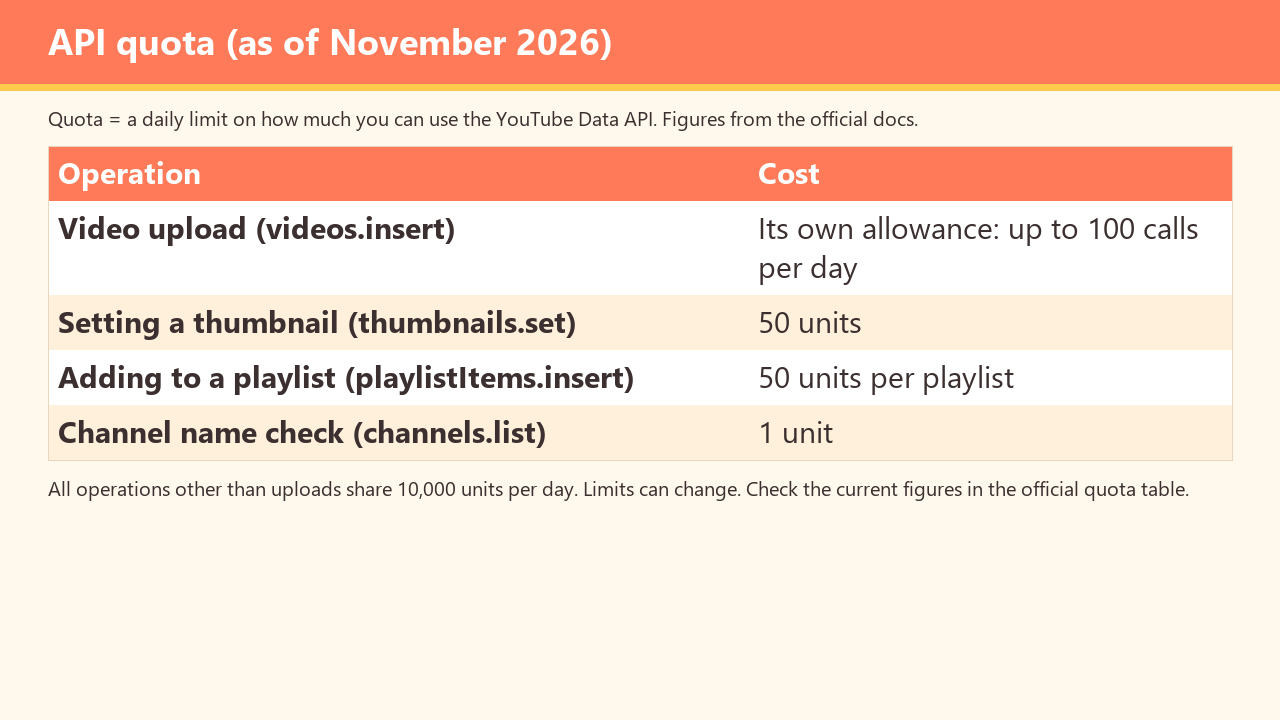
Quota is a daily limit on how much you can use the YouTube Data API. The API is free, and in exchange the daily usage is capped. This is what the official documentation says as of November 2026:
| Operation | Cost |
|---|---|
| Video upload | Its own allowance: up to 100 calls per day |
| Setting a thumbnail | 50 units |
| Adding to a playlist | 50 units per playlist |
| Channel name check | 1 unit |
All operations other than uploads share 10,000 units per day. A solo creator uploading a few videos a day normally stays well below these limits.
6. Outdated Advice: 1,600 Units and “Locked to Private”
Search for this topic and you will find the following two claims. Both describe earlier rules.
“One upload costs 1,600 units, so you get about six uploads a day.”
That used to be the rule. As of November 2026, as the previous section shows, video uploads are counted against their own allowance. The limits applied to your project may differ, though. Check the exact figures in the Google Cloud Console under “APIs & Services” > “YouTube Data API v3” > “Quotas,” and in the official quota table.
“Videos uploaded from a project that has not been audited are locked to private.”
In the past, videos uploaded from API projects that had not passed a Google audit were restricted to private. As of November 2026, the official documentation for the upload method states that videos uploaded from unverified API projects are not restricted to private viewing mode. A restriction may still apply depending on your project. If you cannot change the visibility in YouTube Studio, check the current wording of the official documentation.
One thing looks like this problem and is not. A scheduled video is shown as “Private” until its scheduled time. If YouTube Studio shows the scheduled date under visibility, everything is working. Also check the obvious: whether privacy_status in video_meta.md is still "private".
7. What to Do at the Limit, and Where the Dry Run Fits
When you reach the limit, the script prints this:
HTTP 403 quotaExceeded: ...
  -> Today's API quota is used up. Run the command again after the daily reset at midnight Pacific Time.
- Quota resets at midnight Pacific Time. Run the same command again after the reset.
- Failed API calls also use quota. Do not keep re-running a command that ends in an error.
- A similar but different error is
uploadLimitExceeded. This is not API quota. It is the channel’s own daily upload limit. Wait about 24 hours and run the command again.
Do your checking with the dry run. It does not call the API, so it uses no quota, and it needs no sign-in.
python upload_youtube.py --dir videos/2030-01-31_weekend_camp_vlog --dry-run
The dry run prints the files it found, the metadata it will send, and a validation result. If the last line starts with -> NG, there is at least one error to fix. NG means “no good.” When the last line starts with -> OK: no errors, the settings are ready to upload. Because it costs nothing, you can run it as many times as you like while you edit video_meta.md.
8. Summary and Related Articles
- The title, description, tags, privacy, schedule, thumbnail, and playlists are set from
video_meta.mdand the command line - Automatic place display and several other settings are not set. Check them in YouTube Studio after the upload
- As of November 2026, video uploads have their own allowance of up to 100 calls per day, and all other operations share 10,000 units per day
- “1,600 units” and “locked to private” describe earlier rules
Related articles:
- The whole product in one article: YouTube Auto-Upload Builder Pack: One Folder, One Command, Scheduled
- Three places where OAuth setup stalls, and how to fix them: 3 YouTube API OAuth Pitfalls for Solo Creators, and How to Fix Them
- One folder per video, and the dry run: One Folder, One Video: Catch Upload Mistakes With a Dry Run
- Scheduling, thumbnail compression, playlists, and AI disclosure: Schedule, Thumbnail, Playlist, AI Disclosure: One File per Video
Product page (Gumroad): https://ainavi.gumroad.com/l/youtube-auto-upload-builder-pack-solo
It is a builder pack with no support, a personal license for one person, $19 one-time. It is not a finished app or a hosted service: you are expected to build the workflow and adjust it to your own setup yourself, using the included prompt with an AI coding agent such as Claude Code or Cursor.
コメント