Pick the publish time. Swap the thumbnail. Tick the playlist. Answer the declarations. Every video means the same clicks on the same page.
This article shows how the “YouTube Auto-Upload Builder Pack for Solo Creators” lets you write those four settings in a file and send them together. For each one, it also says what was confirmed through the live YouTube API and what is implemented but not confirmed.
- 1. Write the settings you click every time into one file
- 2. Schedule in your computer’s local time
- 3. Thumbnails over 2 MB are compressed before sending
- 4. List playlist IDs and the video is added
- 5. Send the AI disclosure (altered content) flag
- 6. What to check in YouTube Studio after the upload
- 7. Recap and what to read next
1. Write the settings you click every time into one file
In this pack, each video gets its own folder with the video (.mp4), a thumbnail, and a file called video_meta.md. That file holds the title and description, and it is also where today’s four settings go. All values below are fictional.
---
title: "Desk Setup Tour 2030 | Where I Edit My Camping Videos"
channel_title: "Weekend Camp Notes"
category_id: "26"
playlist_ids:
  - "PLxxxxxxxxxxxxxxxx"
contains_synthetic_media: true
privacy_status: "private"
publish_at: "2030-02-07 21:00"
tags:
  - "desk setup"
---
A tour of the desk at home where I edit my weekend camping videos.
Before uploading, you can check what you wrote with --dry-run. A dry run is a rehearsal: the script validates the files and lists what it would send, without calling the API, the interface a program uses to operate YouTube in place of your clicks. The folder layout and how to read the dry-run output are covered in One Folder, One Video: Catch Upload Mistakes With a Dry Run.
One note before the details. This pack is not a finished app or a hosted service. It is a builder pack for setting up the workflow on your own computer, and you operate it from a terminal, the text window where you type commands.
2. Schedule in your computer’s local time
There are two ways to schedule. Write the time in publish_at in video_meta.md, or add --schedule to the command. If both are present, --schedule wins.
python upload_youtube.py --dir videos/2030-01-31_weekend_camp_vlog --schedule "2030-01-31 21:00" --dry-run
The format is "YYYY-MM-DD HH:MM", in quotes, with one space between the date and the time. The script reads it as your computer’s local time, using the time zone set in your operating system. There is no separate time zone setting to fill in. YouTube itself expects the time in UTC (Coordinated Universal Time), and the script does that conversion. The dry run prints both, so you can see the result before anything is sent. On a computer set to US Eastern time, the lines look like this:
  Privacy       : private
  Scheduled for : 2030-01-31 21:00 (UTC-0500) -> publishAt = 2030-02-01T02:00:00Z (UTC)
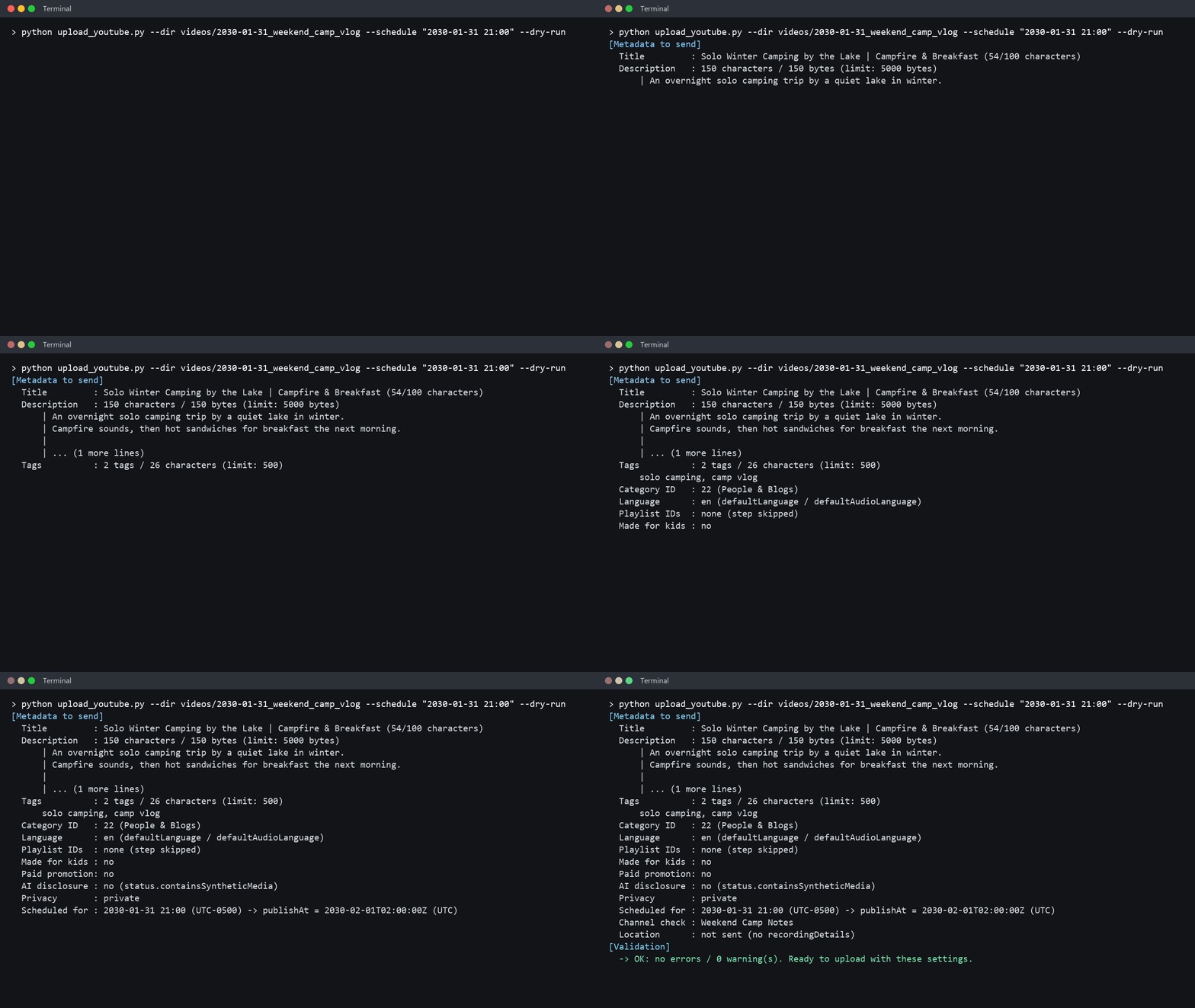
Read that line from left to right: 9 p.m. on January 31 on this computer, five hours behind UTC, which is 2 a.m. UTC on February 1. If the offset in parentheses is not the one you expect, fix your computer’s time zone before you upload.
A few things to know:
- A scheduled video is uploaded as private, and the time you gave is stored as its publish time. If
privacy_statuswaspublicorunlisted, you get the warningscheduled upload: privacy_status changed from public to private (the video goes public automatically at the scheduled time). - A time that has already passed produces an error ending in
is in the past, and no upload takes place. - The result follows the computer, not your audience. If you are traveling and your laptop has switched time zones, “21:00” means 9 p.m. where the laptop thinks it is.
- In YouTube Studio, a scheduled video is shown as “Private” until its time arrives. If the scheduled date appears under visibility, that is the expected state.
Where this stands: scheduling was confirmed through the live YouTube API up to the point where the scheduled time was accepted and stored. The moment a video actually goes public was not observed. That run was made on a Windows computer set to Japan Standard Time. Scheduling from a computer in another time zone, such as the US Eastern example above, is implemented but not confirmed against the live API. For your first few scheduled videos, look at the “Scheduled for” line in the dry run, then open YouTube Studio after the publish time and see for yourself. And keep your very first upload a private test video with no schedule at all.
3. Thumbnails over 2 MB are compressed before sending
If the folder contains thumbnail.jpg or thumbnail.png, the script finds it automatically. To use a different file name, set the thumbnail field.
When the image is over 2 MB, or in a format other than JPEG or PNG, the script converts it to a 1280×720 JPEG and sends that. The conversion happens in memory, so your original image file is not rewritten. The dry run tells you in advance. This example comes from a dummy image made for this article, so your figures will differ:
Thumbnail : thumbnail.png (4.42 MB, 1920x1080) -> needs conversion -> sent as a 1280x720 JPEG (533.5 KB after conversion)
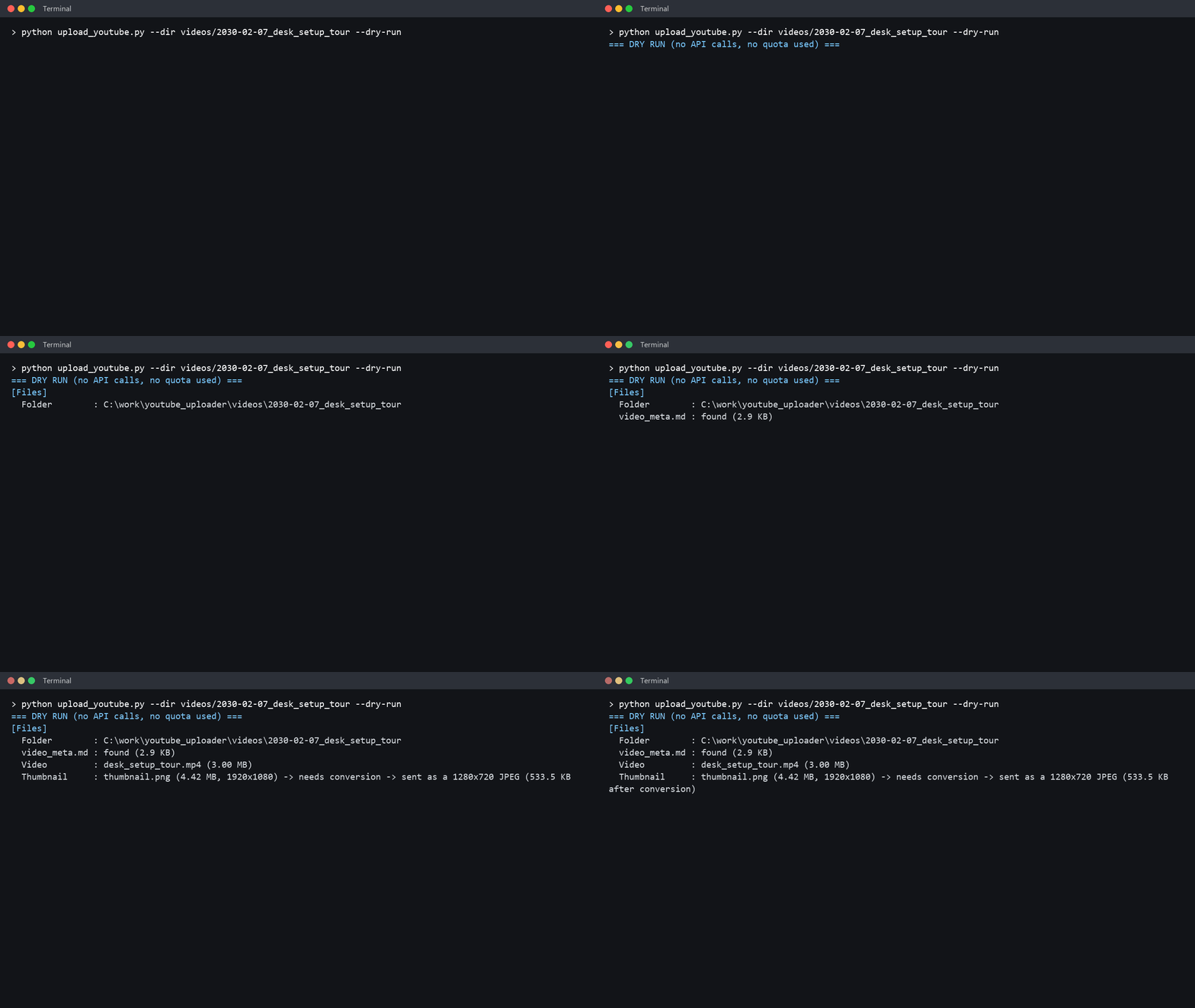
A JPEG or PNG of 2 MB or less is shown as 2 MB or less, sent as is and is not converted. If such an image is not 16:9, the dry run adds a warning with its dimensions.
Where this stands: setting a thumbnail was confirmed through the live YouTube API. The automatic compression path was confirmed with the Japanese-language build of the same script, and the path without compression with the English build.
The usual stumbling block is a video that uploads fine followed by Could not set the thumbnail: HTTP 403 .... Custom thumbnails are available only to channels that have completed phone verification. The video itself is already uploaded, so do not upload it again. Set the thumbnail in YouTube Studio for that video, and verify the channel for the next one.
4. List playlist IDs and the video is added
In playlist_ids, list the IDs of the playlists the video should join. A playlist ID is the string starting with PL. Leave the list empty and the step is skipped. For each playlist the script prints Added to playlist: with the ID. If one cannot be added, the video stays uploaded and you get a warning that starts with Could not add the video to playlist.
Where this stands: adding to playlists is implemented, but it has not been confirmed against the live YouTube API. For your first video that uses it, open YouTube Studio afterward and check that the video is in the playlist.
Playlists also touch quota, the daily cap on how much you can use the API. As of November 2026, the official documentation gives video uploads their own allowance of up to 100 calls per day. All other operations share 10,000 units per day: adding to a playlist costs 50 units per playlist, setting a thumbnail costs 50 units, and the channel name check costs 1 unit. Google can change these figures, and the limits applied to your own project may differ, so treat them as a snapshot.
5. Send the AI disclosure (altered content) flag
contains_synthetic_media corresponds to the “Altered content” question in YouTube Studio. Write true, and the dry run shows:
AI disclosure : yes (status.containsSyntheticMedia)
Neither this article nor the pack decides whether your video needs the disclosure. The comment in the template describes the setting as meant for realistic-looking footage or audio of real people, events or places that was generated or altered with AI or similar tools, and points you to YouTube Help for the current rules. The call is yours, as the person uploading.
Where this stands: sending the flag was confirmed through the live YouTube API. A value of true showing up as “Yes” in YouTube Studio was confirmed with the Japanese-language build of the same script.
The API does not accept this field in every situation. For that case, the script is written to drop only the rejected field, finish the upload, and print a warning telling you to set “Altered content” manually in YouTube Studio. That fallback is implemented, but it has not been confirmed against the live API. The paid promotion flag (paid_promotion) is handled the same way, and sending it as true is also implemented only. After sending either flag, look at what YouTube Studio shows. Forgetting a required disclosure can violate YouTube’s policies, so this is one to check by eye.
6. What to check in YouTube Studio after the upload
When an upload finishes, the script prints a summary. The video ID below is masked. For a scheduled upload, one more line starting with Scheduled : shows the local time and the UTC time that was sent.
=== UPLOAD COMPLETE ===
  Video URL : https://www.youtube.com/watch?v=XXXXXXXXXXX
  Studio    : https://studio.youtube.com/video/XXXXXXXXXXX/edit
  Privacy   : private
  Result    : C:\work\youtube_uploader\videos\2030-01-31_weekend_camp_vlog\upload_result.json
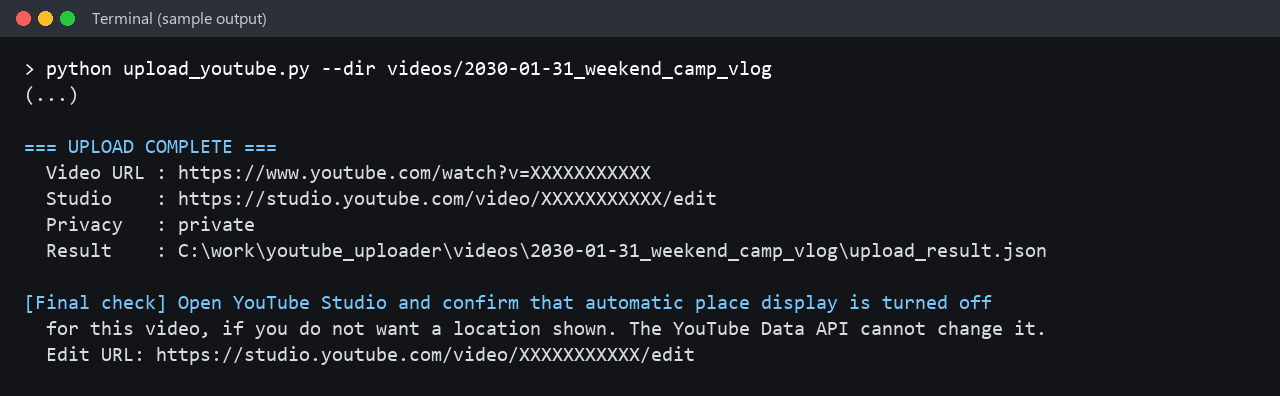
Open the Studio link and review the video details page: the title, the thumbnail, the visibility with its scheduled date, the playlist, and “Altered content”.
Then scroll to the bottom of that page and click “Show more”. The summary ends with a [Final check] reminder about automatic place display. YouTube can detect a place from the video itself and show it, and the API cannot change that setting, so the script reminds you to look. The options for automatic chapters and automatic concepts sit in the same area. The script does not change these either (as of November 2026 we found no matching API field). If you want any of the three off, turn them off here. Option names and positions in YouTube Studio can change.
A record of the upload stays in the folder as upload_result.json. It holds the privacy setting, the scheduled time in both local time and UTC, the playlists that were added, and any warnings, so you can look them up later without opening Studio.
7. Recap and what to read next
- Write the publish time in your computer’s local time, and confirm the UTC conversion in the dry run.
- A thumbnail over 2 MB is sent as a compressed 1280×720 JPEG.
- Adding to playlists is implemented, but not confirmed against the live API.
- Whether a video needs the AI disclosure is your decision.
What this pack reduces is the typing and clicking around each upload. It does not promise more views, subscribers or revenue. The first-time setup also takes some work: it includes configuring Google Cloud in your browser, and it suits people who are comfortable with an AI coding agent and a terminal.
- The whole product and what is in the ZIP: YouTube Auto-Upload Builder Pack: One Folder, One Command, Scheduled
- The folder layout and the dry run: One Folder, One Video: Catch Upload Mistakes With a Dry Run
- What the script can and cannot set, and how quota works: What the YouTube API Sets Automatically, What It Doesn’t, and Quota
- If finished videos keep waiting because uploading is a chore: Video Done, Upload Postponed? Break the YouTube Upload Chore Down
The product page is below. It is a builder pack with no support, a personal license for one person, $19 one-time.
▶ YouTube Auto-Upload Builder Pack for Solo Creators on Gumroad: https://ainavi.gumroad.com/l/youtube-auto-upload-builder-pack-solo
YouTube is a trademark of Google LLC. This product is not provided, endorsed or sponsored by Google LLC or YouTube.
コメント