“You’ll have to ask the person who does the uploads.” If that sentence is familiar, your channel has a single point of failure. Uploads pause the week that person is on vacation. When they change roles or leave, somebody has to write the handover notes from nothing.
This article explains why a workflow built with the YouTube Auto-Upload Builder Pack for Teams is easier to share than a routine that lives in YouTube Studio, and what to watch when a team or an agency uses it. It follows the files and the license terms included in the pack. The pack is a build kit that you set up on your own computers, not a hosted service, and it comes with no support.
- 1. Key-person dependency starts when the process lives in one head
- 2. Folders and text files make the process easy to share
- 3. Draft a team operations guide with the included follow-up prompt
- 4. Multiple channels: one project folder per channel
- 5. Sharing credentials inside a team
- 6. Agencies and client work: what the license allows
- 7. Unlimited seats in one organization, separate purchases for other entities
1. Key-person dependency starts when the process lives in one head
Uploading through YouTube Studio is easy to follow on screen. The screen tells you which fields exist. It does not tell you what your team puts in them. Which tags do you always add? Which category do you use? What time do videos go live, and in which time zone? Do new uploads start as private?
Those decisions pile up in one person’s memory and never get written down. Nobody plans it that way. It is simply faster to do the upload than to document it.
The first step out of key-person dependency is to make those decisions visible as files. A workflow built with this kit has that shape from day one.
2. Folders and text files make the process easy to share
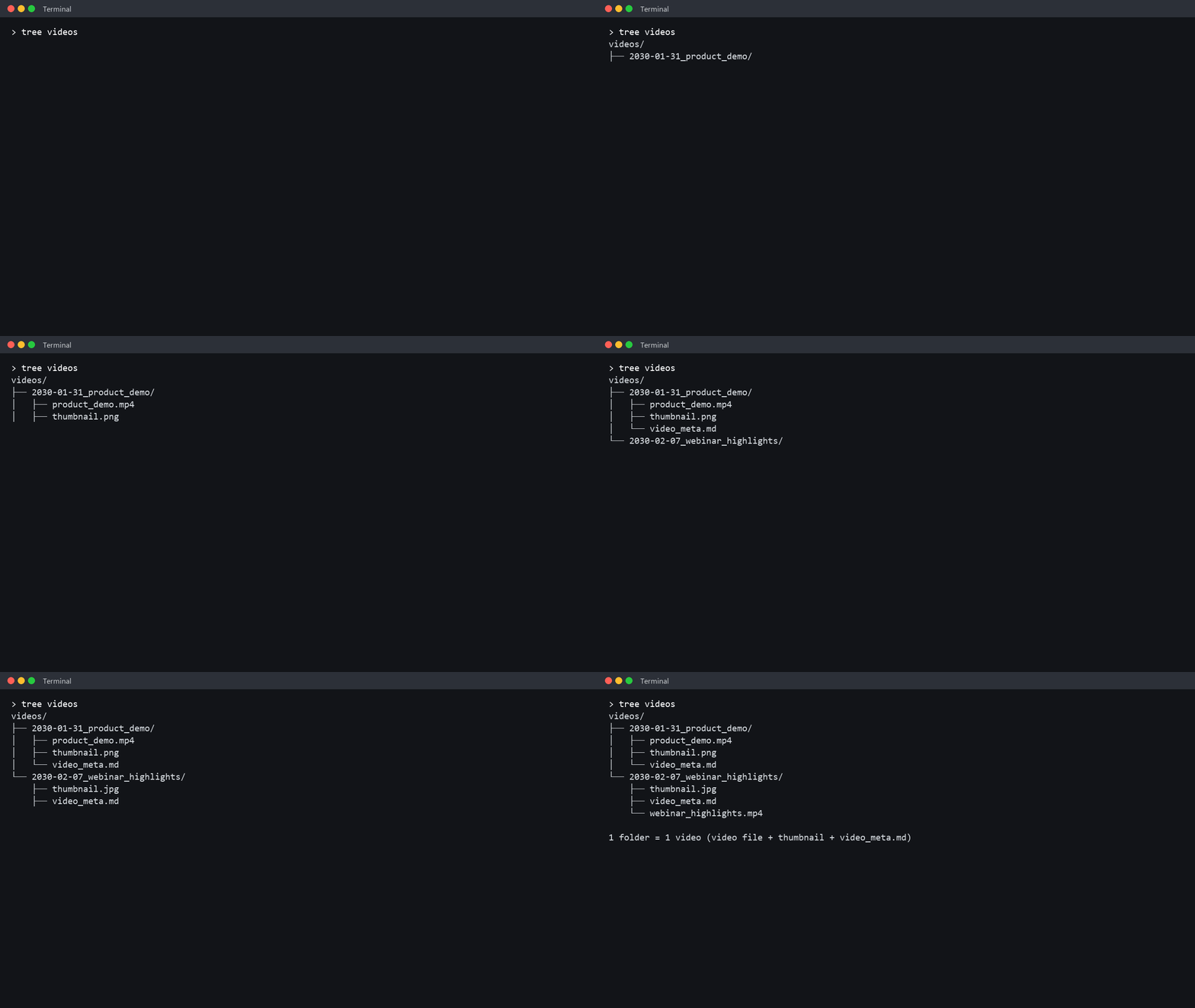
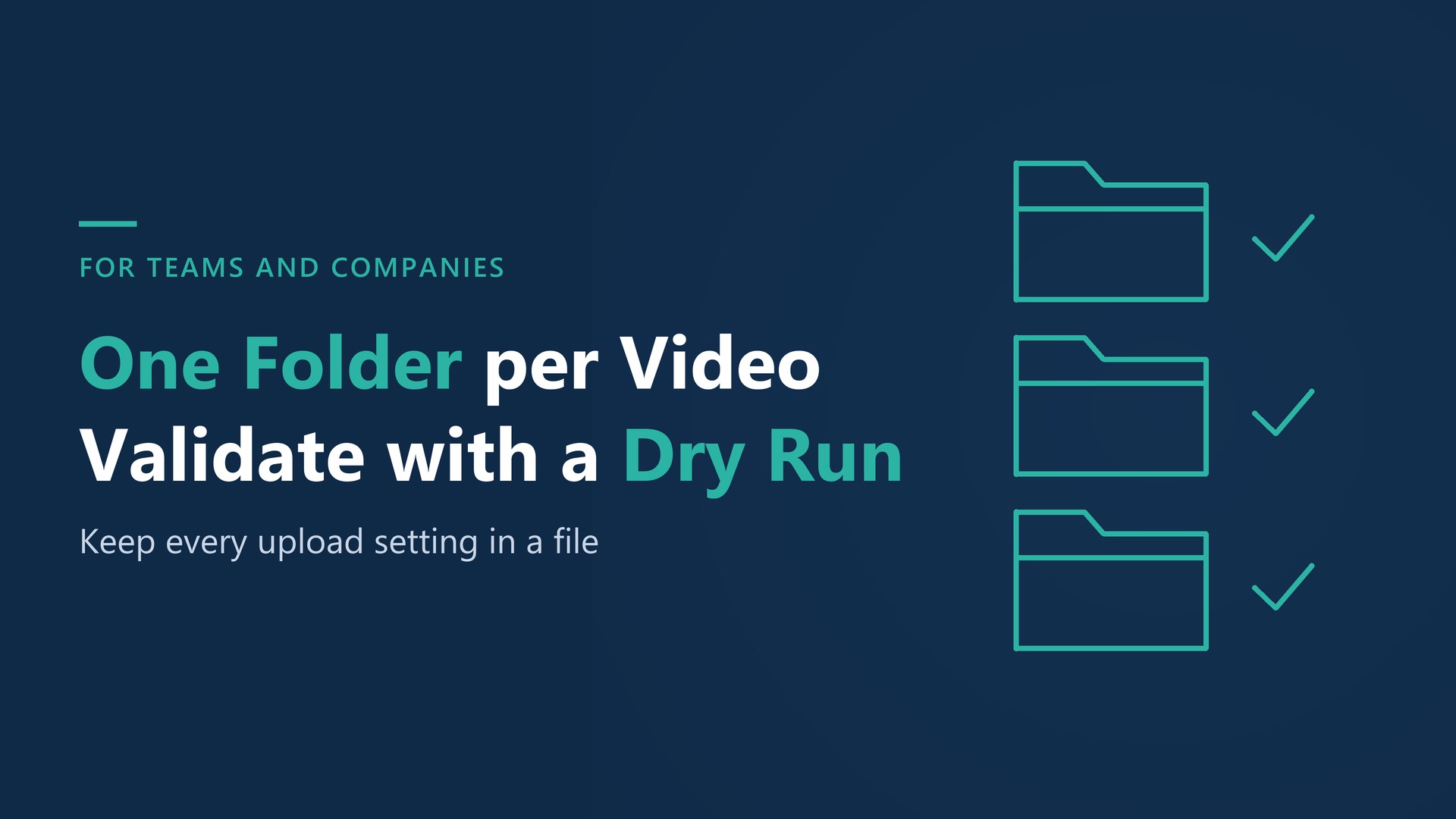
The reference code in the pack works on one rule: one folder is one video. For each video you create a folder and put the video file, a thumbnail and a text file named video_meta.md in it. The folder names below are fictional.
videos/
├── 2030-01-31_product_demo/
│   ├── main_video.mp4
│   ├── thumbnail.jpg
│   └── video_meta.md
└── 2030-02-07_webinar_highlights/
    ├── main_video.mp4
    ├── thumbnail.png
    └── video_meta.md
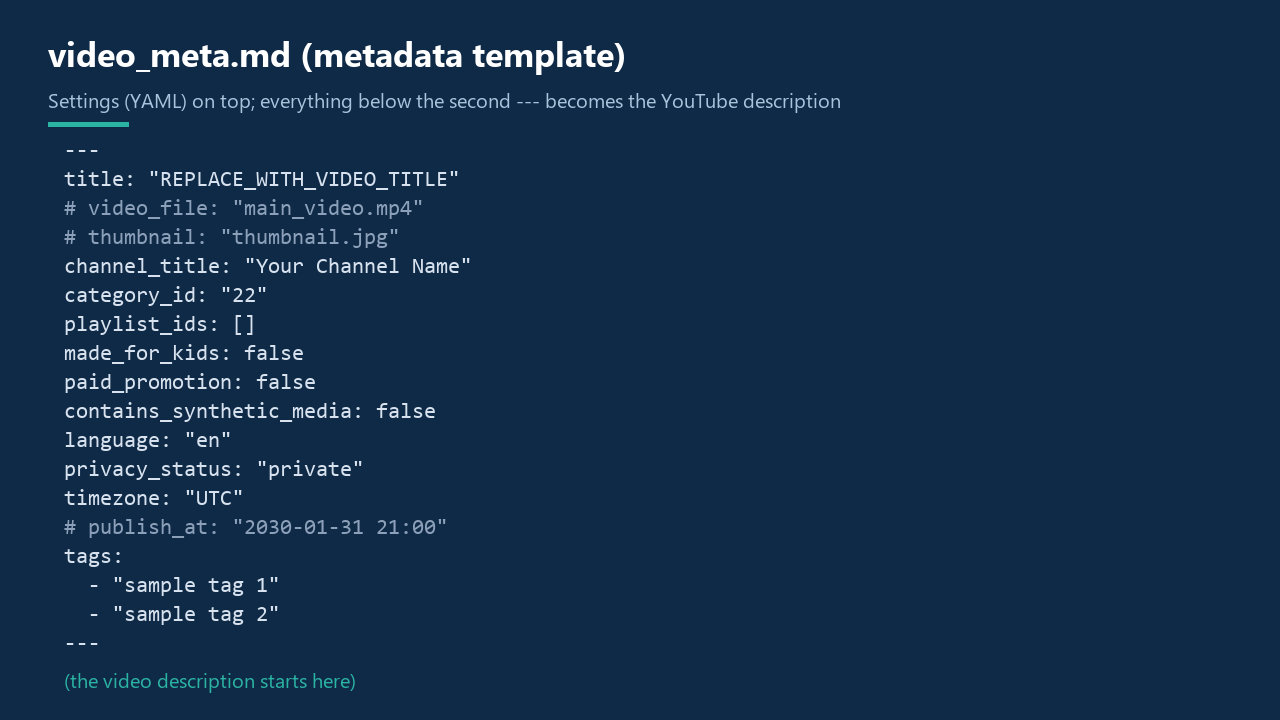
video_meta.md holds the title, tags, category, language, visibility, scheduled time, target channel name and more. There are 14 settings in all, and everything below the second --- line becomes the description. In the template, each setting comes with a short comment that explains what to write, so a colleague who opens the file for the first time can see what goes where.
Three things about this layout make a handover easier.
Past folders are worked examples. How did your predecessor title the product demos? Which tags did the webinar clips get? Open the folder and read the file.
Every upload uses the same commands. There are three to learn: --init-meta creates the metadata skeleton, --dry-run validates the folder, and the plain command uploads. A dry run is a rehearsal in which the script shows what it would send without sending anything. It does not call the YouTube Data API, the official channel a program uses to send instructions to YouTube, so no video is uploaded.
python upload_youtube.py --dir ./videos/2030-01-31_product_demo --init-meta
python upload_youtube.py --dir ./videos/2030-01-31_product_demo --dry-run
python upload_youtube.py --dir ./videos/2030-01-31_product_demo
There is a record. When an upload finishes, the script saves upload_result.json in the video folder. Later, any team member can check when the video was uploaded, to which channel and with which visibility.
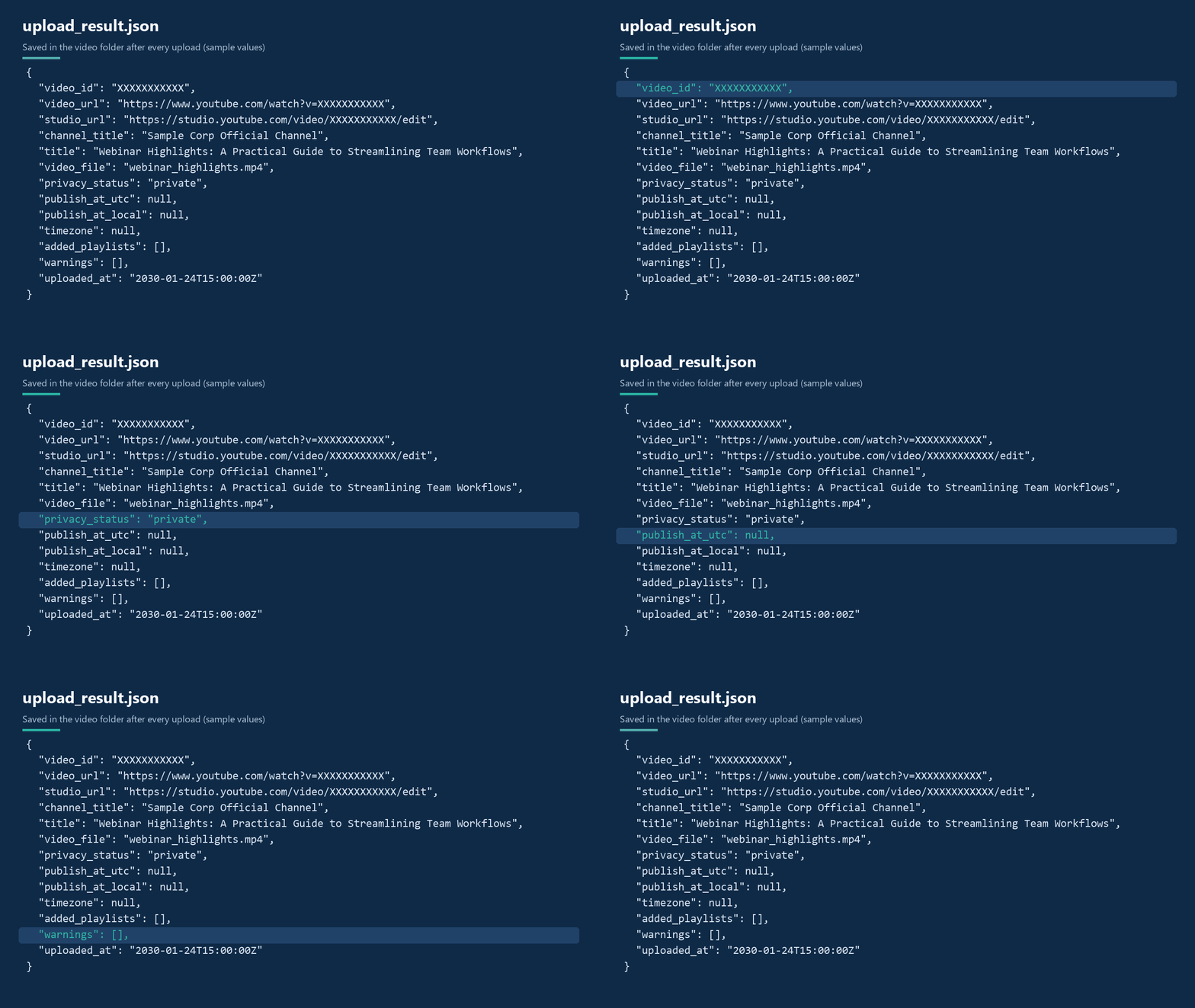
The same file drives the duplicate-upload guard: if upload_result.json is already in a folder, a second run on that folder stops. That has a practical consequence for teams. Keep the video folders in one shared place instead of letting each person hold a copy on their own laptop, because a copy without the result file is not protected. Note also that the example .gitignore in the pack excludes both video files and upload_result.json, so a Git repository will not carry those between computers for you.
3. Draft a team operations guide with the included follow-up prompt
You build the workflow by pasting the included master prompt into an AI coding agent such as Claude Code or Cursor. At the end of that prompt file there are three follow-up prompts you can paste as they are once the build is done: batch upload of several folders, changing the defaults, and an operations guide for the team.
The third one asks the agent to write a one-to-two-page operations guide for non-engineering staff. It covers how to create a video folder, how to fill in the metadata, the dry run, the upload, scheduling, and what to do when the token expires. It also tells the agent not to touch the contents of the credentials folder.
Because you ask in the same conversation in which the workflow was built, the draft can reflect your own folder layout and defaults. Still, AI agents do not produce the same output every time. Have someone follow the draft while doing one real upload, fix whatever does not match, and only then roll it out to the team.
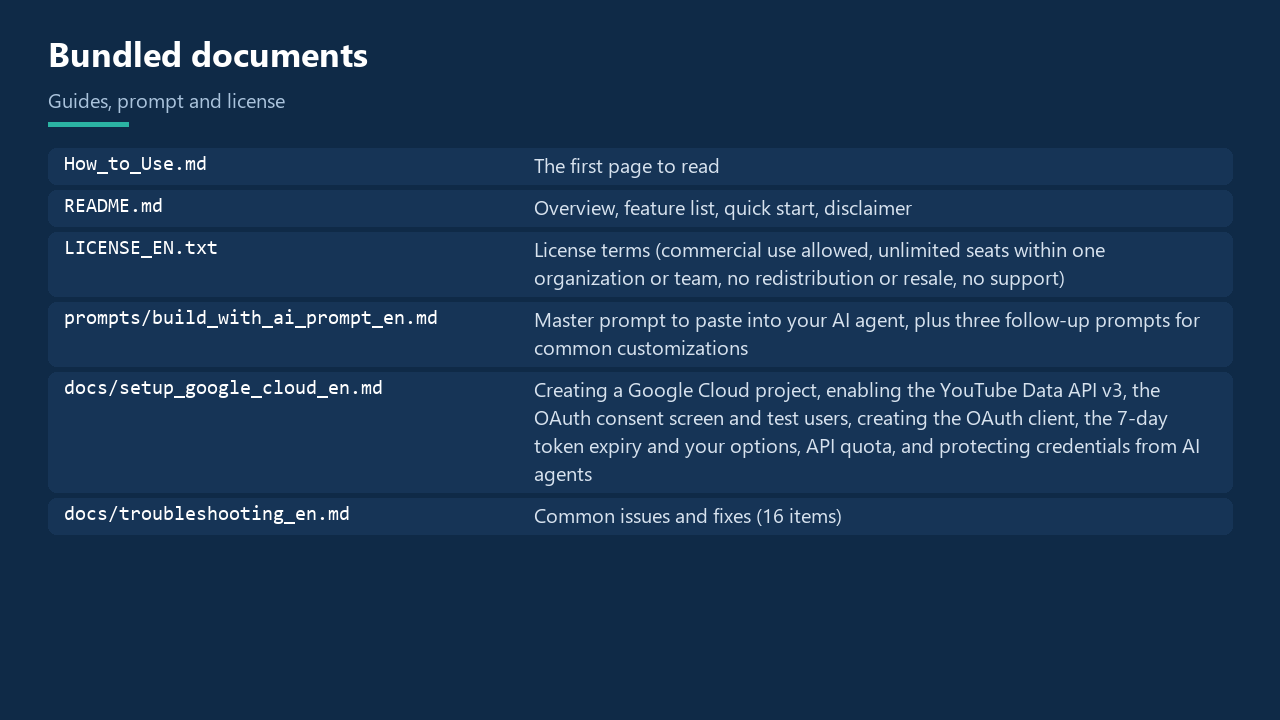
The troubleshooting guide in the pack helps with a handover as well. It has 16 items, organized by the message you see on screen, each with a cause and a fix. That widens what a new team member can look up without calling the person who used to do the job. This matters because the product includes no human support. The expectation is that your team resolves issues in-house with the setup guide and the troubleshooting guide.
4. Multiple channels: one project folder per channel
If you run more than one channel, such as a corporate channel and a recruiting channel, you need a defense against mix-ups.
The troubleshooting guide gives this advice: if you run several channels, keep a separate project folder per channel, including the secrets/ folder that holds the credentials.
On top of that, you can write the target channel name as channel_title in video_meta.md. The script compares it with the name of the signed-in channel and is written to abort before the upload when the two differ. The matching case, where the names agree and the upload proceeds, was verified against the live API. The abort on a mismatch is implemented but has not been tested against the live API. Using both, separate folders and the name check, makes a mistake easier to notice after the team changes.
“Project folder” here means a working folder on your computer, not a Google Cloud project. That distinction matters because of quota, the daily allowance of API usage. As of November 2026, the troubleshooting guide states that quota is counted per Google Cloud project and that creating multiple projects to get around the limit is prohibited by the YouTube API Services policies. Policies and limits like these change, so check the current official information.
5. Sharing credentials inside a team
Credentials are what a team has to handle most carefully. The secrets/ folder holds two files: the OAuth client file you download from Google Cloud, and a token file that is created automatically at the first sign-in. OAuth is the mechanism that lets you grant an app permission to act on your channel without giving it your password. A token is the saved proof of that permission. The how-to guide in the pack calls these files “keys that can act on your channel.”
The setup guide lists the rules:
- Do not paste the contents into an AI agent’s chat.
- Do not commit the file to Git, the tool many teams use to track changes to files.
- Do not share it by email or chat. If your team needs it, use a secure channel such as a password manager.
Saving the included gitignore.example as .gitignore keeps the credentials out of Git. The pack also includes an ignore-file example and permission settings meant to keep AI agents from reading the folder. The setup guide is frank about their limits: do not rely on settings alone, because reviewing what you approve is the most reliable safeguard.
At handover, confirm whose Google account the workflow is signed in with. This is the detail that most often turns out to be personal. Two facts from the setup guide, as of November 2026:
- If the user type on the OAuth consent screen is “External”, the account you upload with must be added as a test user.
- While the publishing status is “Testing” with the “External” user type, the token expires after 7 days and someone has to sign in through the browser again.
The setup guide describes three ways to handle the expiry, each with its trade-offs: re-authenticate every 7 days, switch the publishing status to “In production”, or use the “Internal” user type with Google Workspace. Which one fits is a decision for your IT team, since it depends on your security policy.
Finally, the last item in the troubleshooting guide covers what to do when credentials may have reached a third party, for example when you cannot account for every copy after someone leaves the team. You reset the client secret of the OAuth client, remove the app’s access, and sign in again.
6. Agencies and client work: what the license allows
Video production companies and agencies may use the pack in work that involves their clients’ channels. The license says so explicitly. Here are the main points of the relevant section of LICENSE_EN.txt.
What you may do. You may use the pack to build and operate video upload workflows for your clients. You may deliver the system you built or customized for a specific client, including code derived from the pack, to that client for the client’s internal use only.
What you may not do. You may not give the pack itself to a client. That means the full set, including the prompts and the documentation. You must also take reasonable steps to ensure that the client does not redistribute or sell what you deliver.
If a client wants to use the pack itself to build or adjust the workflow in-house, the client buys its own copy as a separate legal entity. The text of LICENSE_EN.txt is what governs, so read it before you sign a client contract that relies on it.
7. Unlimited seats in one organization, separate purchases for other entities
For in-house use, one purchase covers one legal entity, or one sole proprietorship, or one team. Inside it there is no limit on the number of people or devices. Officers and employees are covered, and so are contractors and temporary staff working on that organization’s business. There is no limit on the number of channels you operate or manage either. Adding people to the upload rotation costs nothing extra, which is the point when the goal is to stop depending on one person.
Separate legal entities each need their own purchase. That includes parent companies, subsidiaries and affiliates, as well as separate teams or groups. Redistributing or reselling the pack, uploading it to a public repository, and reselling it as a competing course or template are not allowed. Because it is a digital product delivered immediately, all sales are final except where required by law or by the platform’s policies.
For a purchase approval, the remaining facts are short. First-time setup in Google Cloud is required. Building the workflow and adjusting it to your environment is your own work, done with Claude Code or a similar agent. As an estimate, starting from this kit takes about 1 to 2 hours including the Google Cloud setup, compared with a few hours to a full day for an experienced engineer building it alone; both figures are estimates and vary with your environment and experience. The pack is meant for people who are comfortable with an AI coding agent, a terminal and the Google Cloud Console.
The overview article covers the whole product:
- Overview: YouTube Auto-Upload Builder Pack: What’s Inside and What to Know
- Which manual steps a script takes over: YouTube Upload Busywork, Step by Step: What a Script Can Take Over
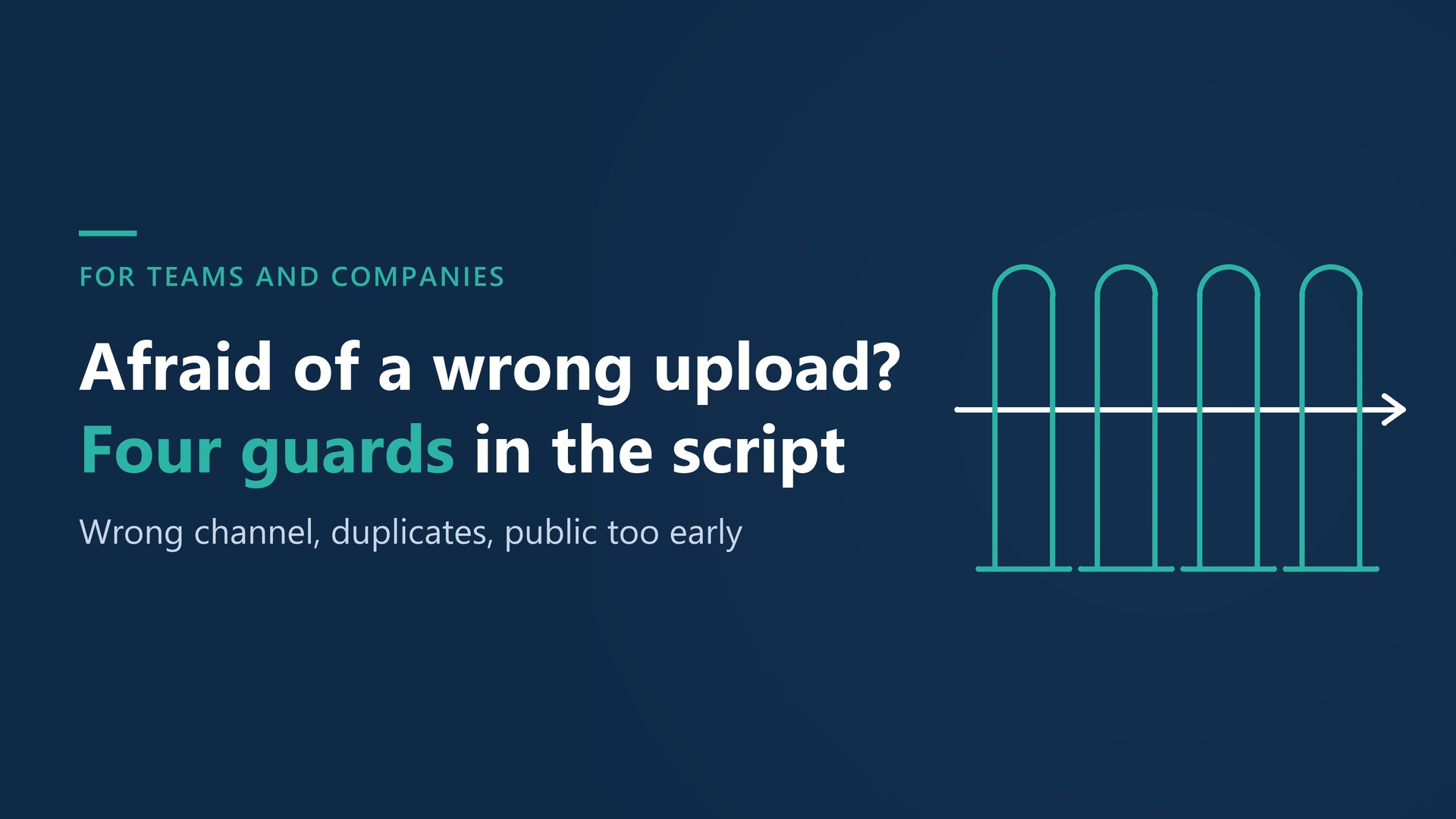
- How the workflow is built to prevent wrong uploads: Afraid of a Wrong Upload? Four Guards in a YouTube Upload Script
- Building it with the master prompt, and keeping credentials away from the AI: Let Claude Code Build Your YouTube Uploader Without Reading Secrets
- Common OAuth pitfalls and the 7-day token expiry: 3 OAuth Pitfalls in the YouTube Data API and How to Fix Them
The YouTube Auto-Upload Builder Pack for Teams is a build kit with no support, unlimited seats within one organization or team, $79 one-time. Separate legal entities each need their own purchase, and the pack may not be redistributed or resold.
Get it on Gumroad: https://ainavi.gumroad.com/l/youtube-auto-upload-builder-pack
YouTube is a trademark of Google LLC. This product is not provided, endorsed or sponsored by Google LLC or YouTube.
コメント