Every time your team publishes a video, someone opens YouTube Studio and types in the title, the description, the tags, the thumbnail and the publish time by hand. That is manageable at one video a month. As the number of videos and channels grows, typos and missed settings become a real worry, and the one person who knows the routine becomes a single point of failure.
This article is a plain walkthrough of the YouTube Auto-Upload Builder Pack for Teams: what is in it, what the code does, what was actually tested, how the license works, and the limits you should know about before you pay for it.
One thing up front. This is not a finished app, and it is not a hosted service. It is a build kit with no support: a foundation for building an upload workflow on your own computers. It costs $79 one-time on Gumroad, and one purchase covers unlimited seats within one organization or team.
- 1. What the Kit Lets You Build
- 2. What’s in the ZIP: 11 Files
- 3. What the Reference Code Does
- 4. From First-Time Setup to Every Upload
- 5. What Was Verified Against the Live API, and What Was Not
- 6. Building It Yourself vs. Starting From the Kit (Estimates)
- 7. License: Who Can Use It
- 8. What to Know Before You Buy
- 9. Summary
1. What the Kit Lets You Build
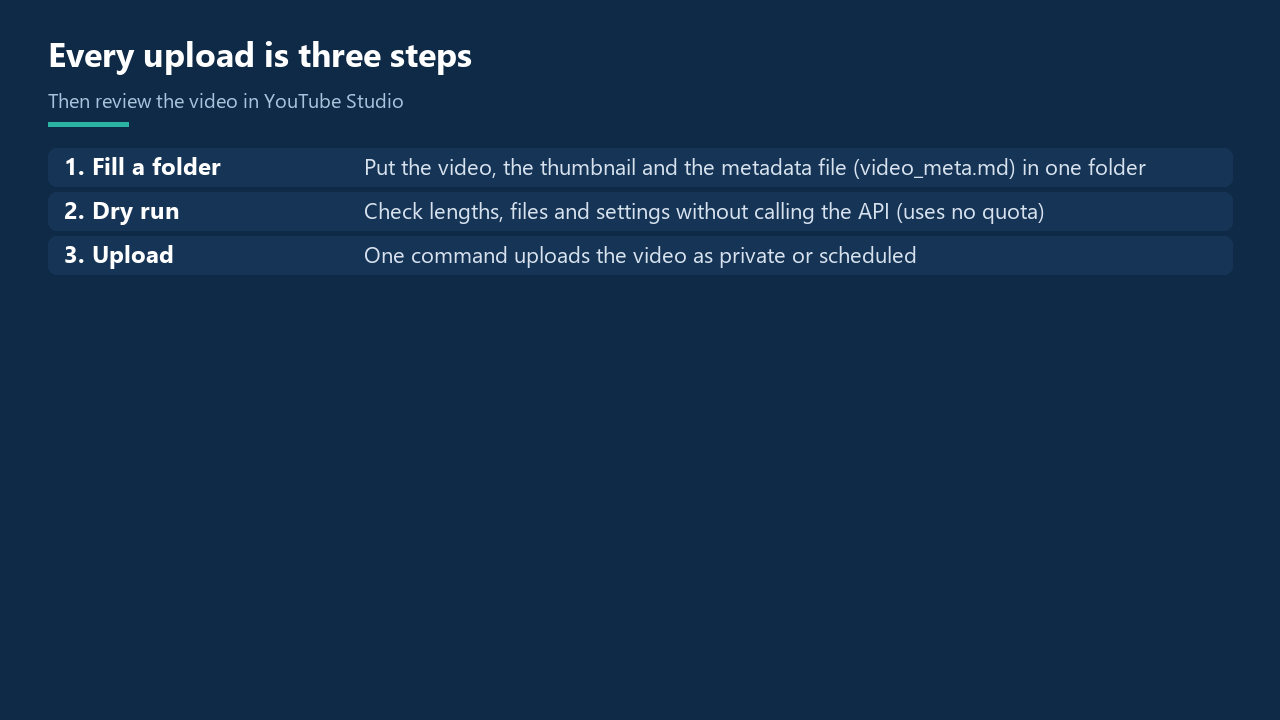
You put a video file, a thumbnail and a metadata file named video_meta.md into a folder. You run one command. The video is uploaded to YouTube as private, or as private with a scheduled publish time. The kit is what you use to build that workflow on your own machines. It does not create or edit videos.
Uploads go through the YouTube Data API v3. An API is the interface a program uses to operate another service, so a script sends the same information a person would otherwise click and type into YouTube Studio. Day to day, three commands do most of the work:
python upload_youtube.py --dir ./videos/2030-01-31_product_demo --dry-run
python upload_youtube.py --dir ./videos/2030-01-31_product_demo
python upload_youtube.py --dir ./videos/2030-01-31_product_demo --schedule "2030-01-31 21:00"
The first line is a dry run: a rehearsal that checks your settings and files without calling the API, so nothing is uploaded.
You build the workflow by pasting the included master prompt into an AI coding agent such as Claude Code, Cursor or Codex. The agent asks about your operating system, folder layout, default category and language, reads the reference code, and then implements or customizes it for your environment. If you prefer, you can skip the agent and use the reference code as it is.
2. What’s in the ZIP: 11 Files
The ZIP contains 11 files.
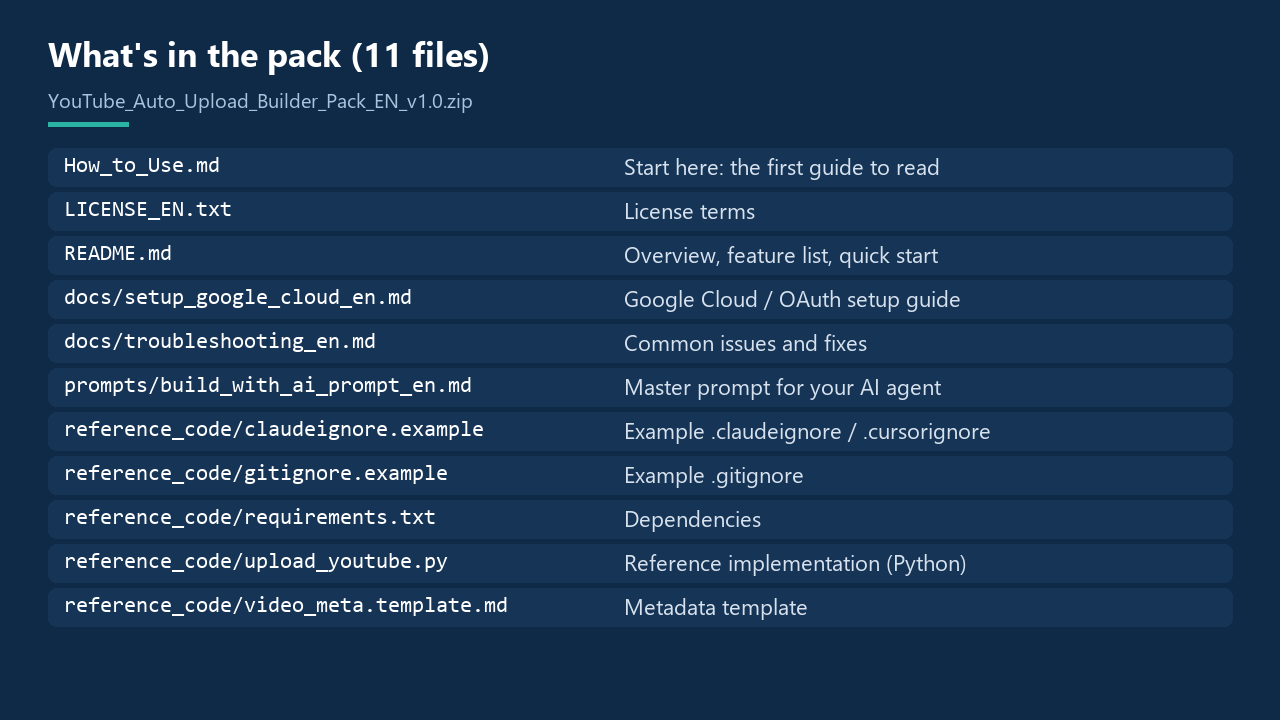
Start with How_to_Use.md. It covers the contents, the steps, a quick troubleshooting table and the terms of use. README.md gives the overview, the feature list and a quick start. LICENSE_EN.txt holds the license terms.
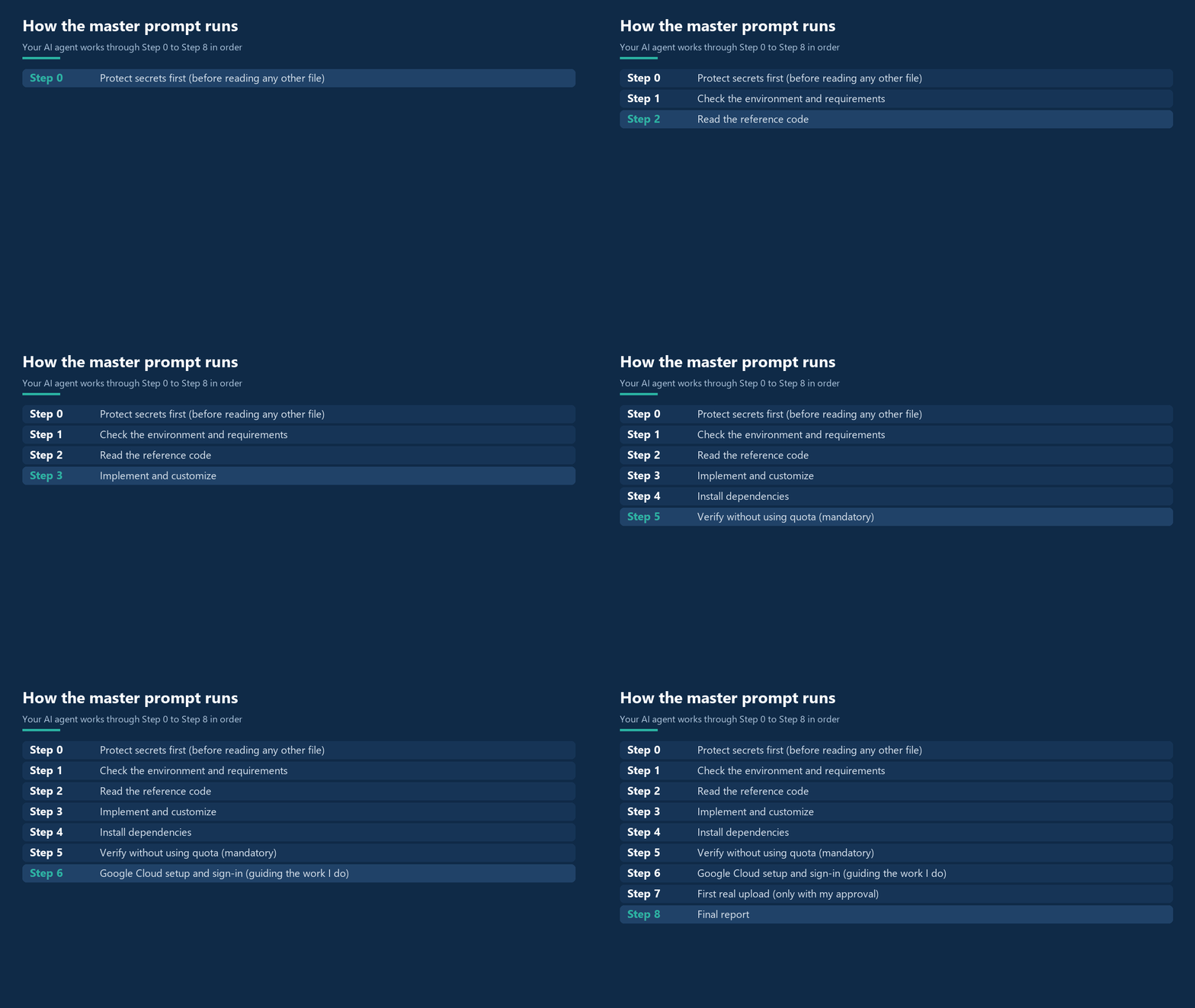
prompts/build_with_ai_prompt_en.md is the master prompt you paste into your AI agent. It consists of six security rules and a sequence that runs from Step 0 to Step 8: protect the credentials first, check your environment and requirements, read the reference code, implement and customize, install the dependencies, verify without using quota, walk you through Google Cloud setup, make the first real upload, and write a final report. You choose one of three build modes: use the reference code as is, customize it, or rebuild from scratch following the reference design. One of the security rules says the agent may not run a real upload on its own judgment; it has to get your explicit approval immediately beforehand. At the end of the file there are three follow-up prompts for common customizations: batch upload of several folders, changing the defaults, and an operations guide for your team.
The docs/ folder holds two guides. setup_google_cloud_en.md takes you from creating a Google Cloud project to creating the OAuth client, and also explains token expiry, quota, and how to keep credentials away from AI agents. OAuth is the sign-in standard that lets you grant an app permission to act on your account without handing over your password. troubleshooting_en.md collects 16 common issues and their fixes.
The reference_code/ folder holds five files: the reference implementation upload_youtube.py (Python, about 1,000 lines), the metadata template video_meta.template.md, the dependency list requirements.txt, and two examples, gitignore.example and claudeignore.example, that keep credentials out of Git and out of reach of AI agents.
3. What the Reference Code Does
The video is sent as a resumable upload in 16 MB chunks. If a server error or a dropped connection interrupts it, the code retries up to 5 times, waiting longer each time. Six video extensions are recognized: mp4, m4v, mov, webm, mkv and avi.
Metadata lives in video_meta.md. You can set the title, tags, category, language, privacy (private, unlisted or public), made for kids, paid promotion, AI disclosure (the “Altered content” setting in YouTube Studio), playlists and a scheduled publish time. Everything below the second --- line is sent as the video description. The name of the channel you intend to upload to goes in channel_title. A short example:
---
title: "Product Demo: January Release"
channel_title: "Sample Corp Official Channel"
category_id: "28"
language: "en"
privacy_status: "private"
timezone: "UTC"
publish_at: "2030-01-31 21:00"
tags:
  - "product demo"
---
Everything below the second --- line becomes the video description.
With --dry-run, the script checks limits such as 100 characters for the title, 5000 bytes for the description and 500 characters in total for tags, and confirms that the files exist. Because it does not call the API, it uses no quota, which is the daily allowance of API calls Google gives each project. When everything passes, the output looks like this (excerpt):
=== DRY RUN (no API calls, no quota used) ===
[Metadata to send]
  Scheduled      : 2030-01-31 21:00 (UTC) -> publishAt = 2030-01-31T21:00:00Z (UTC)
[Validation]
  -> OK: no errors / 0 warning(s). Ready to upload with these settings.
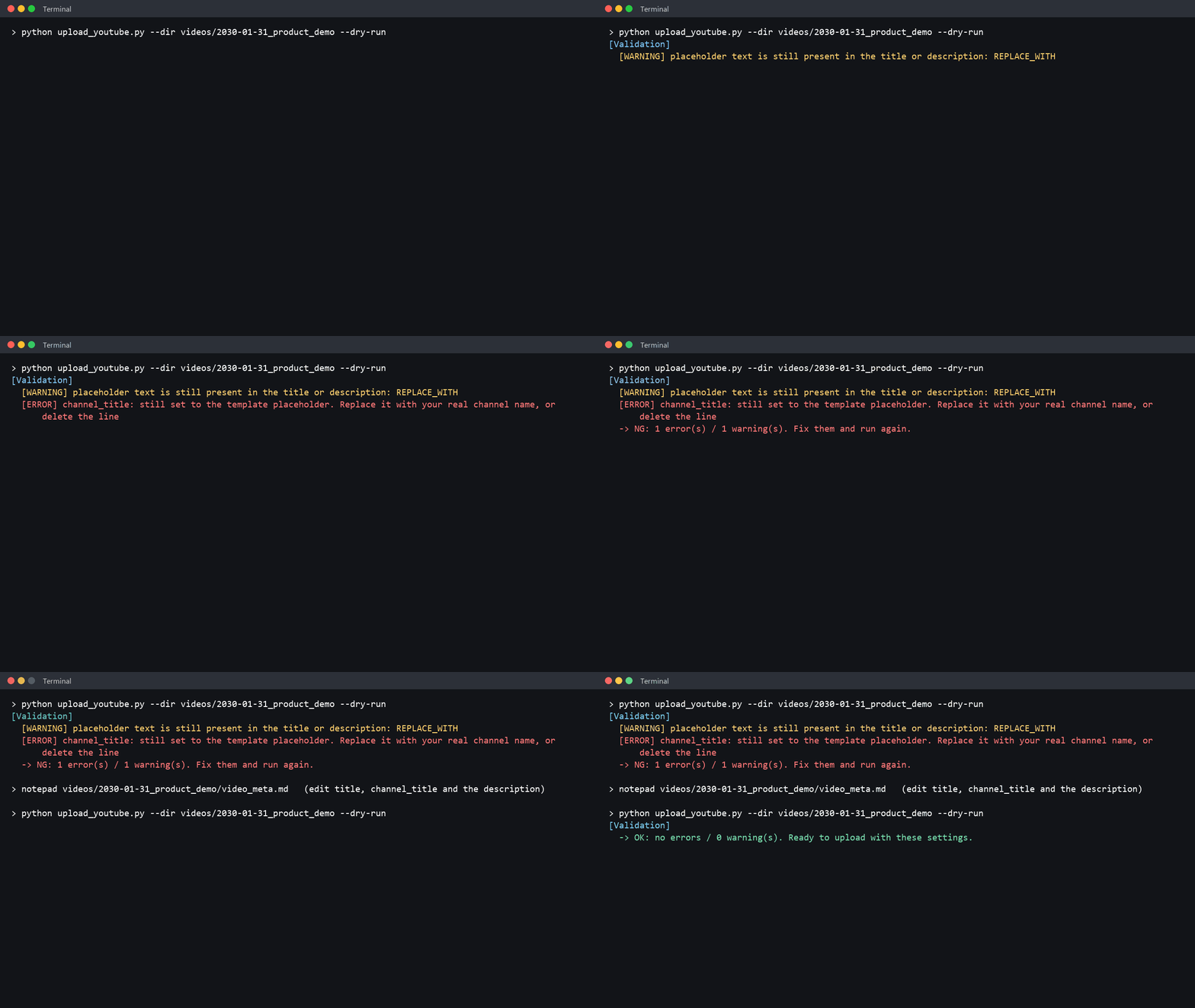
You write the scheduled time as local time in the time zone set in video_meta.md. The template default is UTC, and you can use any IANA name such as America/New_York; conversion to UTC is automatic. For thumbnails, an image over 2 MB, or one that is not JPEG or PNG, is converted to a 1280×720 JPEG before it is sent.
Two guards are there to prevent mistakes. If the channel name in channel_title differs from the channel you are signed in to, the upload is aborted before anything is sent. And because the result of each upload is saved to upload_result.json, running the command again on the same folder stops with “Aborted to prevent a duplicate upload.” unless you add --force.
The credential files are only checked for existence. Their contents are not printed or logged.
4. From First-Time Setup to Every Upload
The first time, you need to set up Google Cloud. Following the setup guide, you create a project, enable the YouTube Data API v3, configure the OAuth consent screen and add test users, and create an OAuth client of the “Desktop app” type. The guide says to allow 15 to 30 minutes, which is an estimate. You save the credential file into the secrets/ folder yourself. Do not hand it to an AI agent or to any third party.
Then you either paste the master prompt into your AI agent, or copy the reference code and install the dependencies into a virtual environment, which is an isolated Python setup that belongs to this one project. For the very first upload, use a short test video and leave it private.
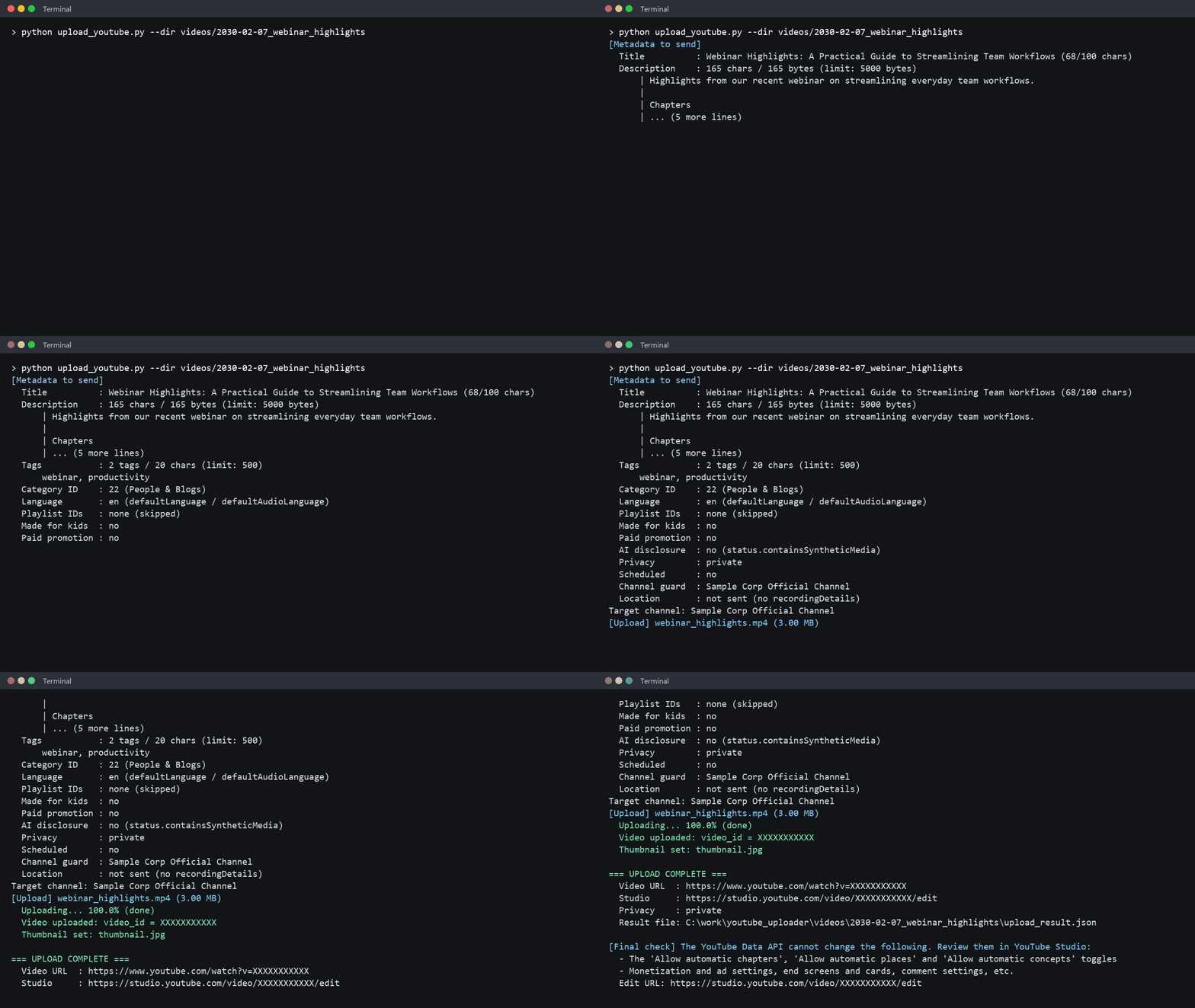
After that, every upload follows the same order: create the metadata skeleton with --init-meta, edit video_meta.md, validate with --dry-run, upload, and do a final check in YouTube Studio.
5. What Was Verified Against the Live API, and What Was Not
On Windows, private test videos were uploaded through the live API in November 2026. The following were confirmed: video upload with the metadata applied, thumbnail setting (with and without automatic compression), the AI disclosure setting (Yes and No), scheduled publishing, the channel-name guard (matching case), the duplicate-upload guard, --init-meta and --dry-run.
To be exact about how that was done: most of those live tests were run with the Japanese-language build of the same code. The English build has the same logic, with English messages and defaults.
The following are implemented but have not been tested against the live API: adding videos to playlists, the first-time browser sign-in, automatic retries on errors, video formats other than mp4, and macOS. Whatever you plan to rely on, test it in your own environment with a private test video first.
6. Building It Yourself vs. Starting From the Kit (Estimates)
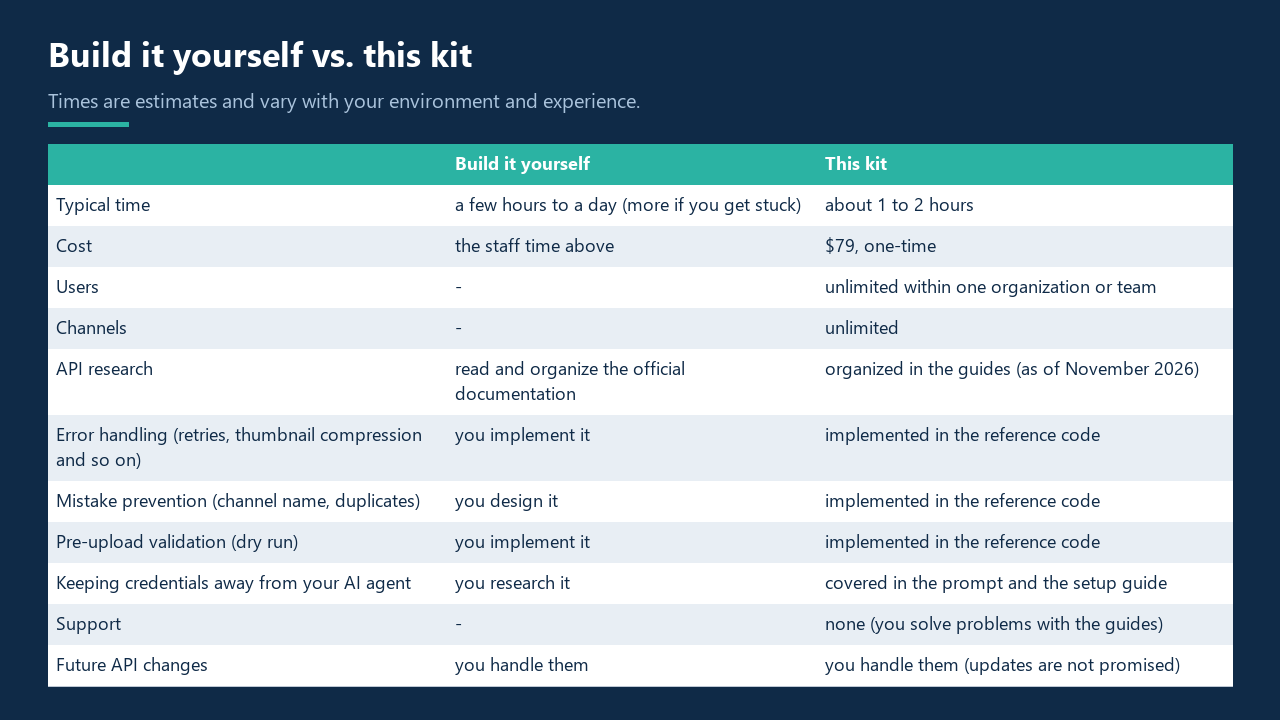
Researching the API, configuring OAuth, writing the upload logic, handling errors and testing typically takes an experienced engineer a few hours to a full day. Starting from this kit, the estimate is about 1 to 2 hours, including Google Cloud setup. Both figures are estimates and vary with your environment and experience. No specific result is promised.
A useful exercise before you decide: time one upload from start to finish, the way your team does it today.
The Gumroad product page is here: https://ainavi.gumroad.com/l/youtube-auto-upload-builder-pack
7. License: Who Can Use It
Commercial use is allowed. One purchase covers one organization or one team, and inside it there is no limit on the number of people, devices or channels. Client work is allowed too: you may build and operate upload workflows for clients, and you may deliver the system you built for a specific client to that client for its internal use. The pack itself may not be handed over.
Separate legal entities, including parent companies, subsidiaries and affiliates, each need their own purchase. Redistribution and resale are not allowed, and neither is uploading the pack to a public repository or reselling it as a competing course or template. The full terms are in LICENSE_EN.txt.
8. What to Know Before You Buy
No human support is included. There is no individual Q&A and no setup service, and you are expected to do the build and the adjustments yourself. The kit is for people who are comfortable with an AI coding agent, with running commands in a terminal, and with clicking through the Google Cloud Console. If all of that is new to you, it is not a good fit.
You need Windows 10 / 11 or macOS, Python 3.10 or later, a Google account, the YouTube channel you upload to, and a Google Cloud project. If an AI agent builds or adjusts the workflow for you, you also need your own subscription to Claude Code or a similar tool.
YouTube and Google impose limits of their own. The points below are as of November 2026, and both the rules and the wording on screen can change.
- Some settings cannot be changed through the API: the “Allow automatic chapters”, “Allow automatic places” and “Allow automatic concepts” toggles, monetization and ad settings, end screens and cards, and some comment settings. You review them in YouTube Studio after each upload.
- While the OAuth consent screen is in “Testing” status with the “External” user type, the token, which is the saved proof that you already signed in, expires after 7 days.
- The API quota limits how many videos you can upload per day. The default limit for video uploads is 100 per day.
Because this is a digital product delivered immediately, all sales are final except where required by law or by the platform’s policies. The pack is provided as is. Changes by Google or YouTube may break the workflow in the future, and updates are not promised.
9. Summary
The kit is a foundation for replacing the manual routine with three steps: put files in a folder, validate, upload. The build and the adjustments are your work.
These articles go deeper on individual topics:
- Three OAuth pitfalls and how to fix them: 3 OAuth Pitfalls in the YouTube Data API and How to Fix Them
- What the API can and cannot set, and the current quota rules: YouTube Data API: What You Can Set and Today’s Quota Rules
- One folder per video, and catching problems with a dry run: One Folder per Video: Catch YouTube Upload Mistakes with a Dry Run
- Building with the master prompt, and keeping credentials away from your AI agent: Let Claude Code Build Your YouTube Uploader Without Reading Secrets
- Rolling it out to a team, handover, and the scope of the license: Reduce Key-Person Risk in YouTube Uploads: Team Use and License Scope
It is a build kit with no support, unlimited seats within one organization or team, $79 one-time. Read the product page, and if it fits how your team works, you can get it on Gumroad.
YouTube is a trademark of Google LLC. This product is not provided, endorsed or sponsored by Google LLC or YouTube.
コメント