Between the moment a video is finished and the moment it goes live, somebody sits in YouTube Studio and fills in fields. Each upload is a short job. Across more videos and more channels, those short jobs add up to a real slice of someone’s week.
This article breaks that job into steps and shows, for a team that builds its workflow with the YouTube Auto-Upload Builder Pack for Teams, which steps a script takes over and which ones stay with a person. Everything below is based on the reference code (upload_youtube.py) and the guides included in the pack. The pack is a build kit, not a finished app, so the limits are spelled out as plainly as the features.
1. One upload, broken into nine steps
Publishing one video through YouTube Studio comes down to roughly nine steps:
- Pick the video file
- Type the title
- Paste the description
- Add the tags
- Set the thumbnail
- Add the video to a playlist
- Choose the visibility and, if needed, a scheduled publish time
- Declare whether the video is made for kids and whether it contains AI-generated or altered content
- Review everything before you save
None of these steps is hard. What makes the job tiring is the switching: moving between fields, pasting text that was prepared in another document, picking a date and time, ticking boxes. The typical mistakes are small ones. Text lands in the wrong field. The schedule is off by a day. Last week’s thumbnail is attached to this week’s video. They tend to show up once the job feels routine, which is exactly when nobody is double-checking.
There is a second cost that is easy to miss. When two or three people share the uploads, each of them handles these nine steps a little differently, and the differences only surface when something goes wrong.
The rest of this article goes through the nine steps and sorts them into two groups: the ones a script can take over, and the ones that stay with a person.
2. The steps one command replaces
The workflow you build with this kit uses the YouTube Data API v3. An API is the official channel that lets a program send instructions to YouTube instead of a person clicking through the screen.
You create one folder per video and put three things in it: the video file, a thumbnail, and a text file named video_meta.md. That file holds what you used to type into the screen. Here is a short example (all values are fictional):
---
title: "Product Demo: The Basics in 3 Minutes"
channel_title: "Sample Corp Official Channel"
category_id: "28"
playlist_ids: []
made_for_kids: false
contains_synthetic_media: false
language: "en"
privacy_status: "private"
timezone: "UTC"
publish_at: "2030-01-31 21:00"
tags:
  - "product demo"
  - "how to"
---
A three-minute walkthrough of the basics of our new product.
Everything below the second --- line is sent to YouTube as the description, as-is. With the folder in that state, one command sends seven of the nine steps together: the file, the title, the description, the tags, the thumbnail, the visibility and schedule, and the made-for-kids and AI declarations.
python upload_youtube.py --dir ./videos/2030-01-31_product_demo
A few details from the reference code:
- If the folder holds exactly one video file, the script finds it on its own.
- A thumbnail named
thumbnail.jpgorthumbnail.pngis detected automatically. Images over 2 MB, or images that are not JPEG or PNG, are converted to a 1280×720 JPEG before they are sent. Custom thumbnails require a phone-verified channel. - The scheduled time is read as local time in the
timezoneyou set. The template default isUTC. If you write an IANA time zone name such asAmerica/New_Yorkinstead, the script converts your local time to UTC for you.
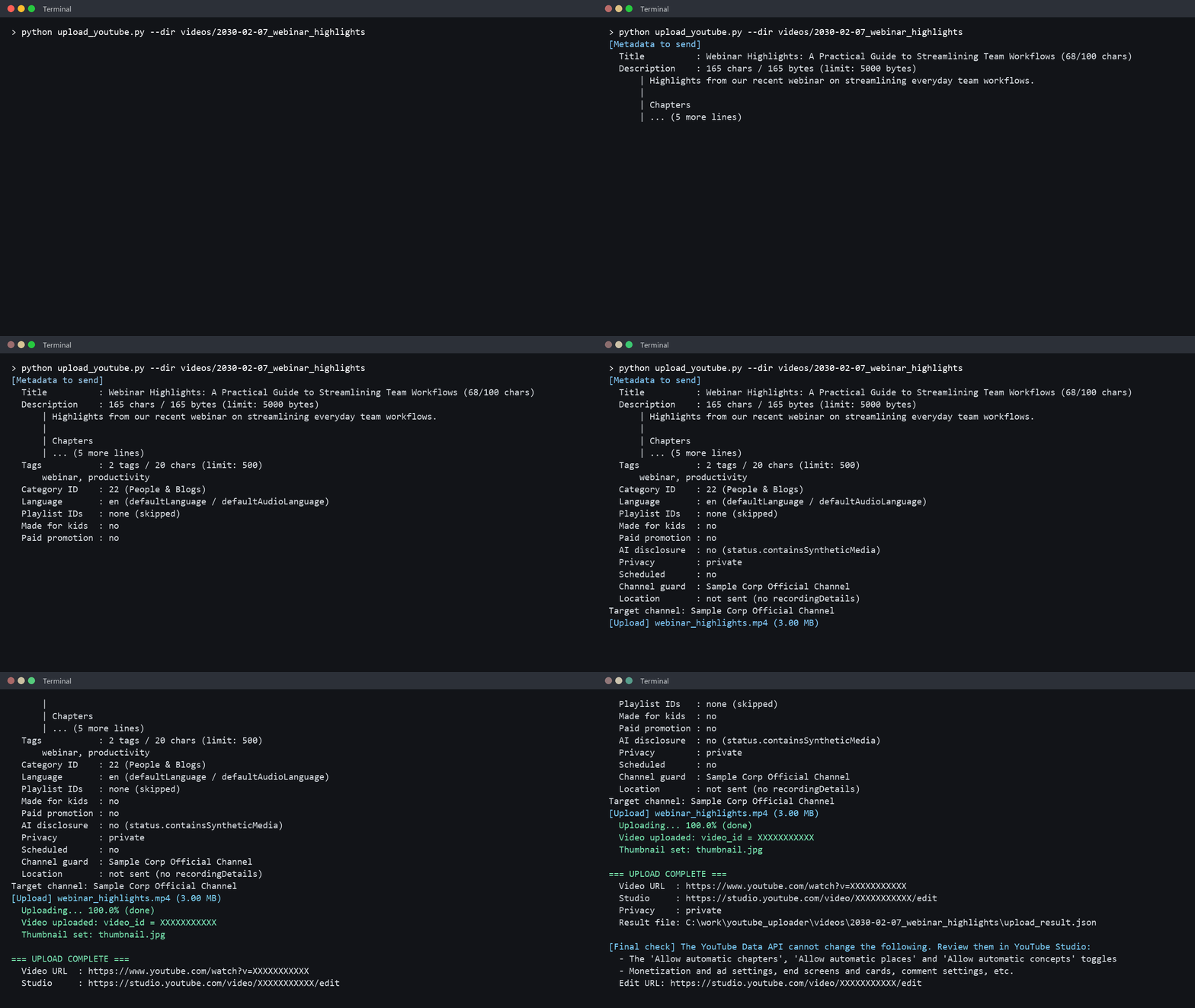
During a real run, the console shows lines such as these among the others:
Target channel: Sample Corp Official Channel
  Uploading... 100.0% (done)
=== UPLOAD COMPLETE ===
How much of this has been checked against the live API? On Windows, private test videos were uploaded through the live YouTube API in November 2026, and the following were confirmed: the upload itself; the title, description, tags, category and language being applied; the thumbnail, with and without automatic compression; the AI disclosure, set to both Yes and No; and scheduled publishing. Most of those live tests were run with the Japanese-language build of the same code. The English build has the same logic with English messages and defaults.
Step 6, adding the video to a playlist, runs inside the same command when you list playlist IDs under playlist_ids. That part is implemented but has not been tested against the live API. The same is true of the first-time browser sign-in, the automatic retries on errors, video formats other than mp4, and macOS. Check your first upload in YouTube Studio rather than assuming.
One thing does not go away: somebody still has to write the title and the description. What changes is where the writing happens. It moves from a form in YouTube Studio to a text file on your own computer. A text file is easier to copy from last time and adjust, and easier to send to a manager or a colleague for review before anything is published.
3. The steps that stay with a person
Step 9, the final review, stays with a person. There are two reasons.
The first is that not every option on the YouTube Studio screen has an API equivalent. The troubleshooting guide in the pack includes a table of what can and cannot be set.
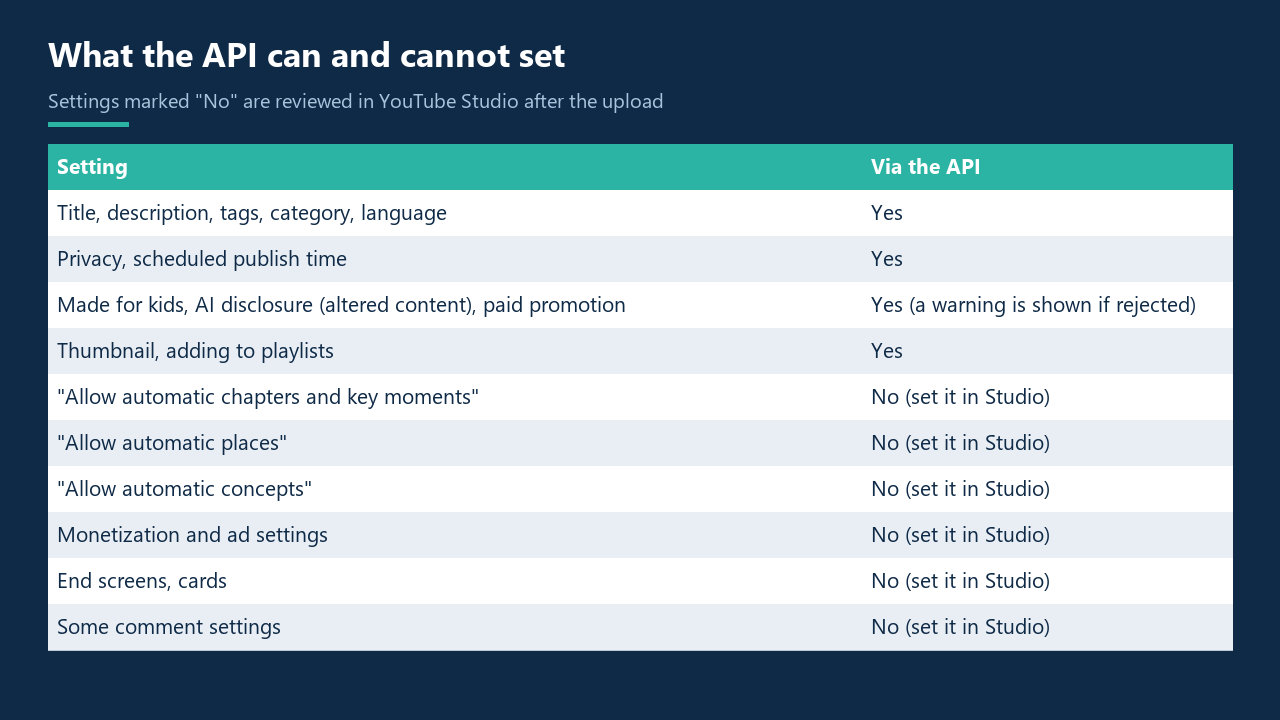
As of November 2026, the “Allow automatic chapters”, “Allow automatic places” and “Allow automatic concepts” toggles, monetization and ad settings, end screens and cards, and some comment settings cannot be changed through the YouTube Data API v3. API behavior changes over time, so treat that list as a snapshot. Because of this, the script ends every upload with a reminder and the YouTube Studio edit URL for the video:
[Final check] The YouTube Data API cannot change the following. Review them in YouTube Studio:
  - The 'Allow automatic chapters', 'Allow automatic places' and 'Allow automatic concepts' toggles
  - Monetization and ad settings, end screens and cards, comment settings, etc.
The second reason is the content itself. The script checks whether files exist, how long the text is, and whether each setting is in a valid format. It cannot tell whether the picture and sound are fine, whether the title matches what is in the video, or whether the video needs a disclosure. On AI disclosure, the troubleshooting guide says it directly: the uploader is ultimately responsible for required disclosures. If the API rejects the AI-disclosure field, the script uploads the video without it and tells you to set it manually in YouTube Studio.
So the typing shrinks, and the review stays. That is also why the default visibility is private: it leaves time for a person to look before anything is public.
4. The routine: place the files, validate, upload
Once the workflow is built, every upload follows the same three steps.
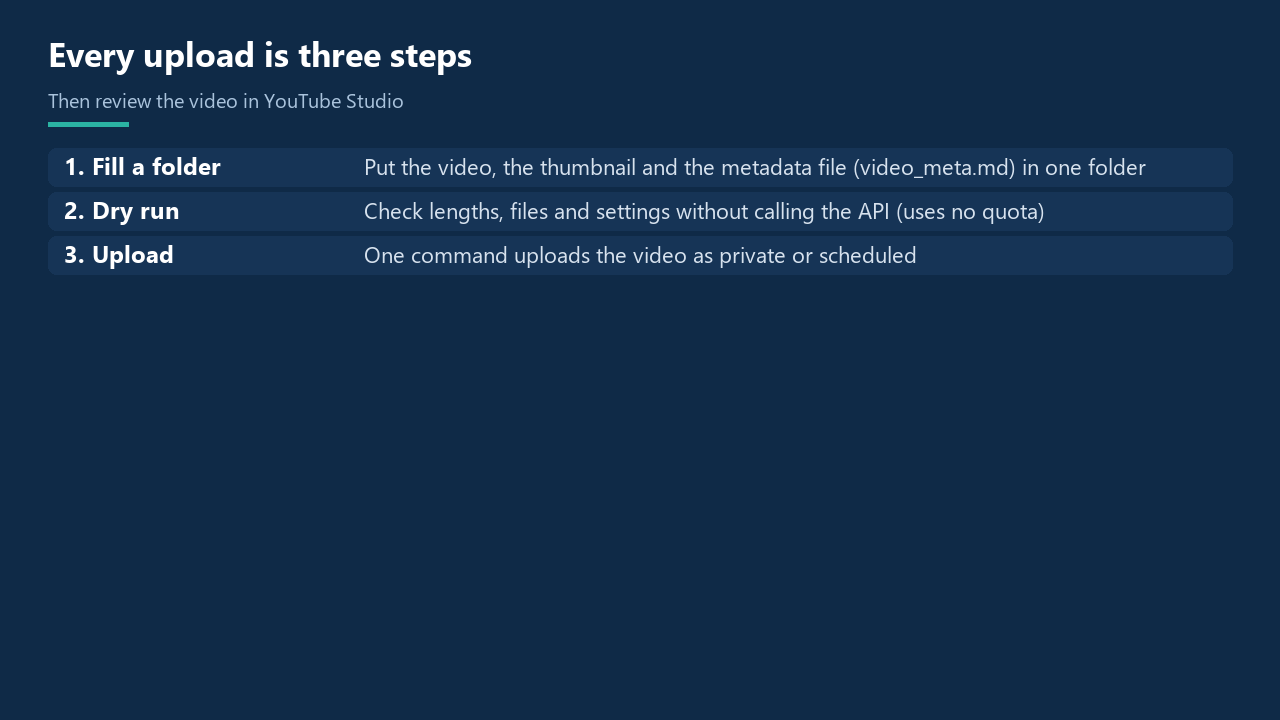
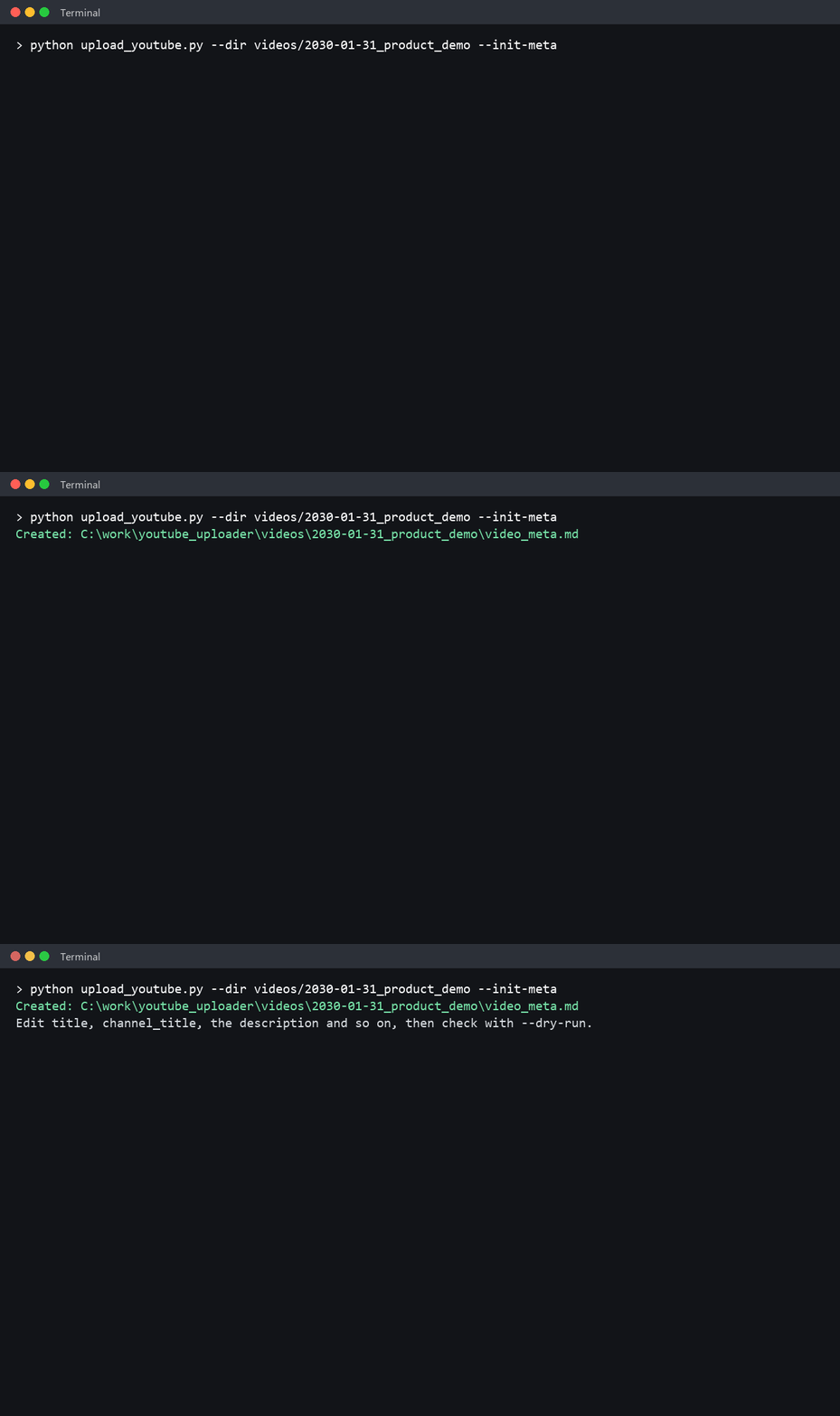
First, put the video and the thumbnail in the video folder and create a video_meta.md skeleton with --init-meta. The script prints Created: followed by the file location, then this hint:
Edit title, channel_title, the description and so on, then check with --dry-run.
If the file already exists, it is not overwritten.
Second, validate with --dry-run. A dry run is a rehearsal: the script shows what it would send without sending anything. It does not call the API, so no video is uploaded. Problems such as a title over 100 characters, a description over 5000 bytes, tags over 500 characters in total, or a scheduled time that is already in the past are reported as errors at this stage.
python upload_youtube.py --dir ./videos/2030-01-31_product_demo --dry-run
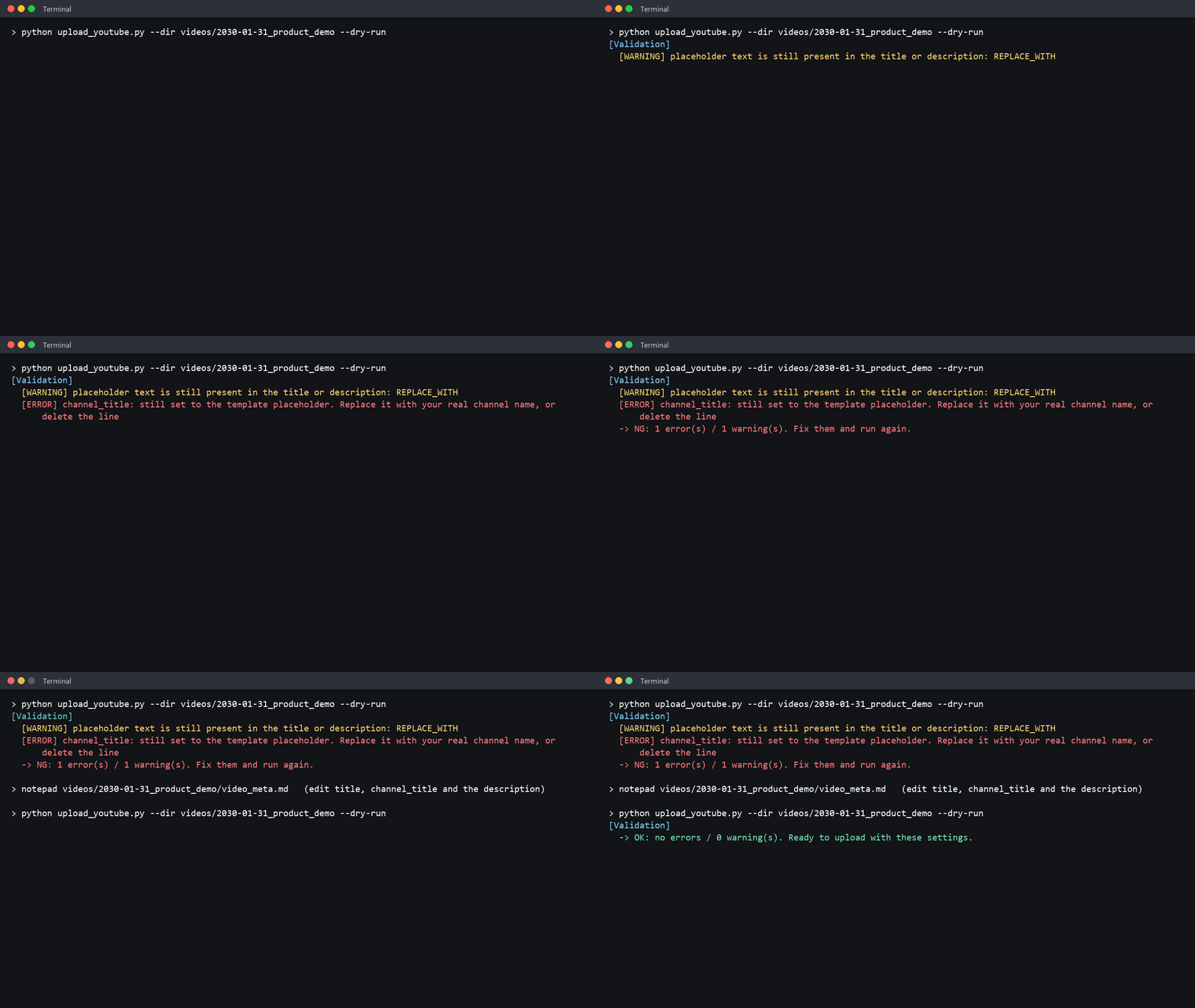
The output starts with === DRY RUN (no API calls, no quota used) ===. When the last line reads as follows, the folder is ready:
-> OK: no errors / 0 warning(s). Ready to upload with these settings.
Third, run the same command without --dry-run. When it finishes, open the edit URL it prints and go through the items from section 3 in YouTube Studio.
5. What to know before you start: setup and limits
This pack is not a finished app that works as soon as it is installed, and it is not a hosted service. It is a build kit: a foundation for building this workflow on your own computers. Please check the following before you decide.
First-time setup in Google Cloud is required. You create a project, enable the API, configure the OAuth consent screen and create an OAuth client of the “Desktop app” type. OAuth is the mechanism that lets you grant an app permission to act on your channel without giving it your password. As a rough estimate, researching and building all of this yourself takes an experienced engineer a few hours to a full day, and starting from this kit takes about 1 to 2 hours including the Google Cloud setup. Both figures are estimates and vary with your environment and experience.
You build it yourself. Either paste the included master prompt into an AI coding agent such as Claude Code or Cursor and let it build and adjust the workflow, or copy the reference code and use it as it is. The dependencies are installed into a virtual environment, which is a private copy of Python for one project that keeps its packages separate from the rest of the computer. You need Python 3.10 or later and Windows 10 / 11 or macOS. The pack is meant for people who are comfortable running commands in a terminal and clicking through the Google Cloud Console. No support is included.
There are operating limits. A token is the saved proof that you have already signed in and granted permission. While your OAuth consent screen is in “Testing” status with the “External” user type, that token expires after 7 days and you sign in through the browser again. The setup guide describes three ways to deal with this. There is also a quota, which is the daily allowance of API usage that Google gives each project. As of November 2026, the official documentation gives video uploads their own default allowance of 100 calls per day, and all other API methods a combined 10,000 units per day; setting a thumbnail and adding to a playlist cost 50 units each. Older tutorials may quote figures that no longer apply, and these values can change again. A dry run uses no quota at all.
Treat the credential files as keys. The files in the secrets/ folder can act on your channel. Do not hand their contents to an AI agent or to any third party.
6. Start by timing one upload yourself
This article does not say “you will save so many hours a month.” The number of videos, the length of the descriptions and the internal review flow differ from one team to the next, and a figure from a vendor would not necessarily describe yours.
Here is a better way to get a number. Time one upload from start to finish, from picking the video file to saving the visibility setting and closing the tab. If you can, note which of the nine steps in section 1 take the longest.
Multiply that time by the number of videos you publish in a month. That is what your team currently spends on manual entry. The part that belongs to the steps in section 2 is what a script could take over. The part that belongs to the review in section 3 stays after you adopt the workflow. That breakdown is a sounder basis for a purchase approval than any generic claim, and it takes one upload to produce.
The overview article covers the whole product:
- Overview: YouTube Auto-Upload Builder Pack: What’s Inside and What to Know
- How the workflow is built to prevent wrong uploads: Afraid of a Wrong Upload? Four Guards in a YouTube Upload Script
- Reducing dependence on a single person: Reduce Key-Person Risk in YouTube Uploads: Team Use and License Scope
- One folder per video, and the dry run in detail: One Folder per Video: Catch YouTube Upload Mistakes with a Dry Run
The YouTube Auto-Upload Builder Pack for Teams is a build kit with no support, unlimited seats within one organization or team, $79 one-time. Separate legal entities each need their own purchase, and the pack may not be redistributed or resold.
Get it on Gumroad: https://ainavi.gumroad.com/l/youtube-auto-upload-builder-pack
YouTube is a trademark of Google LLC. This product is not provided, endorsed or sponsored by Google LLC or YouTube.
コメント