This article shows how to write the publish time, the thumbnail, the playlists and the AI disclosure (the “Altered content” setting) into one file named video_meta.md and send them with a single command. These are features of upload_youtube.py, the reference code in the YouTube Auto-Upload Builder Pack for Teams. Every console message quoted below is copied from the English reference code.
- 1. The more settings per upload, the easier it is to miss one
- 2. Set the publish time with timezone and publish_at
- 3. Override only the schedule with –schedule
- 4. Thumbnails are found automatically and compressed when needed
- 5. Add the video to playlists by listing their IDs
- 6. AI disclosure, made for kids and paid promotion
- 7. What to check in YouTube Studio after the upload
- 8. Summary and related articles
1. The more settings per upload, the easier it is to miss one
Getting a video ready for scheduled publishing involves entering a date and time, replacing the thumbnail, choosing playlists and answering several disclosure questions. You repeat all of it for every video, so the more videos and channels you handle, the more likely it is that one setting slips through. An agency running several client channels feels this first, but an in-house team with a weekly release schedule gets there too.
The reference code uses one folder per video, and the upload settings live in a video_meta.md file inside that folder. The schedule, the thumbnail and the disclosure answers all go into the same file, so the pre-upload review comes down to reading that file.
---
title: "Customer Webinar Highlights"
thumbnail: "thumbnail.png"
channel_title: "Sample Corp Official Channel"
playlist_ids:
  - "REPLACE_WITH_PLAYLIST_ID"
made_for_kids: false
paid_promotion: false
contains_synthetic_media: true
privacy_status: "private"
timezone: "UTC"
publish_at: "2030-01-31 21:00"
---
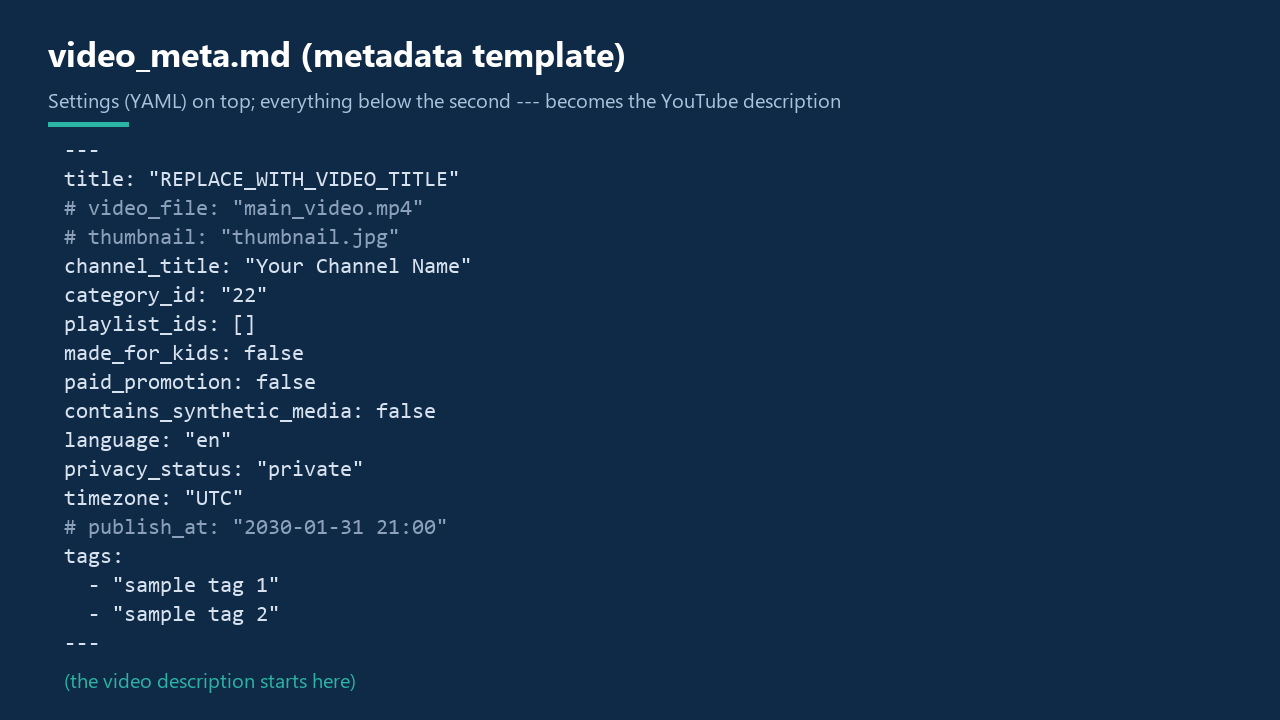
The channel name above is fictional, and the playlist ID is the placeholder that ships in the template. Keep in mind that this pack is not a finished app or a hosted service. It is a build kit, a foundation for setting up this workflow on your own computers and adjusting it to your environment.
2. Set the publish time with timezone and publish_at
Two settings control scheduling. timezone says which region’s clock the time should be read in, written as an IANA name such as America/New_York, Europe/London or UTC. publish_at is the date and time you want the video to go public, in that region’s local time, in the form "YYYY-MM-DD HH:MM". In the English build, the template default for timezone is UTC.
The publish time is sent to the API in UTC, Coordinated Universal Time. The API is the interface that lets software operate YouTube without a person clicking through the website. The reference code does the conversion for you, so the person filling in the file can write the time the way they think about it. You can see the result in a dry run, which is a rehearsal that shows what would be sent without actually sending anything.
  Privacy        : private
  Scheduled      : 2030-01-31 21:00 (UTC) -> publishAt = 2030-01-31T21:00:00Z (UTC)
With the default time zone, the two values match. Change the file to timezone: "America/New_York" and the same 21:00 becomes 2030-02-01T02:00:00Z, which is 9 p.m. Eastern on January 31 expressed in UTC. Teams that publish for audiences in more than one region can set the zone per video and stop doing that arithmetic by hand.
Notice that the privacy setting is private. A scheduled video is uploaded as private and goes public automatically at the scheduled time. If you leave privacy_status set to public or unlisted and also set a schedule, the script switches it to private and tells you so with a warning that reads, for example, scheduled upload: privacy_status is changed from public to private (the video goes public automatically at the scheduled time).
Mistakes in the date are caught before anything is sent. A time that has already passed produces an error ending in is in the past. For timezone, the bundled troubleshooting guide advises using the full IANA name, because abbreviations such as EST or PST are not reliable. If the name cannot be resolved, the dry run reports an error that starts with timezone: cannot resolve. On Windows, the time zone data comes from the tzdata package, which is listed in the pack’s requirements.txt.
3. Override only the schedule with –schedule
You can also give the publish time on the command line and leave the file alone. --schedule overrides the publish_at value. The time is read as local time in the timezone set in video_meta.md.
python upload_youtube.py --dir ./videos/2030-01-31_product_demo --schedule "2030-01-31 21:00" --dry-run
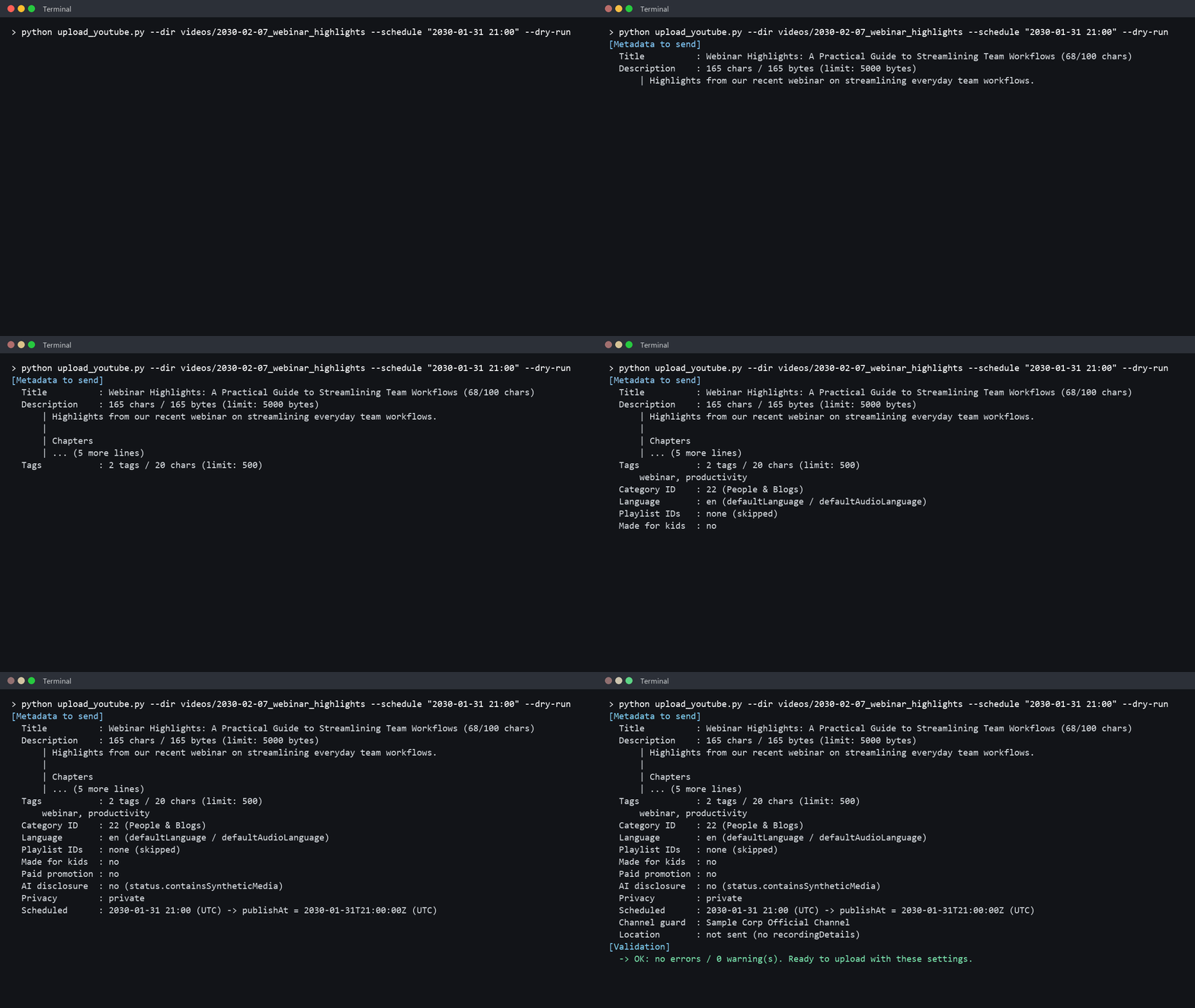
This supports a common way of working: prepare the metadata as soon as the edit is finished, and add the date to the command once the release date is confirmed. With --dry-run on the same command, you can check the conversion without calling the API. Remove --dry-run when you are ready to upload.
4. Thumbnails are found automatically and compressed when needed
You name the thumbnail file with the thumbnail setting. If you leave it out, the script looks in the folder for thumbnail.jpg, thumbnail.png and similar names. If none of those exist, it uses the image in the folder only when there is exactly one. When it cannot decide, it adds the warning thumbnail: no single image could be identified, so the thumbnail step is skipped and uploads the video without a thumbnail.
The reference code converts the image in two cases: when the file is larger than 2 MB, and when it is not a JPEG or PNG. In either case it resizes the image to a 1280×720 JPEG and sends that instead. Your original file is not modified. The dry run tells you in the [Files] section whether a conversion will happen. In the line below, “…” stands for the actual sizes.
Thumbnail : thumbnail.png (…, …) -> needs conversion -> sent as a 1280x720 JPEG (… after conversion)
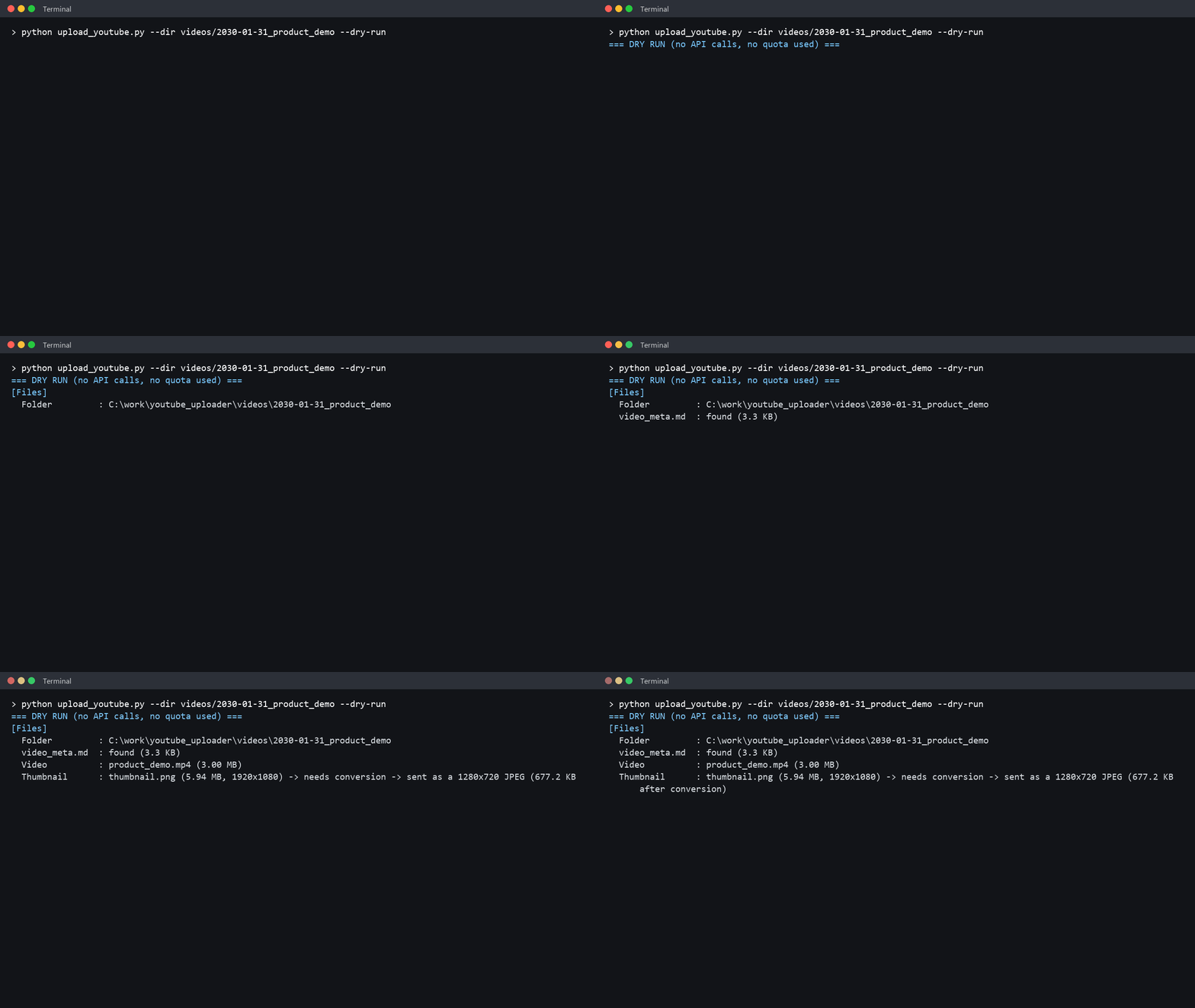
An image that needs no conversion shows 2 MB or less, sent as-is on the same line. If such an image is not 16:9, you get a warning about its dimensions so that you can fix it before the upload.
There is one condition on YouTube’s side. Custom thumbnails require a phone-verified channel. On a channel that is not verified, the upload ends with a warning that starts Could not set the thumbnail: HTTP 403. The video upload itself still counts as a success, and the warning is saved in the result file, so you only need to set the thumbnail for that one video in YouTube Studio.
5. Add the video to playlists by listing their IDs
To add the uploaded video to a playlist, write the playlist ID under playlist_ids. Playlist IDs start with PL, and you can list more than one. Each successful addition prints a line starting with Added to playlist:. If an addition fails, the video upload still counts as a success and a warning starting with Could not add to playlist is kept in the result.
Adding to playlists is implemented in the reference code but has not been tested against the live API. Try it with a private test video when you set the workflow up.
A word on quota, the daily allowance of API usage that Google gives each project. According to the bundled setup guide, as of November 2026 the official documentation gives video uploads their own allowance of 100 calls per day by default, and gives all other API methods a combined 10,000 units per day. Setting a thumbnail costs 50 units and adding to one playlist costs 50 units, so a video with both uses about 100 units from the second allowance. Quotas reset at midnight Pacific Time. The quota system has changed several times, and older tutorials quote figures that no longer apply, so check the official documentation for current values.
6. AI disclosure, made for kids and paid promotion
Three settings are declarations, and each takes true or false, written without quotes.
contains_synthetic_media is the AI disclosure, the setting YouTube Studio calls “Altered content.” Set it to true when realistic-looking video or audio was generated or altered with AI. When the value is false, the reference code still sends an explicit “No,” because otherwise Studio would show neither answer selected. The dry run prints your answer on the AI disclosure line.
made_for_kids declares whether the content is made for children. paid_promotion declares whether the video includes paid promotion such as a sponsorship or product placement. When you set paid_promotion to true, the dry run adds a reminder to confirm the “Paid promotion” setting in YouTube Studio after the upload.
Depending on the API version and the state of the account, the AI-disclosure and paid-promotion fields are sometimes not accepted. The reference code is written so that if the API rejects one of them, it drops that field, retries exactly once and puts the video upload first. In that case a warning stays in the result, ending with Set 'Altered content' manually in YouTube Studio.
The uploader is ultimately responsible for required disclosures. If a video produced this warning, check its settings in YouTube Studio before it goes public.
7. What to check in YouTube Studio after the upload
The following were verified against the live YouTube API on Windows in November 2026, by uploading private test videos: scheduled publishing, setting the thumbnail with and without automatic compression, and the AI disclosure set to both Yes and No. Adding to playlists, and the retry after the API rejects a field, are implemented but have not been tested against the live API.
Also, not everything on the YouTube Studio screen can be set through the API.
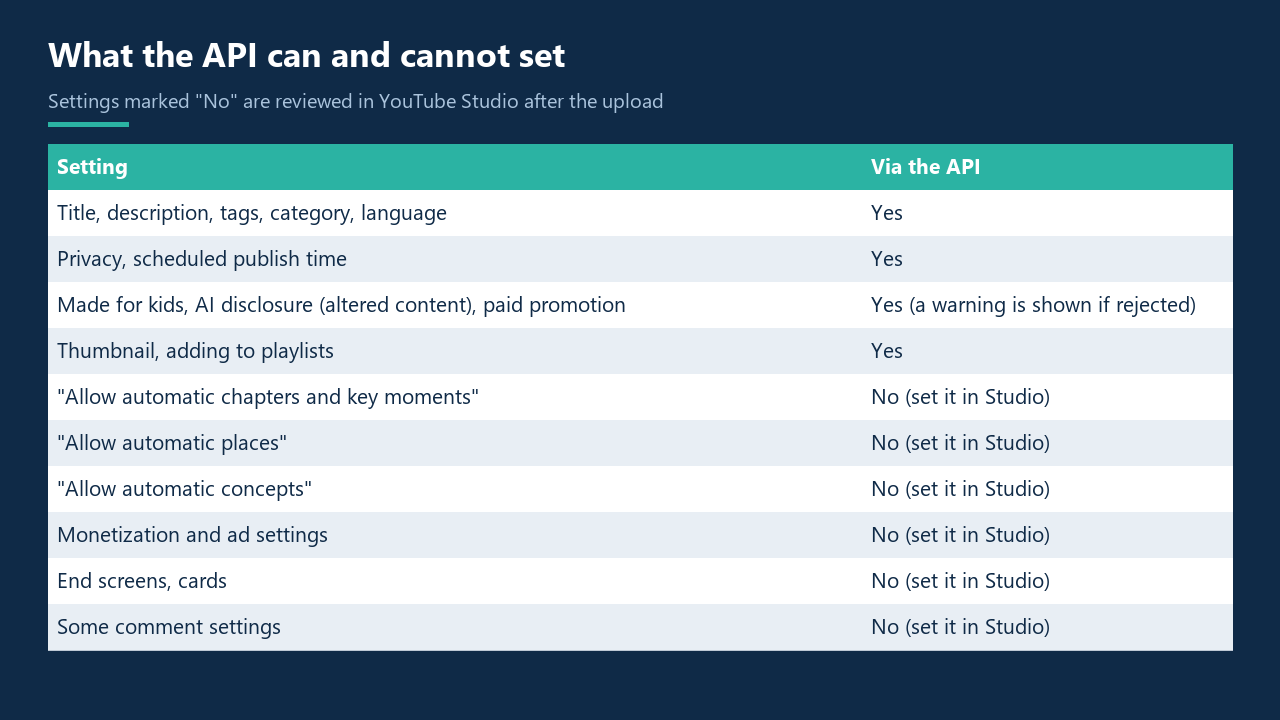
As of November 2026, the “Allow automatic chapters,” “Allow automatic places” and “Allow automatic concepts” toggles, monetization and ad settings, end screens and cards, and some comment settings cannot be changed through the API. When an upload finishes, the script prints [Final check] The YouTube Data API cannot change the following. Review them in YouTube Studio: followed by the list and an Edit URL: line. Open that link and review the video’s details page.
You may have read in older tutorials that videos uploaded through the API from unverified projects get locked to private. The bundled guide notes that the official revision history announced the removal of that restriction in November 2026, and that these rules can change again.
That is one more reason to make your first upload a short test video that stays private. Confirm in YouTube Studio that the scheduled time and the thumbnail are what you intended, and only then move to production.
8. Summary and related articles
Write the publish time in your own time zone and let the conversion to UTC happen automatically. Let thumbnails that do not meet the requirements be compressed for you. Declare playlists and AI disclosure in the same file. With the settings gathered in one place, there is one place to review before each upload. Keep the final check in YouTube Studio as a fixed step in your process.
- Overview of the whole kit: YouTube Auto-Upload Builder Pack: What’s Inside and What to Know
- One folder per video, and finding problems with a dry run before you upload: One Folder per Video: Catch YouTube Upload Mistakes with a Dry Run
- What the API can and cannot set, and how quota works today: YouTube Data API: What You Can Set and Today’s Quota Rules
- Having Claude Code or Cursor build the workflow from the master prompt: Let Claude Code Build Your YouTube Uploader Without Reading Secrets
The YouTube Auto-Upload Builder Pack for Teams is sold on Gumroad. It is a build kit with no support, unlimited seats within one organization or team, $79 one-time. Separate legal entities each need their own purchase, and the pack may not be redistributed or resold. The first-time setup includes configuring a Google Cloud project, and the pack is written for people who are comfortable using an AI coding agent and running commands in a terminal.
Get the pack on Gumroad: https://ainavi.gumroad.com/l/youtube-auto-upload-builder-pack
API details in this article are based on the documentation bundled with the pack, as of November 2026. Specifications and on-screen wording may change.
YouTube is a trademark of Google LLC. This product is not provided, endorsed or sponsored by Google LLC or YouTube.
コメント