- 1. Why minutes become the job nobody wants
- 2. The usual options, and why they stall
- 3. The approach: don’t re-listen, don’t upload, fix the format
- 4. Demonstration: from a recording to four-section minutes
- 5. What the generated minutes look like
- 6. How long it takes (CPU-only vs. GPU)
- 7. Three habits that raise accuracy
- 8. Honest limits to know before you rely on it
- 9. Adapting the minutes format to your organization
- 10. Getting started and where to go next
1. Why minutes become the job nobody wants
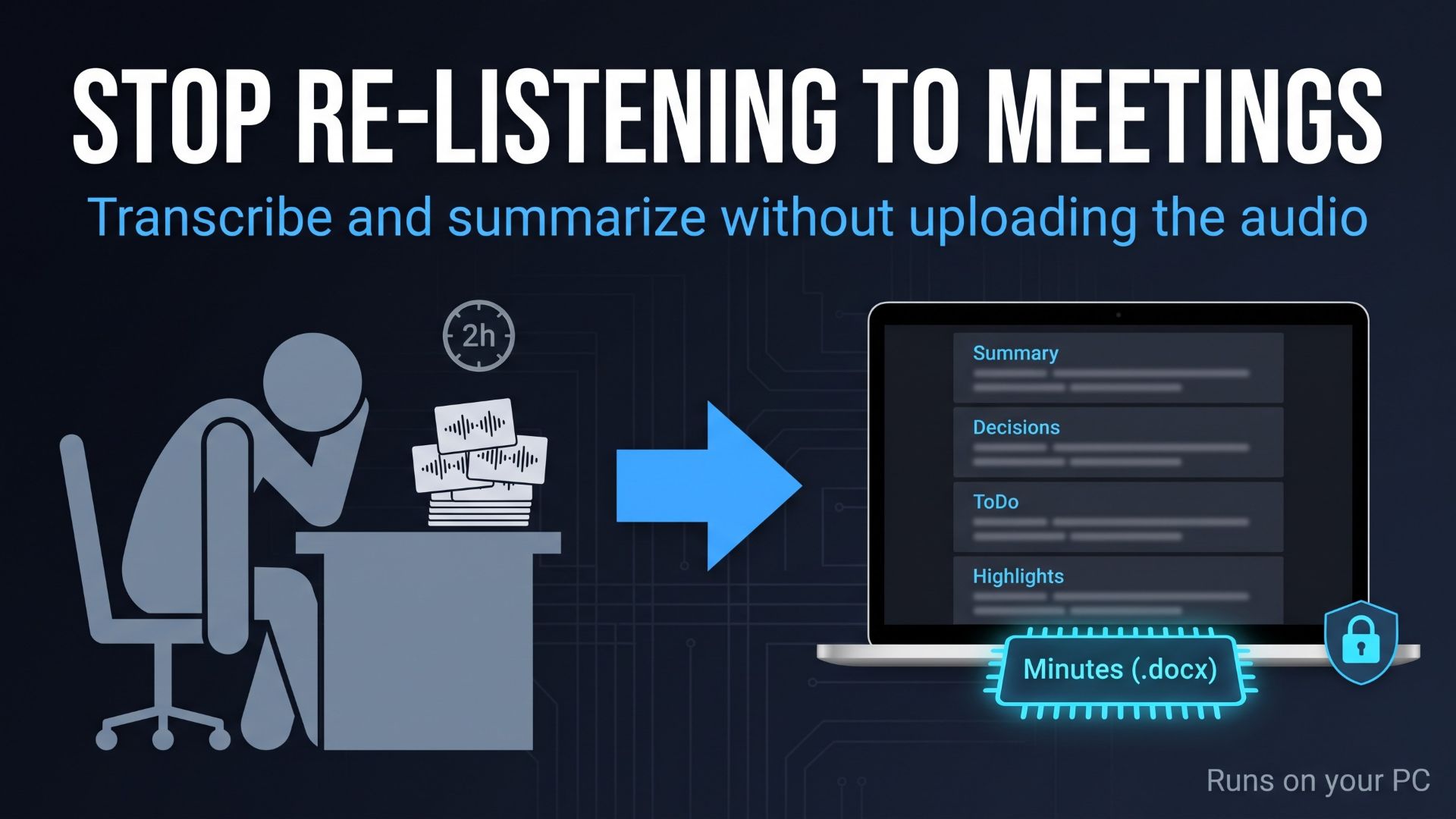
Minutes are the most time-consuming piece of paperwork in a research group and the least rewarded. Whoever takes them, usually the lab administrator or the most junior person in the room, spends roughly as long writing them as the meeting took, and nobody notices unless something is missing.
Do the arithmetic for a typical group: one weekly lab meeting, a standing committee twice a month, and a few interviews or advisory calls that someone has to transcribe for the record. Replaying a 60-minute recording to pull out the decisions and action items takes about 60 minutes if you are quick, and far longer if you pause to type. Two hours a week is a conservative total for many administrators, and for a graduate student it is two hours not spent on the research they were hired to do.
Three things make it worse than it needs to be:
- Re-listening takes as long as the meeting itself.
- Cloud transcription services exist, but they require uploading the recording, and the request for permission tends to die on the compliance officer’s desk.
- Every author writes minutes differently, so last quarter’s decision is hard to find in this quarter’s file.
2. The usual options, and why they stall
Teams typically cycle through the same three options.
Type while you listen. Cheap and private, and it is where the two hours go. It also produces minutes that reflect whatever the typist caught in real time.
Upload to a cloud transcription service. The transcription quality is often good. The problem is the first step: the recording leaves your machine. For a meeting about unpublished data, a clinical case review, or an interview conducted under an IRB protocol that promised participants their recording would stay with the research team, that is frequently not allowed, and asking usually takes longer than typing.
Let the meeting platform do it. Convenient when the meeting happened on that platform. Not helpful for the voice recorder on the seminar table, the interview recorded on a phone, or any recording your organization’s policy says must not be processed by a third party.
What is missing is a fourth option: transcription and summarization that run on the computer you already own, with nothing uploaded anywhere.
3. The approach: don’t re-listen, don’t upload, fix the format
The “🎙️ Local voice minutes” tab in the app built from the Local AI Workstation for Researchers starter kit was designed around three decisions:
- Don’t re-listen. faster-whisper, an MIT-licensed speech-to-text engine that runs on your CPU or GPU, produces the transcript. A human reads it and corrects it, which is much faster than typing it.
- Don’t upload. Both the transcription and the minutes generation run on the PC. The recording has nowhere to be uploaded to. The tab says so right under its heading: “With faster-whisper, your audio is never sent anywhere — it is processed on this PC.”
- Fix the format. Every set of minutes comes out in the same four sections: 1. Summary, 2. Decisions, 3. ToDo / Next actions, 4. Discussion highlights. Whoever runs the tool, the output has the same shape, and the decisions are always in section 2.
For readers who have not met the kit: it is a one-ZIP download with three Claude Code prompts and the reference code they produce (nine Python modules, 5,100+ lines). You can run the reference app as-is in 15 to 30 minutes, or have Claude Code rebuild it to your own specification. It is sold on Gumroad for $349, one-time, with unlimited seats inside the purchasing organization, and it comes without human support.
4. Demonstration: from a recording to four-section minutes
The walkthrough below follows the steps the kit’s auto-generated manual records. The recording used in the clips is a fictional seminar created with the operating system’s built-in speech synthesizer; every name and organization in it is invented.
Step 1. Open the tab. Switch from “💬 Chat & document search (RAG)” to “🎙️ Local voice minutes”. The heading reads “🎙️ Create meeting minutes from an audio file”.
Step 2. Choose three settings.
- “Whisper model”:
baseis the default and the fastest.smalland above are more accurate, especially on names, at the cost of speed. The list runs fromtinytolarge-v3. - “Language”: English, Japanese or Auto-detect. Pick the language explicitly when you know it.
- “Minutes generation model”: the dropdown auto-detects the chat models installed in Ollama on your machine, for example
gemma3:4b.
Under the three dropdowns a caption shows the runtime, “Runtime: CPU” or “Runtime: CUDA”, so you know before pressing anything whether a GPU was found.
Step 3. Upload the recording. The uploader accepts mp3, wav, m4a and mp4, among other common formats. A player appears so you can confirm you picked the right file, along with its name and size.
Step 4. Press “🎧 Run transcription”. A progress bar runs while faster-whisper works. When it finishes, a message reports the result in the form “Transcription complete: N segments / duration / language”.
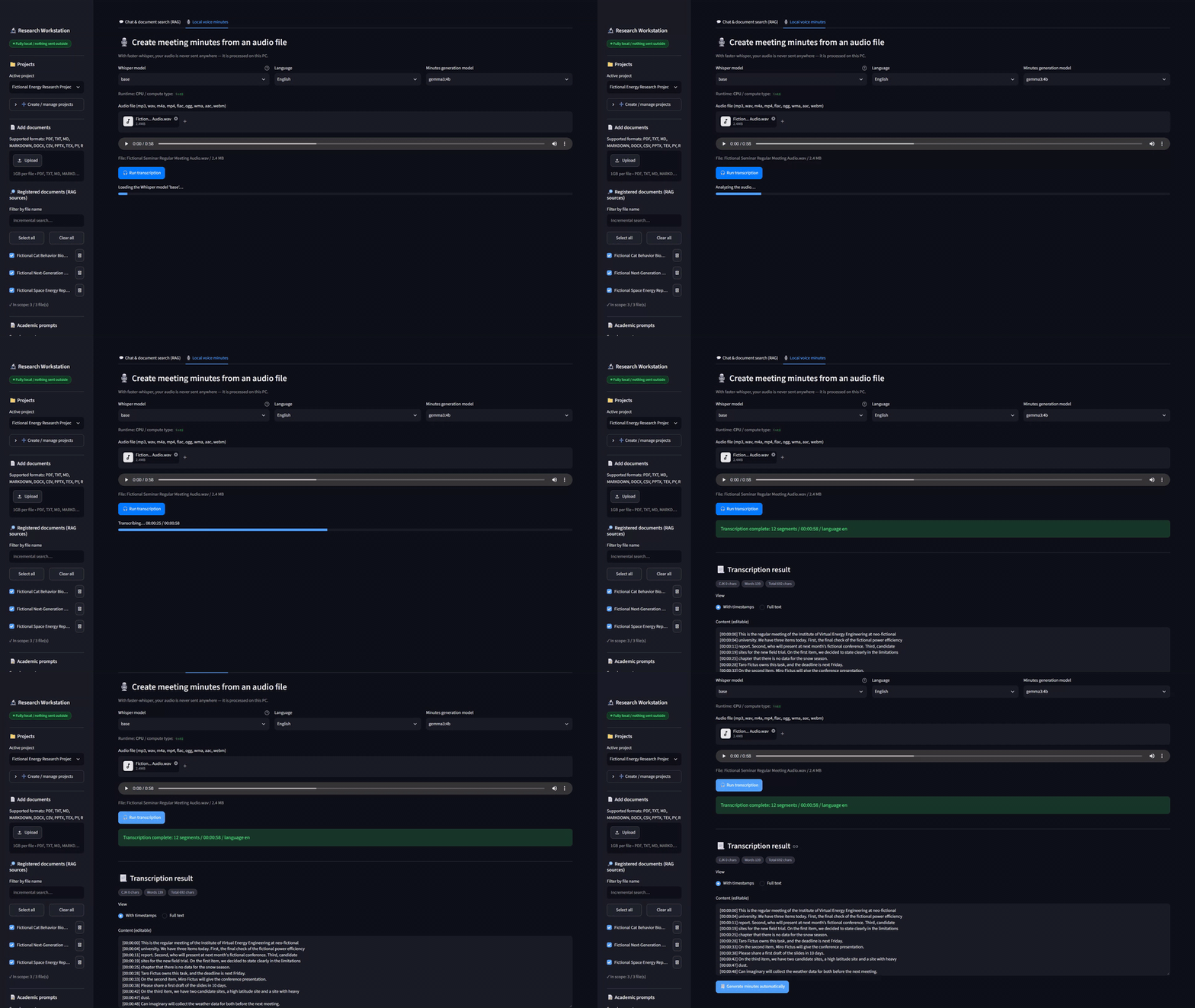
Step 5. Read and correct. The “📃 Transcription result” section shows the transcript with a word and character count. A “View” switch toggles between “With timestamps” and “Full text”. The text itself sits in a box labeled “Content (editable)”. This is where you fix the proper nouns: the name the engine misheard, the project acronym, the number that matters. You do not need to polish the whole thing.
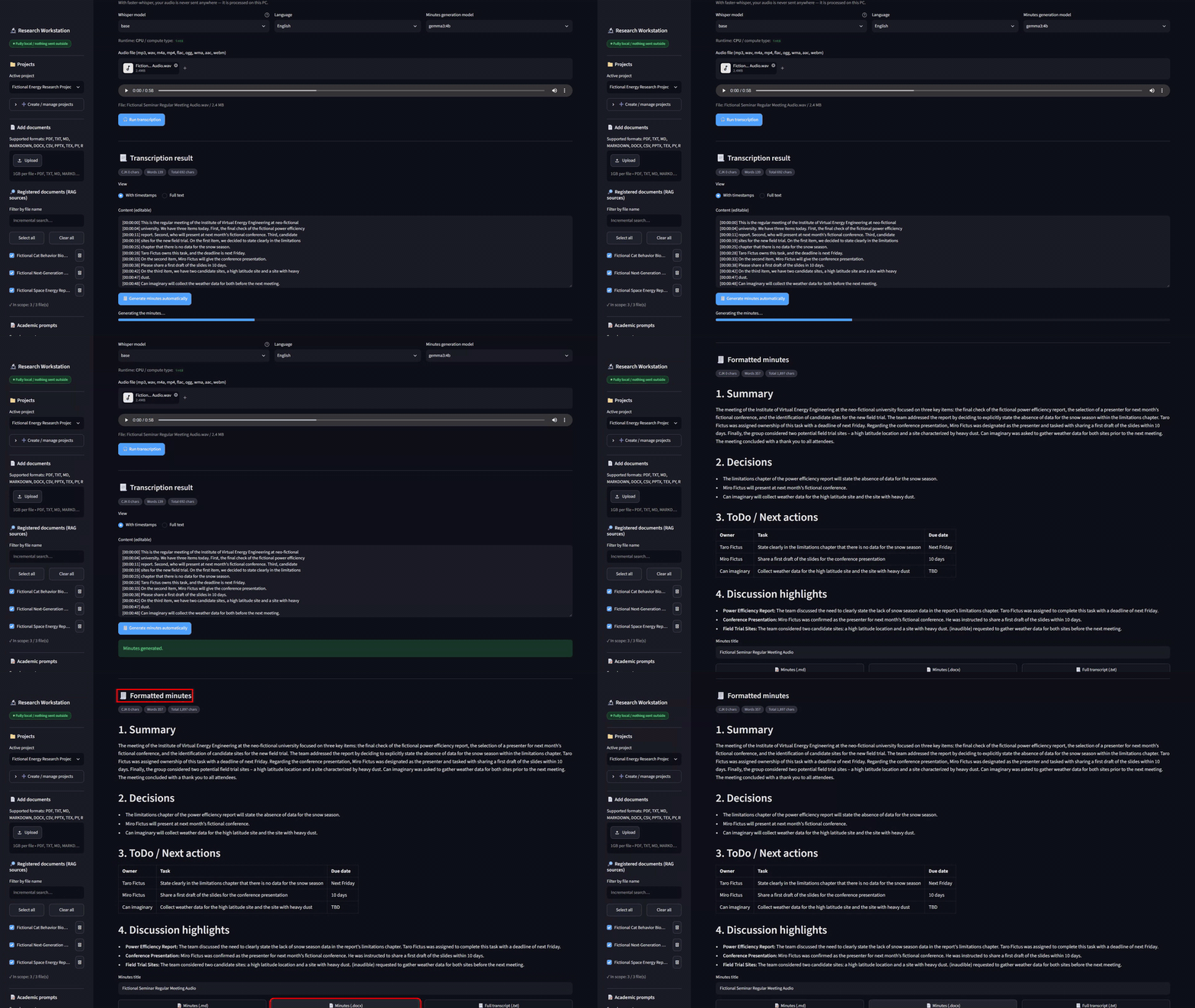
Step 6. Press “🧾 Generate minutes automatically”. The local model you chose in step 2 writes the minutes from the corrected text; the app deliberately prefers your edited version over the raw transcript. For long transcripts, the app summarizes in parts and then merges them, and the progress bar says so: “Long audio, processing in parts…”.
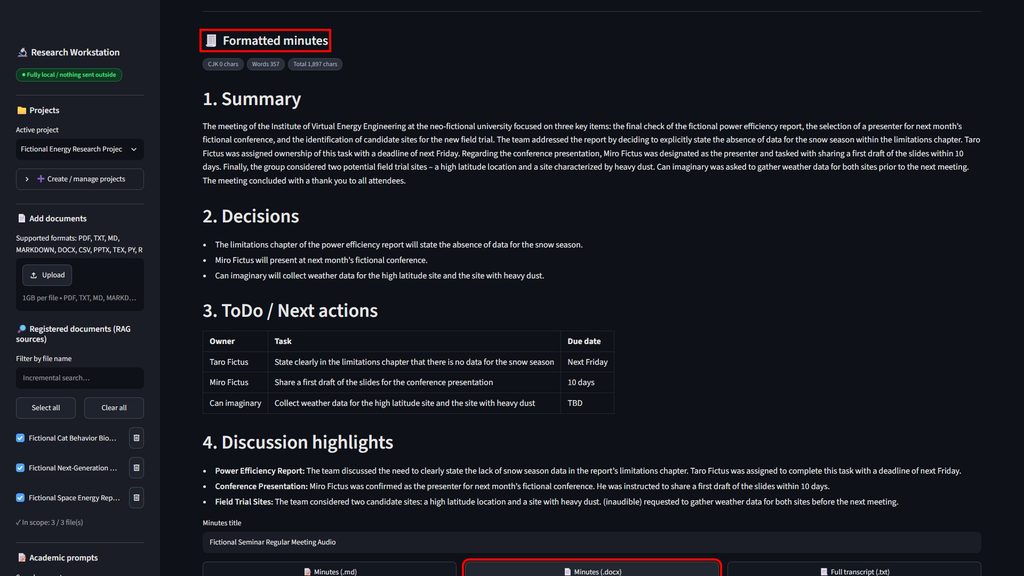
Step 7. Review and export. The “🧾 Formatted minutes” section shows the four sections. A “Minutes title” field is pre-filled with the recording’s file name; change it if you like. Three download buttons follow: “📝 Minutes (.md)”, “📄 Minutes (.docx)” and “📃 Full transcript (.txt)”. The Word and Markdown files record the creation time, the project name and the Whisper model used, and append the full transcript after the minutes, so the source is always attached to the summary. The minutes are also saved to the active project in the app’s local SQLite database, so they stay with that project’s documents and chat history.
That is the whole workflow. Nothing in it opens a connection to an external service. The kit’s end-to-end test suite also checks this tab’s controls on every run (the three dropdowns, the runtime caption, the uploader, the player and the “Run transcription” button); in the latest report that test passed 10 of 10 checks.
5. What the generated minutes look like
The shape of the output is fixed by a prompt in the reference code, and it is worth knowing exactly what that prompt asks for, because it is what you will be reading every week.
- 1. Summary: the key points of the whole meeting in 150 to 300 words.
- 2. Decisions: a bulleted list of what was decided. If nothing was decided, the model writes “None” rather than inventing something.
- 3. ToDo / Next actions: a table with three columns, Owner, Task and Due date. Where the transcript does not say who or when, the cell reads “TBD”.
- 4. Discussion highlights: bullet points, grouped by speaker or by topic.
The prompt also carries two strict rules: do not fill in anything that is not in the transcript by guessing, and mark unclear passages explicitly as “(inaudible)”. Those two rules are what make the output distributable. Minutes that quietly embellish are worse than no minutes, because people act on them. Minutes that say “(inaudible)” at the point where the recorder was too far from the speaker tell you exactly where to go back and check.
6. How long it takes (CPU-only vs. GPU)
Timing depends heavily on your hardware, the model size and the length of the recording, so treat the following as rules of thumb rather than promises.
- Transcription. On a CPU-only laptop with the
basemodel, transcription generally finishes in less time than the recording itself. Switching tosmallfor better accuracy on names costs several times that. If an NVIDIA GPU is present, the app detects it and uses CUDA automatically, which shortens the wait considerably; without a GPU it falls back to the CPU with no change in the workflow. - Minutes generation. With a 4B-class model such as
gemma3:4b, expect tens of seconds to a few minutes, longer for long transcripts that are processed in parts. - Human work. Correcting the names in the transcript and reading the generated minutes: five to ten minutes for a one-hour meeting, in practice.
The realistic expectation is not “zero minutes.” It is that the two hours of replaying and typing turn into ten minutes of reading and correcting, while the machine does the part that used to eat the afternoon.
7. Three habits that raise accuracy
- Fix proper nouns, not prose. The minutes model works from your corrected transcript, so the names, project titles and figures you want to appear in the minutes are the ones worth fixing. Grammar and filler words do not need your time.
- Use
smallor larger when the meeting is full of names. Trading a longer wait for fewer misheard names is usually worth it for committee meetings and interviews. The kit’s how-to guide gives the same advice in its troubleshooting table. - Split long recordings. A two-hour recording is better handled as two or three files. Progress is easier to read, and if something goes wrong you redo twenty minutes, not two hours.
A fourth, smaller habit: set “Language” explicitly instead of Auto-detect when you know what was spoken. It removes one guess from the pipeline.
8. Honest limits to know before you rely on it
- Accuracy depends on the audio and the model. A single recorder in the middle of a large table, people talking over each other, a speaker far from the microphone: all of these degrade the transcript, and a smaller Whisper model degrades it further. Good input matters more than any setting.
- The engine does not identify speakers. It transcribes what was said, not who said it. If attribution matters, add the names during the correction step; the minutes model will use them.
- CPU-only machines are slower. The workflow is the same, but the wait is longer. Choose
tinyorbaseand split long audio, as the how-to guide suggests. - The first run needs an internet connection once. faster-whisper downloads the chosen Whisper model into a local
models/folder the first time you use it. After that it reads from the folder. Pull your Ollama model in advance as well. These are downloads of model weights, not uploads of your audio. - Review before you distribute. The minutes are produced by a local language model and may contain mistakes. The kit’s terms say this plainly: generated output is not guaranteed to be complete or accurate, and you should check it before using it in anything official. Treat the generated minutes as a strong first draft, not a signed record.
- It is a starter kit, not a finished product for every environment. The reference code runs as-is, but the kit’s own guide is explicit that different PCs, models and policies mean you may need to adjust the prompts and the code. It also comes without human support; a 20-row troubleshooting table in the guide is what you get instead.
9. Adapting the minutes format to your organization
The four sections suit most research groups, but if your institution needs “Attendees”, “Next meeting date” or a fourth column in the action table, there are two ways to change them, both documented in the kit’s customization notes.
- Edit the prompt in the reference code. The minutes format lives in a single constant,
MINUTES_PROMPT, inaudio_transcriber.py. Change the headings, add a section, alter the table columns. The same file holdsDEFAULT_MODEL_SIZEif you wantsmallto be the default for everyone. - Change the requirement and rebuild with Claude Code. The build prompt describes the voice minutes tab in a short “Tab 2” section. Rewrite that section to match your organization’s template and let Claude Code rebuild the app. The how-to guide points at exactly this spot for matching the heading structure of the minutes to your organization’s format.
If you take the second route, remember the one rule that applies to every Claude Code session: run it in an empty, dedicated folder, never in one that holds real recordings or transcripts, because Claude Code sends the working folder to Anthropic’s service while it works. The finished app does not need Claude Code at all.
10. Getting started and where to go next
To use the voice minutes tab as shipped, you need Python 3.10 to 3.12 (3.11 is what the kit was verified on), Ollama with one chat model installed (for example ollama pull gemma3:4b), and about 15 to 30 minutes to create the virtual environment and start the app. The Whisper model downloads itself the first time you press “Run transcription”. A GPU is optional. If you also want the document search features, add the nomic-embed-text embedding model.
コメント