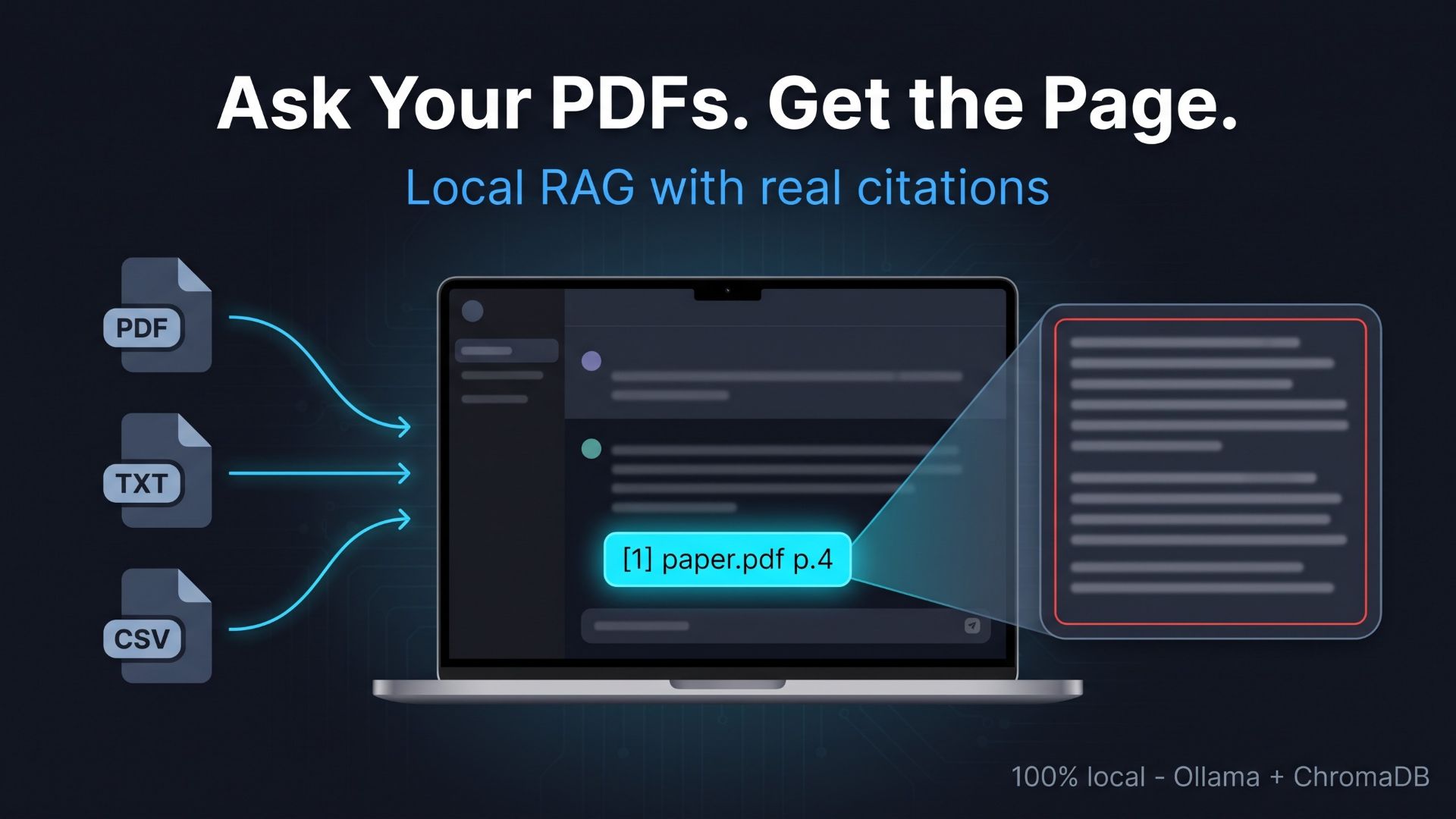
“Read my PDFs and answer with the page it came from.”
That is the first thing most researchers ask of a local AI, and most business readers want the same from their contracts and reports.
This walkthrough uses the operating manual that the kit generates automatically to show the whole loop: register documents, choose which ones are in scope, ask, read an answer with numbered citations, and open the exact passage behind each number, all without the documents leaving your machine.
- 1. The screenshots in this article were generated by a script
- 2. Step 1: Create a project and pick a model that is already on your machine
- 3. Step 2: Register your documents (nine formats)
- 4. Step 3: Choose which documents are in scope
- 5. Step 4: Ask, and get an answer with numbered citations
- 6. Step 5: Open the cited passage with one click
- 7. How the app keeps the model from guessing
- 8. Trying it with your own documents
1. The screenshots in this article were generated by a script
Every screen you will see in this article comes from an operating manual that was itself produced automatically. The Claude Code starter kit behind the app ships three prompts. The third one has Claude Code write a Playwright script that drives the finished app through an eight-step scenario, records a 1920×1080 walkthrough video, takes a red-framed screenshot of every element it clicks, and writes a Markdown manual around those screenshots. The run quoted here produced 16 screenshots and used gemma3:4b as the local model.
The documents in that run are fictional by design. The script generated seven dummy files, among them “Fictional Next-Generation Renewable Power Efficiency Report.pdf” (three pages), “Fictional Space Energy Report.txt” and “Fictional Cat Behavior Biometric Data.csv” (30 rows). The example author is “Taro Fictus” of “Neo Fictional University, Institute of Virtual Energy Engineering”. None of the people, organizations or numbers exist, which is exactly what you want when a manual may end up on an internal wiki or a product page.
Why does that matter for an article about RAG? Because the manual shows the real UI running the real retrieval pipeline on real files, not a mock-up. If you rebuild the app from the kit, you can point the same script at your own build and get a manual that matches your version.
2. Step 1: Create a project and pick a model that is already on your machine
Open “➕ Create / manage projects” in the sidebar, type a “Project name”, optionally fill in “Description (optional)”, and press “Create”. A project is the unit of separation: documents, chat history and meeting minutes all live inside one project, so a literature review for one study never leaks into the retrieval results of another. The “Active project” selector at the top of the sidebar switches between them.
At the top of the main screen, the “🤖 Model” dropdown lists the chat models already installed in Ollama on your machine. The list is detected automatically; the manual run selected gemma3:4b, and the how-to guide names llama3.1:8b as another reasonable choice. There is no API key field and nothing to subscribe to. The same row also holds “Chunks to retrieve” (1 to 20, default 5), a “Creativity” slider, and the RAG toggle we will come back to in Step 3.
3. Step 2: Register your documents (nine formats)
Drag your files onto “📄 Add documents” in the sidebar. The uploader accepts nine formats: PDF, TXT, MD, DOCX, CSV, PPTX, TEX, PY and R. Research groups rarely live on PDFs alone, so the list deliberately covers LaTeX sources, Python and R scripts, and the CSV and PowerPoint files that accumulate in any project folder. Once the files are listed, press “📥 Add N file(s) to the database”; the N updates to the number of files you dropped.
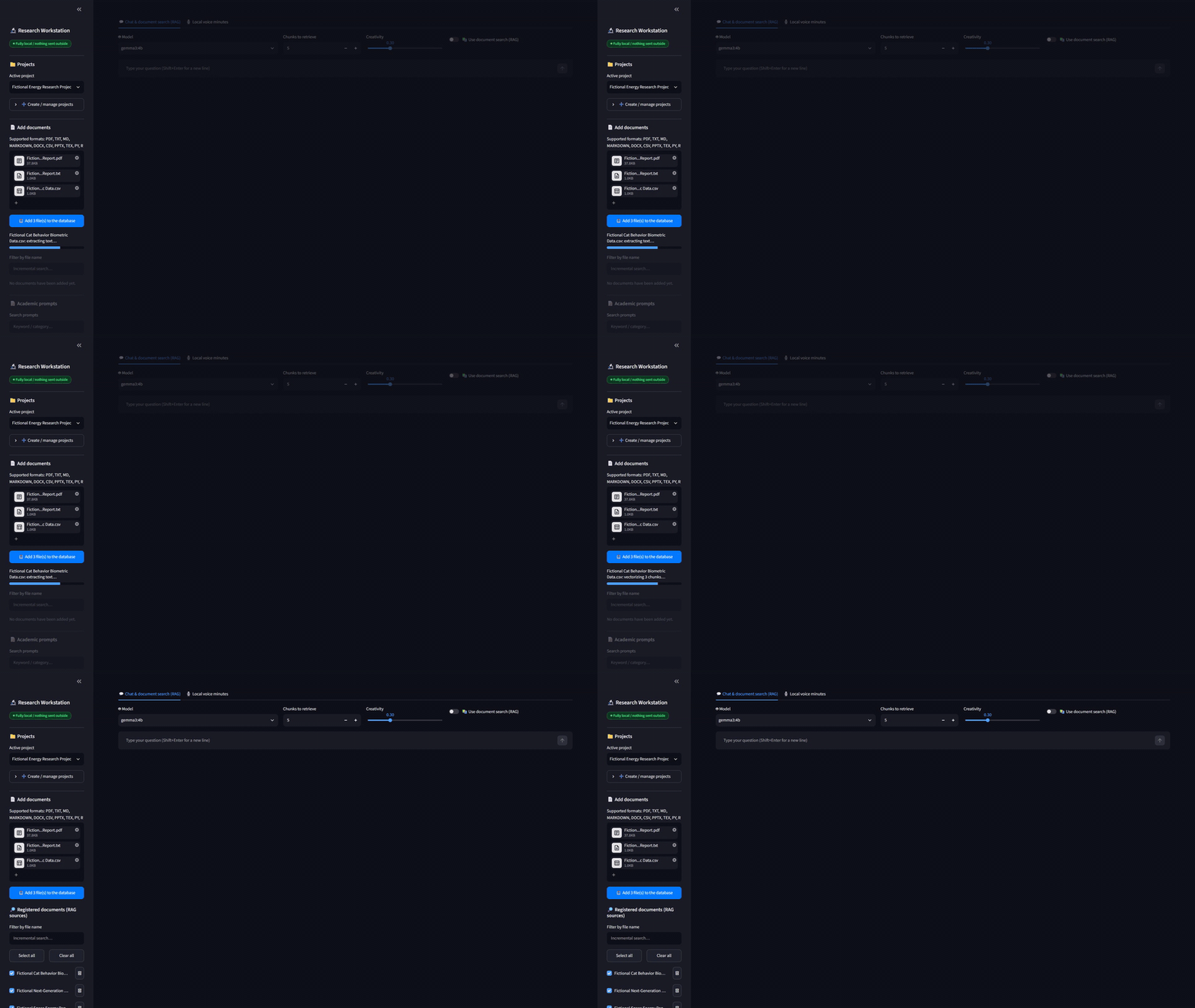
What happens next is the part that stays on your machine. For each file the app extracts text with a format-specific reader (pypdf for PDF, python-docx for Word, python-pptx for slides, plain-text readers for the rest), splits the text into chunks of 900 characters with a 150-character overlap, asks Ollama’s nomic-embed-text model for an embedding of each chunk, and stores the vectors in a ChromaDB collection under the app’s chroma_db/ folder. The file list and chunk counts go into a SQLite database, app_data.db. A progress bar reports where it is, which you will appreciate on a 200-page PDF.
Two details are worth knowing before you upload. First, PDF chunks keep their page number, which is why citations later read [1] paper.pdf p.4 rather than a bare file name. Second, there is no OCR. A PDF that is only a scanned image produces the message “No text could be extracted”; run it through OCR first so that it carries a text layer, then register it.
4. Step 3: Choose which documents are in scope
Registered files appear under “🔎 Registered documents (RAG sources)”, each with a checkbox. This is the control that turns a demo into a working tool, because a project with 200 files is useless if every question searches all 200.
- “Select all” and “Clear all” flip every checkbox at once.
- The “Filter by file name” box narrows the list as you type. While a filter is active, “Select all” and “Clear all” act only on the files currently shown, so you can type “.pdf” and tick just the PDFs.
- Each file can be toggled individually, and the caption “✓ In scope: n / m file(s)” follows every change.
In the manual’s scenario the cat biometric CSV has nothing to do with the question, so the script unticks it and keeps only the two energy reports in scope. The kit’s E2E test suite exercises the same controls on four fictional files: typing “Marine” in the filter leaves only the CSV, “Clear all” takes the caption to “In scope: 0 / 4”, “Select all” returns it to “4 / 4”, and unticking individual files reads “2 / 4”.
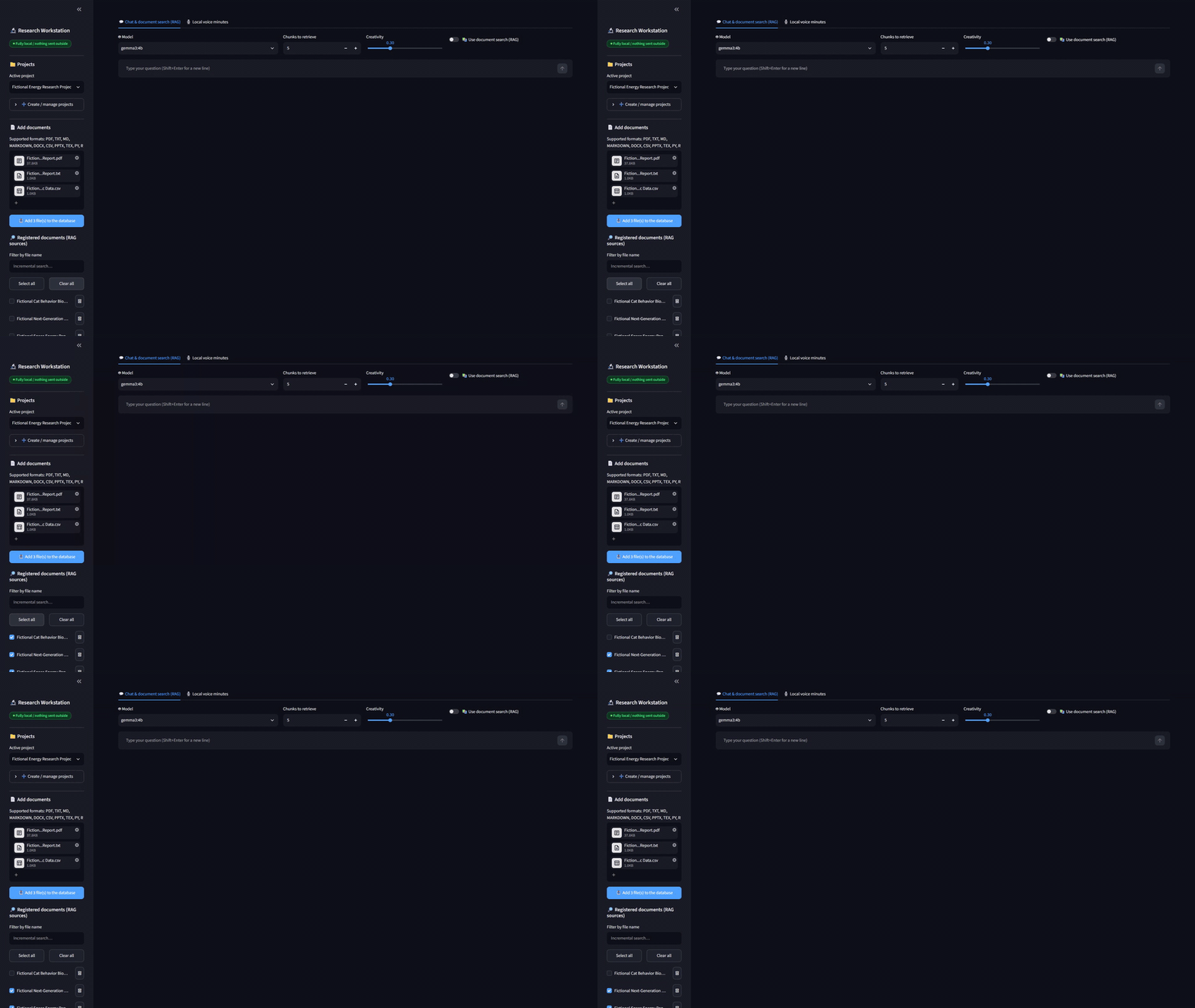
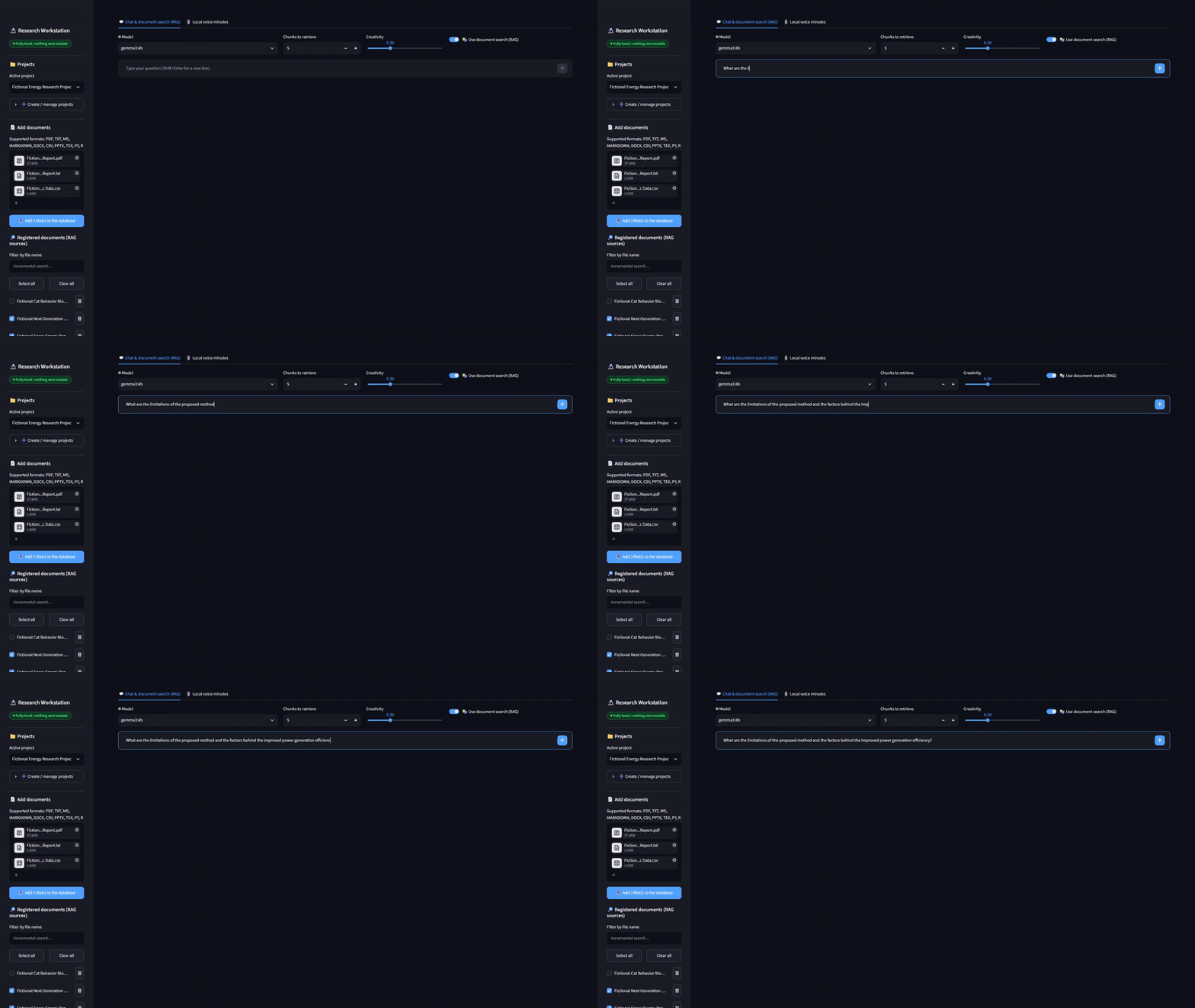
Finally, confirm that “📚 Use document search (RAG)” at the top of the chat tab is on. Its default is on whenever at least one file is ticked; if you switch it on with nothing ticked, the app tells you to tick documents in the sidebar.
One footnote for the curious: in the published test run, “Select all” and “Clear all” initially did not move the checkboxes at all. The screen showed four ticked boxes while the caption read “In scope: 0 / 4”. The kit’s autonomous fix loop traced it to a Streamlit behavior (a keyed checkbox prefers its own stored state over the value you pass in) and patched it, which is why the clip above behaves.
5. Step 4: Ask, and get an answer with numbered citations
Type your question into the chat box at the bottom of the screen and press Enter. The manual’s question is “What are the limitations of the proposed method and the factors behind the improved power generation efficiency?”. The app embeds the question with the same nomic-embed-text model, asks ChromaDB for the closest chunks among the ticked files only (the per-file filter is applied inside the vector query, not after it), and hands those chunks to the chat model as reference material.
The answer streams in as it is generated. Statements drawn from the documents carry source numbers such as [1] and [2], and the answer ends with a “## Sources” list. Under the answer, and under your question, you get count chips in the form “CJK n chars / Words n / Total n chars”. In the manual’s run the answer measured CJK 0 chars / Words 169 / Total 1,217 chars. The chips exist because researchers routinely write to a word limit in one language and a character limit in another; separating CJK characters from Latin words lets both limits be checked from the same box.
6. Step 5: Open the cited passage with one click
Below the answer, “📚 Cited sources” lists one row per citation, for example [1] Fictional Space Energy Report.txt followed by a similarity score. Click a row and it expands to show the exact chunk the model was given. Rows that come from a PDF carry the page number, so checking the original is a matter of opening the PDF at that page.
(Insert gif_07_answer_citation.gif here: citation numbers and count chips under the answer; a click on “Cited sources” expands the passage. still_07_answer_citation.jpg shows the same screen as a still image)
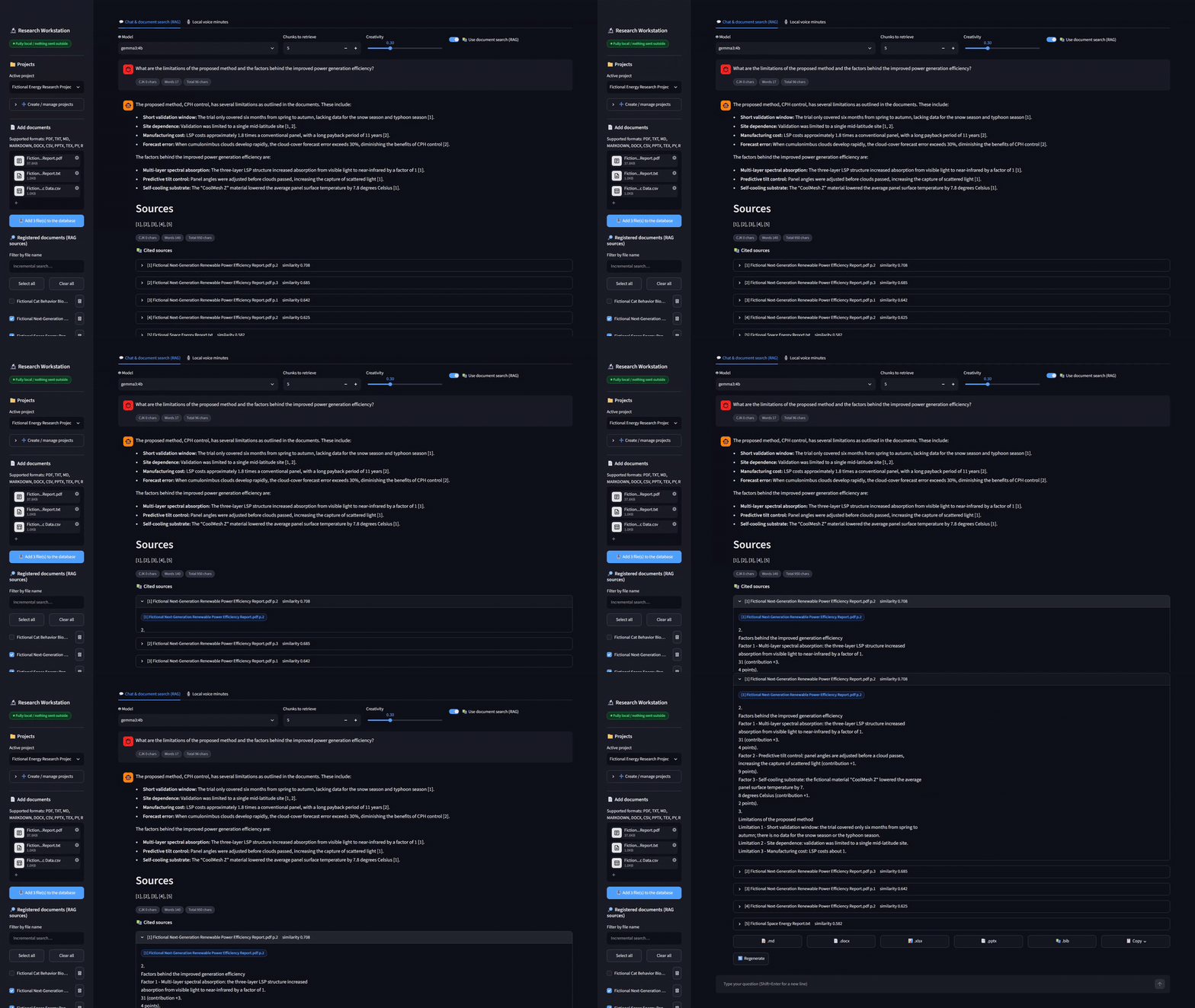
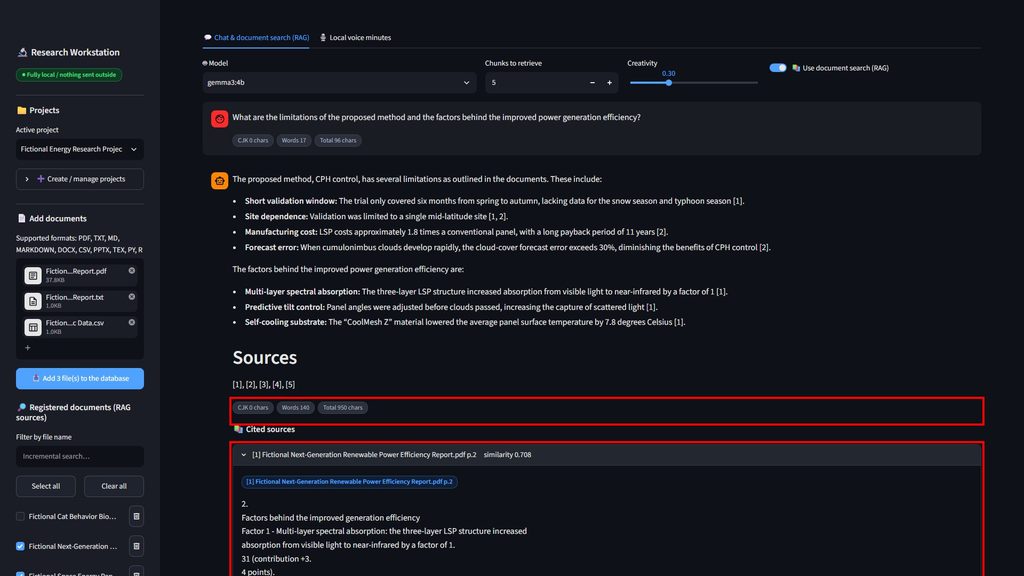
For anyone drafting with AI, the failure mode to fear is the paragraph that sounds right and is not in the source. A number, a page and the passage itself, one click away, is the shortest route from a sentence in your draft back to the document it came from. The E2E report confirms the mechanics: in Test 5, citations came only from the ticked PDF and TXT files, clicking a citation revealed the passage, and all 11 checks passed.
7. How the app keeps the model from guessing
Citations are only useful if the model is actually constrained by the documents. When RAG is on, the app adds three rules to the system prompt:
- Whenever a statement comes from the documents, attach its source number, such as [1] or [2].
- Do not speculate about anything the documents do not cover; state explicitly that “this is not described in the provided documents”.
- End the answer with a “## Sources” heading listing the sources used.
The second rule is the one you notice in daily use. Ask about snowfall data when the report never mentions snowfall, and the answer says so instead of inventing a figure. Small local models follow instructions imperfectly, so the app does not rely on the model alone: if retrieval returned chunks and the answer came back without a “## Sources” section, the app appends the list from the retrieval results itself. The citation list you see is built from what was actually retrieved, not from what the model felt like writing.
Nothing in that chain leaves the machine. Inference runs in Ollama, embeddings run in Ollama, the vector store is a local folder, and the app binds to 127.0.0.1 only, which the test suite verifies by trying to reach the app from the LAN-side IP address and failing. The only outbound traffic the kit’s guide lists is the first-time model download: Ollama pulls, plus the Whisper model used by the voice-minutes tab.
8. Trying it with your own documents
If you want to run the reference code as it ships, you need Python 3.10 to 3.12 (verified on 3.11), Ollama, and two pulls: ollama pull gemma3:4b (or another chat model) and ollama pull nomic-embed-text, which RAG requires. Create a virtual environment, install requirements.txt, and double-click start.bat or run ./start.sh. The guide budgets 15 to 30 minutes for this path.
If you need something different, two routes are documented. Constants such as CHUNK_SIZE, CHUNK_OVERLAP and DEFAULT_EMBED_MODEL live in rag_engine.py and can be edited directly. Or you edit the app-build prompt (its “Main stack” and “Functional requirements to implement” sections) and let Claude Code rebuild the app with, say, extra file formats or a different citation style. Claude Code is only needed for building; the finished app never calls it. The guide also warns not to run Claude Code in a folder that holds confidential data, because the working folder is sent to Anthropic during the build.
For business readers, substitute “internal reports, contracts and compliance documents” for “papers” in everything above. The mechanics are identical, and so is the point: an answer with a citation you can open beats an answer you have to trust.
The kit is sold on Gumroad as a one-time purchase: $349, one-time, unlimited seats inside the purchasing organization, commercial use permitted, no human support (the 20-row troubleshooting table in the guide is what you get instead). Every dependency is under a permissive license (MIT, Apache-2.0, BSD-3-Clause or HPND) with no GPL components; the models you pull with Ollama carry their own terms.
コメント