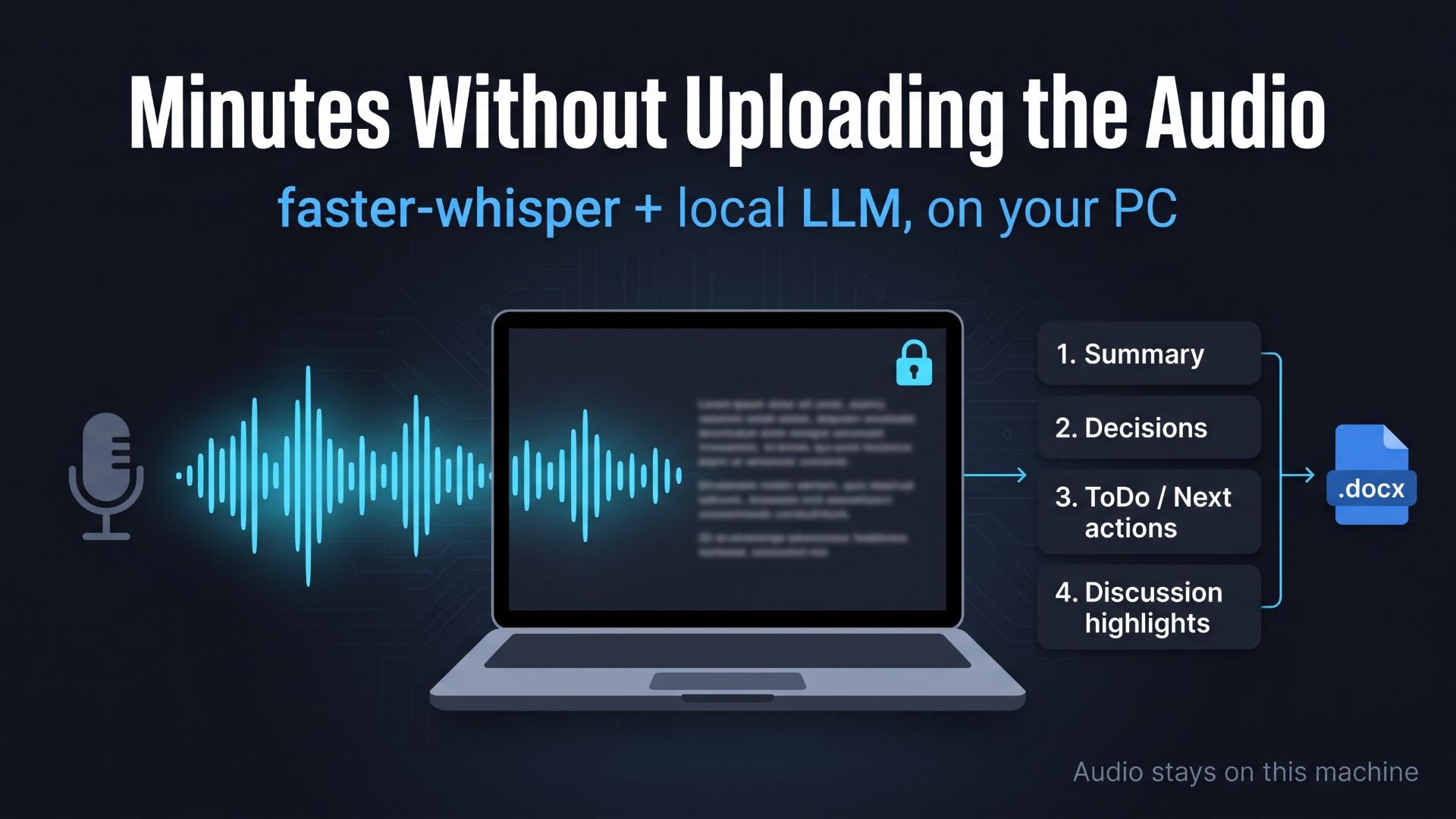
Can you upload that interview or meeting recording to a cloud transcription service? For many researchers, clinicians and legal teams, the protocol or the contract says no. This walkthrough uses the operating manual that the kit generates automatically to show the “Local voice minutes” tab: transcription with faster-whisper, a transcript you can correct by hand, minutes in a fixed four-part structure drafted by a local LLM, and Word export, with the audio never leaving the machine.
- 1. Recordings are the data you can least afford to upload
- 2. Step 1: Pick the Whisper model, the language and the minutes model
- 3. Step 2: Upload the audio and run the transcription
- 4. Step 3: Fix the transcript by eye, then generate the minutes
- 5. What the generated minutes look like
- 6. Saving the minutes and finding them again
- 7. Tuning accuracy and speed: Whisper model size
- 8. Trying it with your own recordings
1. Recordings are the data you can least afford to upload
Research interviews, patient consultations, board meetings, customer discovery calls, witness statements. A recording holds more raw personal information than any document: voices, names, hesitations, the things people say before they realize they are on the record. Cloud transcription is convenient, but the question “may this recording be sent to a third-party server?” is one that an IRB protocol, a data processing agreement or a client engagement letter often answers with no.
The app built from the Claude Code starter kit has a tab for exactly this situation, “🎙️ Local voice minutes”. Transcription runs with faster-whisper; the minutes are drafted by a local LLM served by Ollama. Both run on the machine in front of you, and the audio file is never transmitted. The tab says so in its own caption: “With faster-whisper, your audio is never sent anywhere — it is processed on this PC.” That is not a certification of anything. It is a statement about where the bytes go, and it happens to be the property most compliance reviewers are actually asking about.
The screens in this article come from the operating manual the kit generates automatically: a Playwright script drives the app through an eight-step scenario, records a 1920×1080 video and takes red-framed screenshots of every click. The recording used in that run is “Fictional Seminar Regular Meeting Audio.wav”, a fictional seminar meeting synthesized with the Windows speech engine from a fictional script. No real person speaks in it.
2. Step 1: Pick the Whisper model, the language and the minutes model
Switch to the “🎙️ Local voice minutes” tab. Under the heading “🎙️ Create meeting minutes from an audio file” three dropdowns sit side by side.
- “Whisper model”: tiny, base, small, medium or large-v3. The default is
base, and the field’s own hint reads “base is fast; small and above are more accurate (but slower)”. For meetings full of proper nouns (people, compounds, product names), start atsmall. - “Language”: English, Japanese or Auto-detect. Telling Whisper the language up front saves a detection pass and avoids the occasional misfire on short clips.
- “Minutes generation model”: the Ollama chat models installed on your machine, detected automatically. The manual run used
gemma3:4b.
Below the dropdowns a caption reports “Runtime: CPU” or “Runtime: CUDA” along with the compute type. If an NVIDIA GPU with CUDA is present, the app uses it; if not, it falls back to the CPU on its own. There is no setting to get wrong.
3. Step 2: Upload the audio and run the transcription
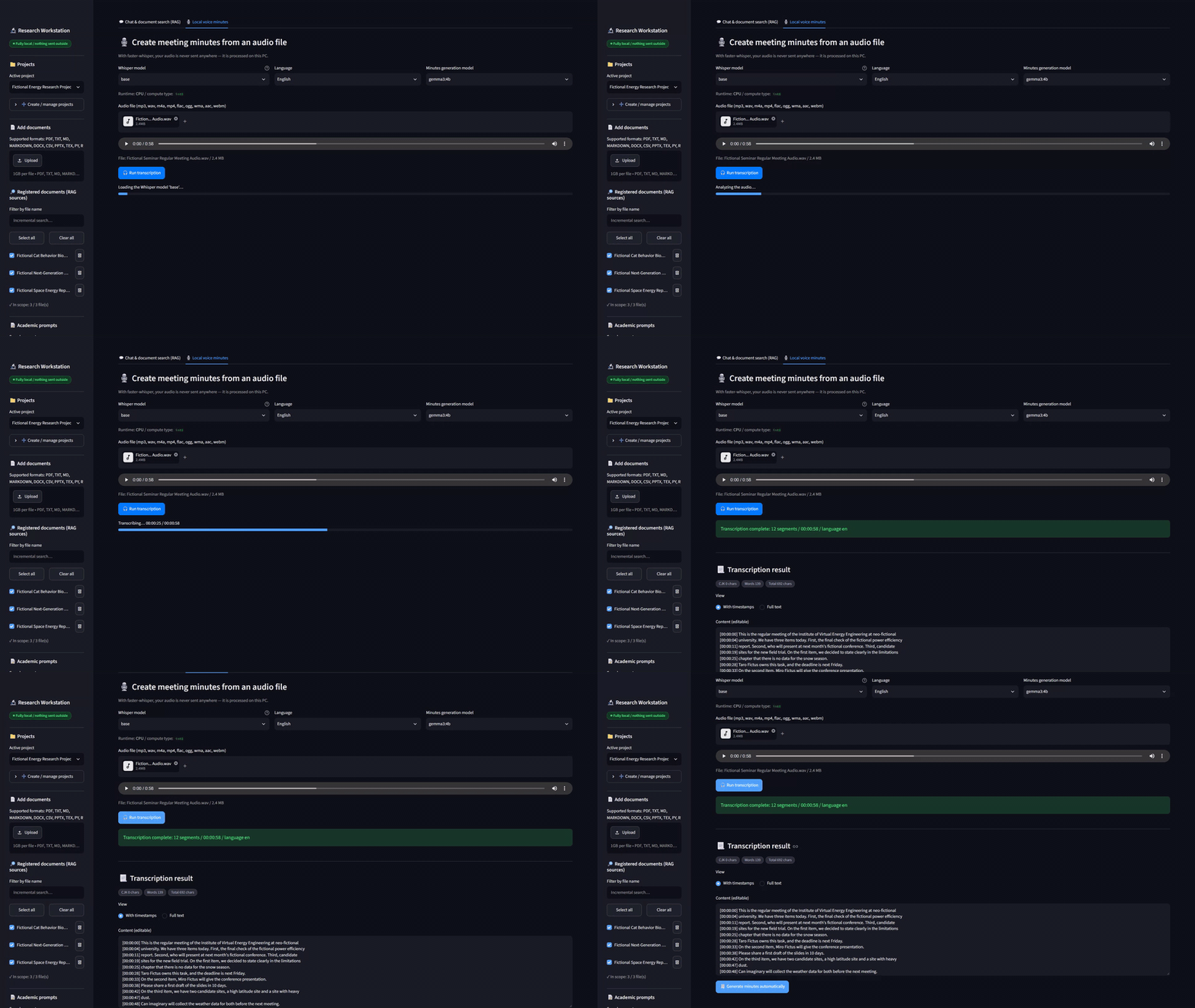
Drop a file onto the audio uploader. The common containers are covered: mp3, wav, m4a and mp4, plus a few others. As soon as the file is accepted, the app shows an in-browser player and the file size, so you can confirm you picked the right recording before you spend minutes on it.
Press “🎧 Run transcription”. A progress bar walks through the stages, and when it finishes a line reports the result in the form “Transcription complete: N segments”, followed by the duration and the detected language.
One honest note about network traffic. The first time you use a given Whisper model size, faster-whisper downloads that model from Hugging Face and caches it locally. That download is the only outbound connection this feature ever makes; every later run reads the cached model and nothing else. The kit’s troubleshooting table lists it as the usual reason a first run looks stalled. If your environment blocks outbound traffic entirely, plan that first run with your IT team.
4. Step 3: Fix the transcript by eye, then generate the minutes
The transcript appears under “📃 Transcription result” with a “View” switch between “With timestamps” and “Full text”. The text sits in a box labeled “Content (editable)”, and editable means exactly that: fix a misheard name, delete a false start, correct a figure. Whatever is in that box when you press the next button is what the minutes are generated from. The same count chips as in the chat tab (CJK characters, words, total characters) appear under the box.
This step is where most of the quality comes from. You do not need to polish the whole transcript. Correct the proper nouns and the numbers that must appear in the minutes, and the generated document improves out of proportion to the effort.
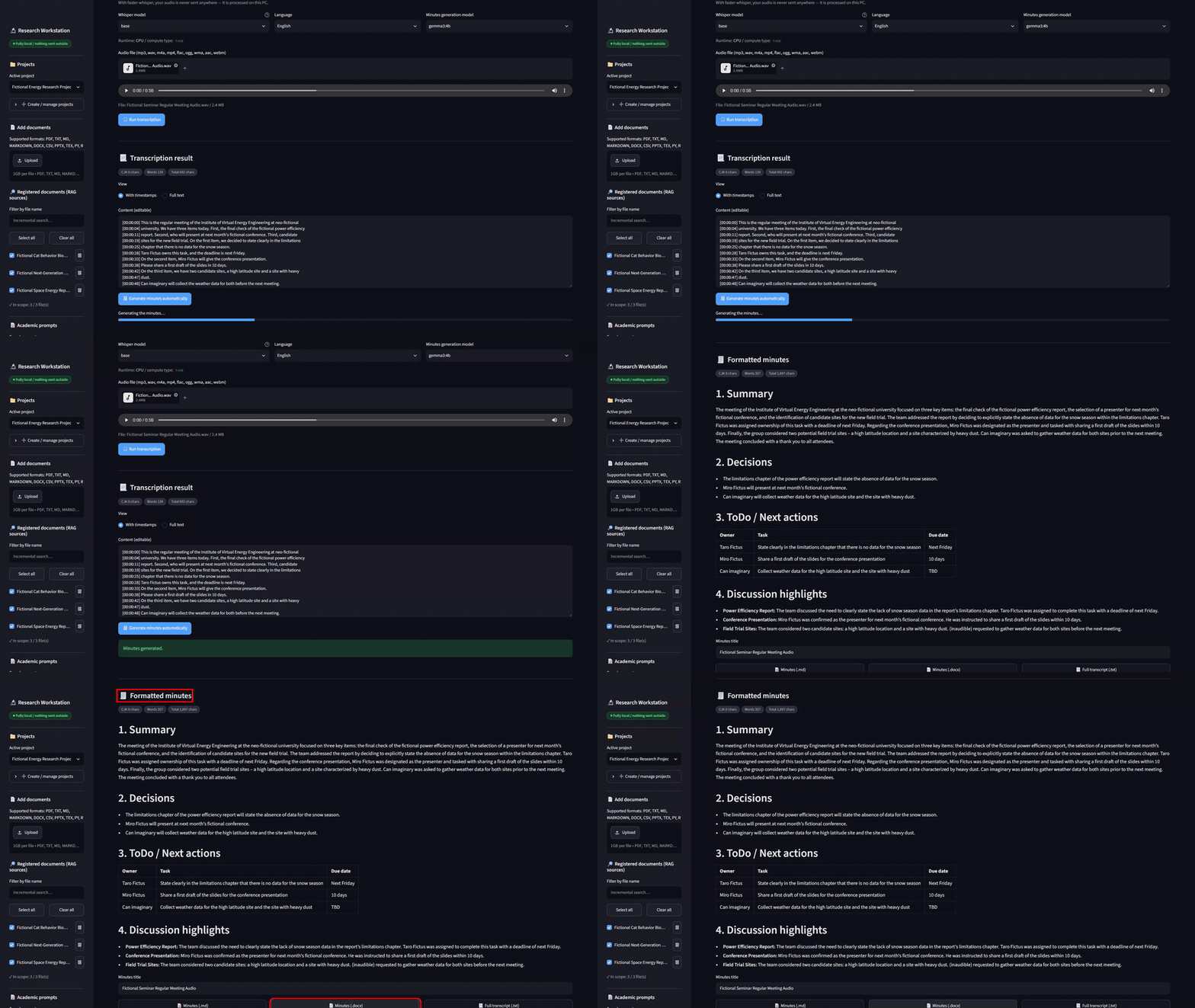
When the transcript reads the way you want, press “🧾 Generate minutes automatically”. The local model receives the transcript inside a fixed minutes prompt and returns a structured draft.
5. What the generated minutes look like
The prompt that drafts the minutes opens with two strict rules: do not fill in anything that is not in the transcript by guessing, and mark unclear passages explicitly as “(inaudible)”. It then requires exactly four sections, always as Markdown headings:
- Summary: the key points of the whole meeting in 150 to 300 words.
- Decisions: bullet points; “None” if nothing was decided.
- ToDo / Next actions: a table with Owner, Task and Due date columns; “TBD” where the owner or the date is unknown.
- Discussion highlights: bullet points by speaker or by topic.
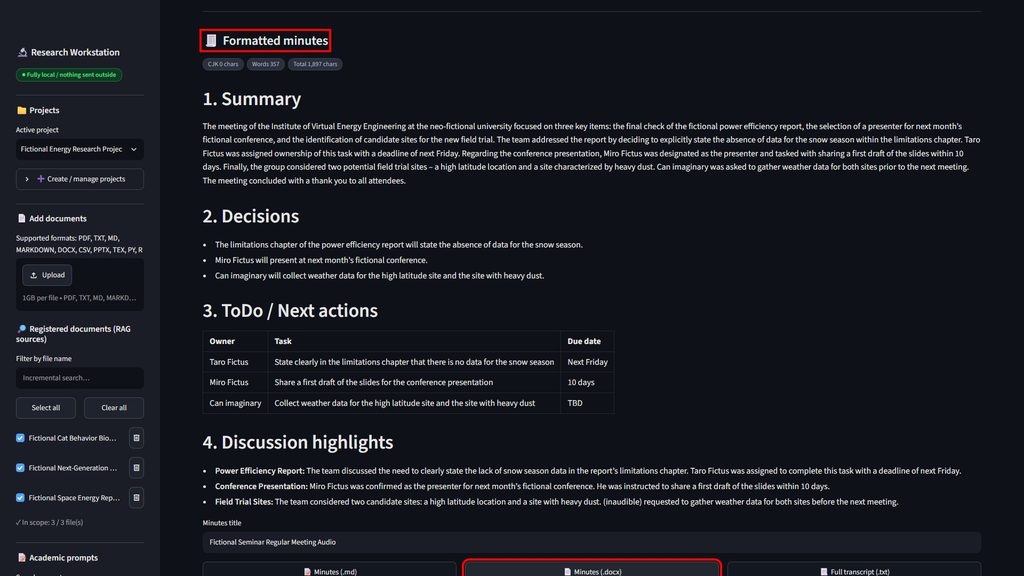
The generated minutes get the same count chips as the chat answers, so you can see at a glance whether the summary landed inside its 150-to-300-word budget before you send it to anyone.
Because the shape never changes, minutes from a Monday lab meeting and a Thursday project review look the same. That is the quiet benefit of generated minutes: format consistency without a template anyone has to remember. In the manual run the fictional seminar came back as a short summary, a decisions list and a ToDo table, in the places you would look for them. The “(inaudible)” rule matters more than it sounds: a model that is told to mark gaps instead of filling them produces minutes you can trust in the places where they are silent.
If your organization uses a different minutes format, the structure is one string, MINUTES_PROMPT in audio_transcriber.py. Change the headings there, or edit the “Tab 2” requirements in the kit’s app-build prompt and let Claude Code rebuild the tab.
6. Saving the minutes and finding them again
Under “🧾 Formatted minutes” you give the document a “Minutes title” (the default is Minutes_ followed by today’s date) and download any of three files:
- “📝 Minutes (.md)” for a wiki or a notes app
- “📄 Minutes (.docx)”, a Word file ready to distribute
- “📃 Full transcript (.txt)”, the edited transcript itself
The Markdown and Word exports record the project name and the Whisper model size as metadata, so a reader later knows what produced them. Minutes are also saved in the project’s SQLite database and listed under “📂 Saved minutes (N)” with a delete button per entry, so a project’s meeting history lives next to its documents and chats. The kit’s backup scripts, export_all.bat or export_all.sh, copy the database, the vector store and a Markdown version of the history into a timestamped backups/ folder, with restore steps written into BACKUP_INFO.txt.
The kit’s E2E test suite checks this tab as its seventh scenario (10 checks, all passed in the published run, using a synthesized file of its own, Fictional_Seminar_Recording_Test_Audio.wav), and the manual’s eighth section walks through it with the synthesized seminar audio. Neither run touches a real recording, so you can reproduce both on your own machine without anonymizing anything first.
7. Tuning accuracy and speed: Whisper model size
On a CPU-only laptop, the practical path is to start with base, listen for the kind of errors you get, and move to small if proper nouns are the problem. The kit’s troubleshooting table gives the same advice from two directions: when transcription is slow, choose tiny or base or split long recordings into parts; when proper nouns come out wrong, choose small or above and correct the transcript by hand before generating the minutes. With a CUDA GPU, medium and large-v3 become practical for everyday use.
If you want a different default, DEFAULT_MODEL_SIZE in audio_transcriber.py is the single constant to change. Nothing else in the app needs to know.
8. Trying it with your own recordings
The voice tab works as soon as the reference code starts: Python 3.10 to 3.12, Ollama, and ollama pull gemma3:4b (or another chat model) for minutes generation. faster-whisper is listed in requirements.txt, so there is nothing extra to install, and a GPU is optional.
One habit worth adopting: if you want a meeting’s content to be searchable later, download “📃 Full transcript (.txt)” and register it through “📄 Add documents” on the chat tab like any other TXT file. The two tabs share the same project, so the next time someone asks “what did we decide about the sampling schedule?”, the answer can cite the transcript with a source number, exactly as it would cite a PDF.
Who this is for, concretely: a researcher with IRB-approved interview recordings that may not leave the lab; a clinical team whose consultations fall under patient-privacy rules; a legal team recording client meetings; an administrative office that wants minutes of internal meetings without putting them on a vendor’s server. In each case the proposition is the same. The recording stays on the machine, the minutes come out in a fixed four-part structure, and you edit the transcript before anything is generated.
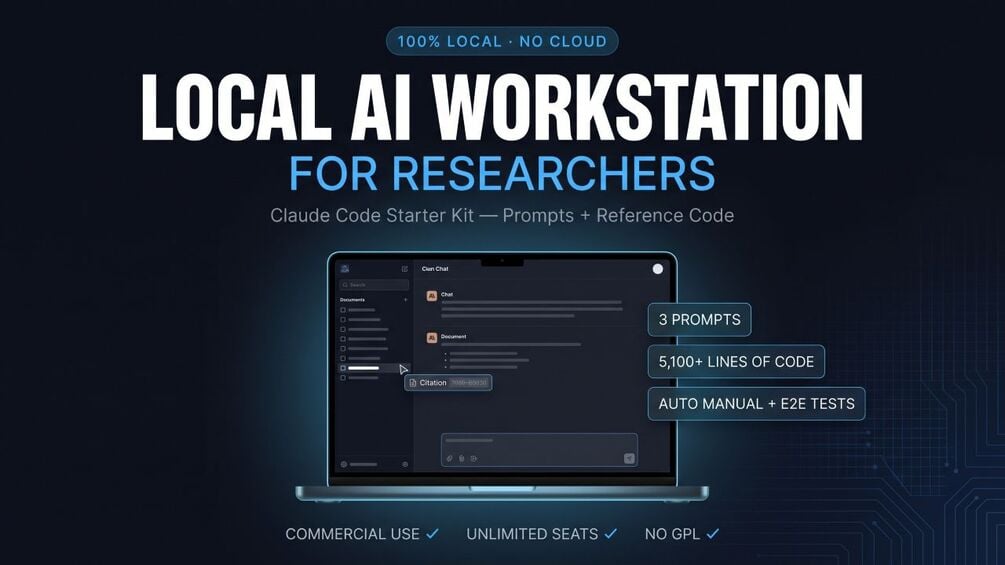
The kit is a one-time Gumroad purchase: $349, one-time, unlimited seats inside the purchasing organization, commercial use permitted, no human support. You get the three prompts, the reference code (the voice tab is audio_transcriber.py, about 300 lines, plus its section of app.py), the how-to guide with its 20-row troubleshooting table, and standalone license files for your procurement review.
コメント