Automating uploads cuts the time spent typing into YouTube Studio. It also raises a fair question: is it safe to let a video go out when nobody is looking at the screen? If you are accountable for a company channel, or you are the manager or IT lead asked to approve the tool, that worry is reasonable.
This article walks through the reference code (upload_youtube.py) included in the YouTube Auto-Upload Builder Pack for Teams and shows where it stops and what it prints when it does. It does not claim that accidents cannot happen. It shows the conditions under which the script stops, the conditions under which it does not, and the text you will see on screen.
- 1. Four separate fears behind “a wrong upload”
- 2. Wrong channel: the channel_title check
- 3. Duplicate uploads: the upload_result.json guard
- 4. Going public too early: private by default, private when scheduled
- 5. Leftover template text: dry-run errors and warnings
- 6. When an AI agent builds it: a human approves the real upload
- 7. What the guards catch, and what people still check
1. Four separate fears behind “a wrong upload”
“A wrong upload” is really four different problems:
- The video goes to a different channel than you intended.
- The same video is uploaded twice.
- The video goes public before the internal review is done.
- The video is published with placeholder text still in it.
In the workflow you build with this kit, each video gets its own folder. You put the video file, a thumbnail and a text file named video_meta.md in it; that file holds the title, the visibility and the other settings. Then you run one command. The command sends everything through the YouTube Data API v3. An API is the official channel that lets a program send instructions to YouTube instead of a person clicking through the screen. All four guards described below live inside that one command.
2. Wrong channel: the channel_title check
Teams that run more than one channel, and agencies that manage channels for several clients, can end up signed in to a channel other than the one they meant.
Before the reference code sends anything, it asks the API for the name of the signed-in channel and prints it as Target channel:. If you wrote a channel_title in video_meta.md, the script compares the two names, ignoring upper and lower case. When they differ, it is written to stop without sending the video. This is what that looks like (the channel names are fictional):
Target channel: Sample Corp Careers Channel
[ABORTED] The target channel does not match (expected: Sample Corp Official Channel / actual: Sample Corp Careers Channel). Upload aborted.
  If you signed in with a different channel, delete secrets/token.json and sign in again.
  If this channel is correct, fix (or remove) channel_title in video_meta.md.
Here is what has and has not been verified. The matching case, where the names agree and the upload goes ahead, was verified against the live API. The mismatch case, where the script aborts, is implemented but has not been tested against the live API.
The check only runs when channel_title is present. If you delete the line, the validation screen shows the following and no comparison is made:
Channel guard : off
The template ships with this line already in it, so the practical advice is to replace the placeholder with your real channel name rather than delete the line.
3. Duplicate uploads: the upload_result.json guard
“I was not sure it ran, so I ran it again” produces duplicates whether you upload by hand or by script.
As soon as the video itself has been sent, the reference code saves a file named upload_result.json in the video folder. It does this before the thumbnail and playlist steps, so the file is there even if a later step fails. Run the command on the same folder again and it stops with this message (the first part of the path is shortened here):
[ABORTED] .../videos/2030-01-31_product_demo/upload_result.json already exists (probably uploaded already). Aborted to prevent a duplicate upload.
  Add --force if you really want to upload again.
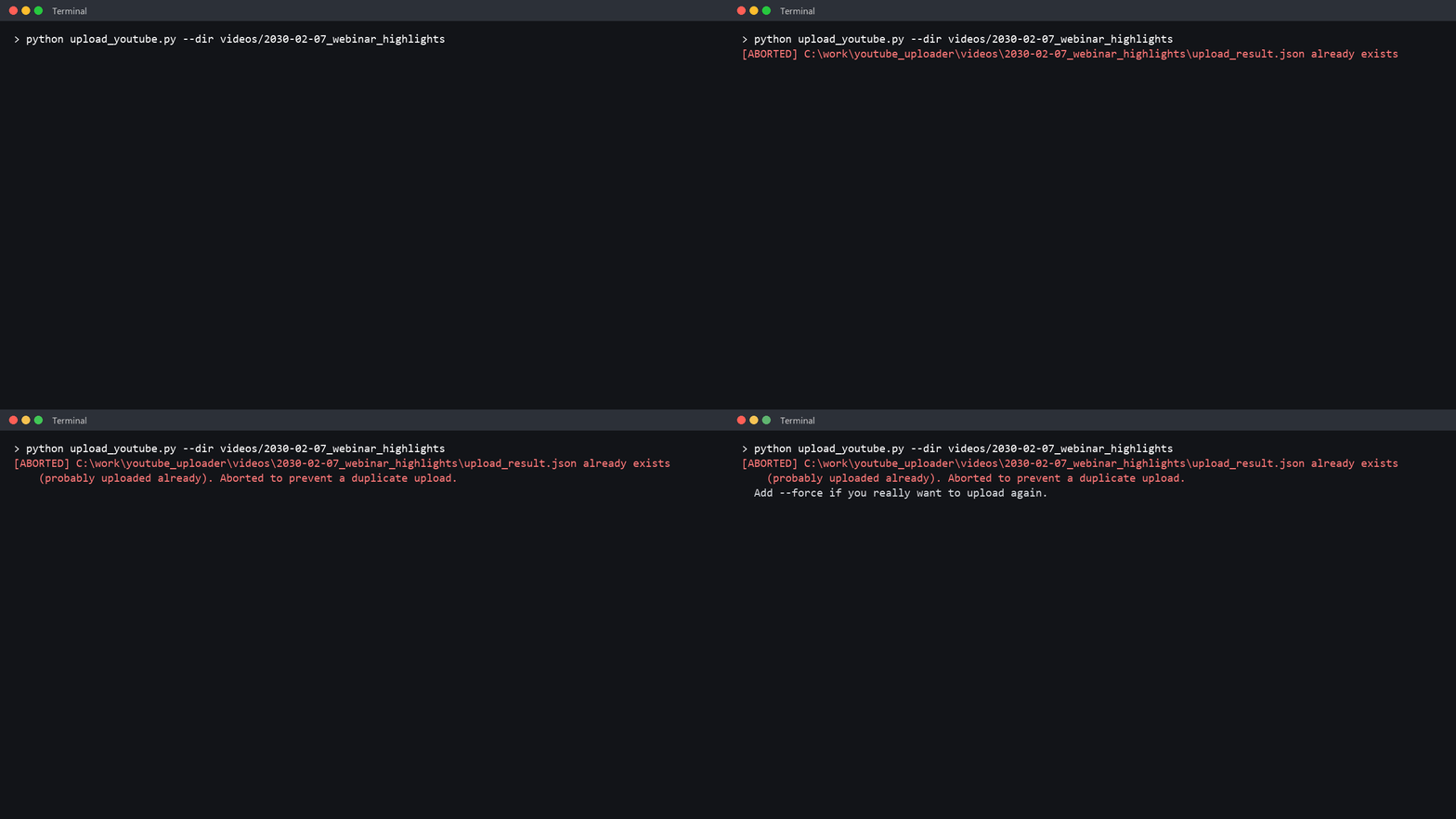
This duplicate-upload guard was verified in tests against the live API. To upload the same folder again on purpose, you add --force. The validation run tells you about the file too, with a warning that includes A real run will abort unless you add --force.
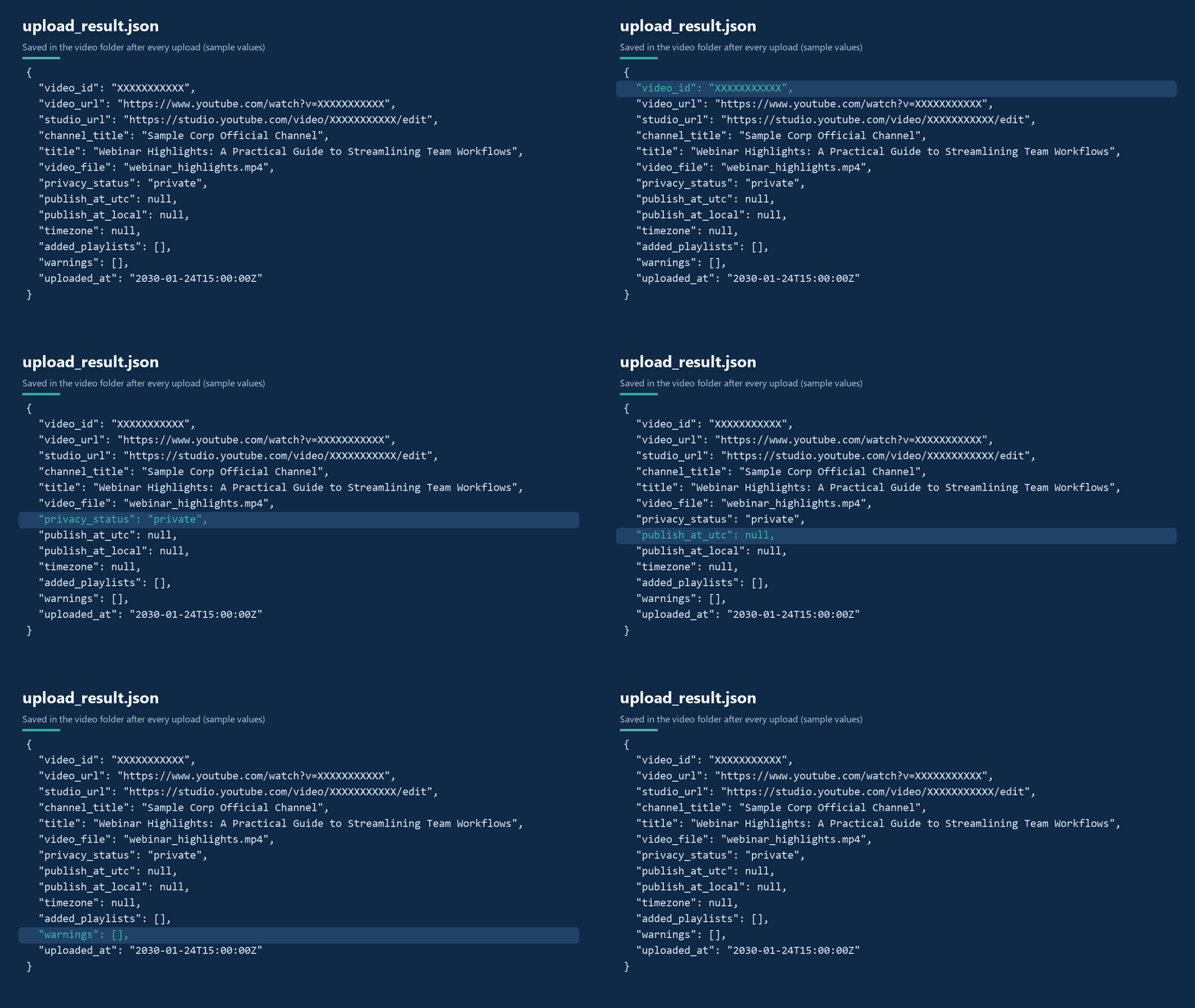
upload_result.json is also a record you can go back to. It holds the video ID, the visibility, the scheduled time in UTC, any warnings and the time of the upload.
Two limits are worth knowing. The guard works per folder, so it does nothing if someone copies the folder somewhere else or deletes upload_result.json. And when an upload fails because of a network error, the script’s message and the troubleshooting guide both tell you to do one thing first:
Before retrying, check YouTube Studio for a partially processed video, just in case.
4. Going public too early: private by default, private when scheduled
For the fear that a video goes public the moment the command runs, the reference code has three answers.
The default visibility. If privacy_status is missing from video_meta.md, the script sends private. The template also starts with private. For a video to go out as unlisted or public, a person has to type that value in.
How scheduling is handled. When you set a scheduled time, the video is uploaded as private and is published at that time. If privacy_status says public and a scheduled time is also set, the script switches the video to private and prints this warning:
[WARNING] scheduled upload: privacy_status is changed from public to private (the video goes public automatically at the scheduled time)
A scheduled time that is already in the past is an error ending in is in the past, and nothing is sent.
The dry run. A dry run, started with --dry-run, is a rehearsal: the script shows what it would send without sending anything. Because it does not call the API, no video is uploaded and no quota is used. Quota is the daily allowance of API usage that Google gives each project. The visibility and the schedule appear like this:
python upload_youtube.py --dir ./videos/2030-01-31_product_demo --schedule "2030-01-31 21:00" --dry-run
  Privacy        : private
  Scheduled      : 2030-01-31 21:00 (UTC) -> publishAt = 2030-01-31T21:00:00Z (UTC)
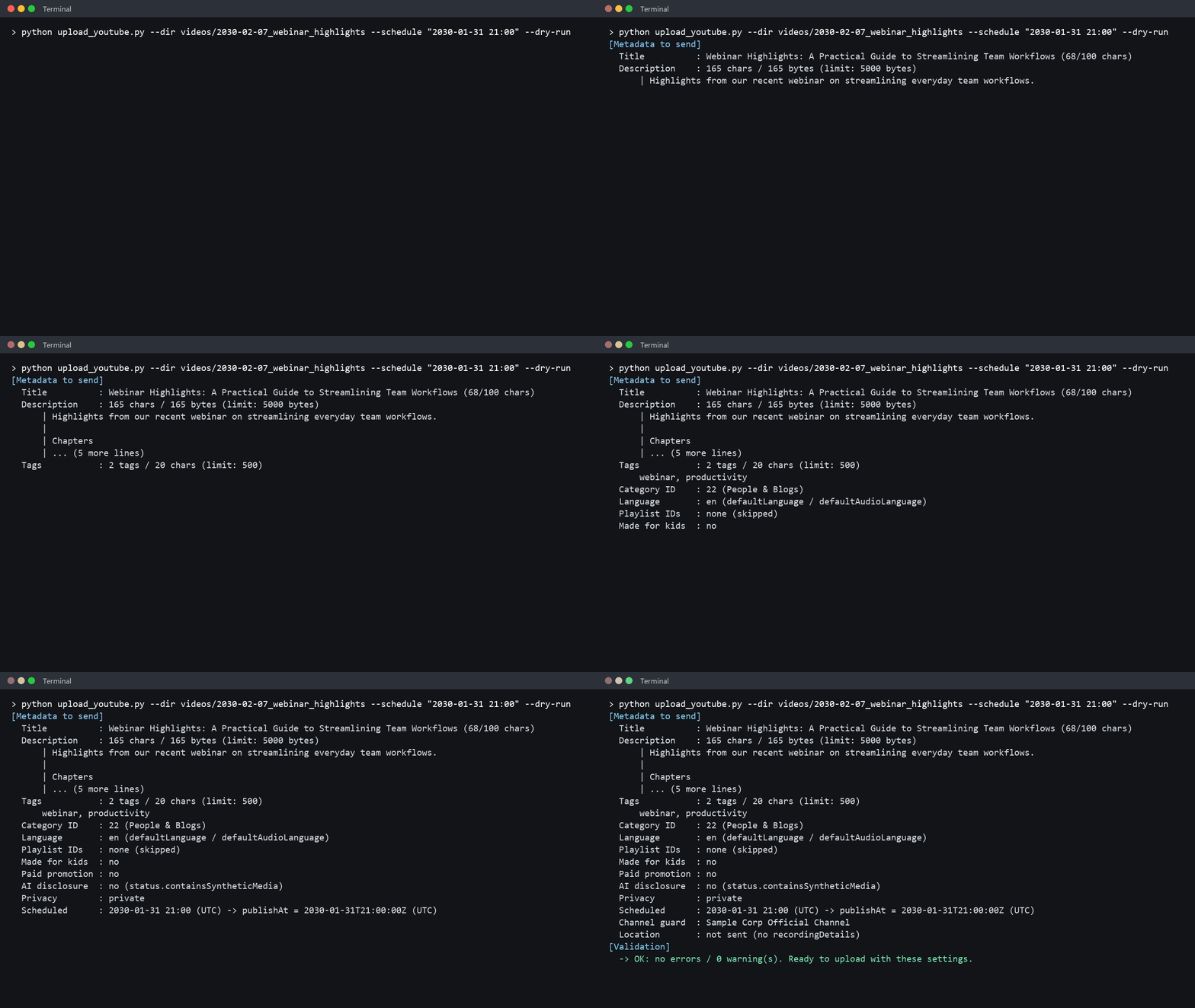
The scheduled time is read in the timezone set in video_meta.md. The template default is UTC, which is why both values match in this example. With an IANA name such as America/New_York, the left side shows your local time and the right side shows the converted UTC time, so a shifted schedule is visible before anything is sent.
Scheduled publishing and --dry-run were both verified against the live API. One caution: visibility behavior can vary with account and channel settings. As of November 2026, the setup guide in the pack notes that, according to the official documentation, some uploads may default to private depending on the creator’s account settings. It also notes that older tutorials describe API uploads from unverified projects as locked to private, a restriction whose removal was announced in the official revision history in November 2026. Rules like these can change again. For your first upload, use a short test video, leave it private, and check the settings in YouTube Studio.
5. Leftover template text: dry-run errors and warnings
You create video_meta.md from a template with the --init-meta option. The template contains placeholder values, so the script looks for the ones that were left behind.
If channel_title is still the template value Your Channel Name, that is an error. Suppose it is the only thing you forgot to edit. The dry run ends like this:
  [ERROR] channel_title: still set to the template placeholder. Replace it with your real channel name, or delete the line
  -> NG: 1 error(s) / 0 warning(s). Fix them and run again.
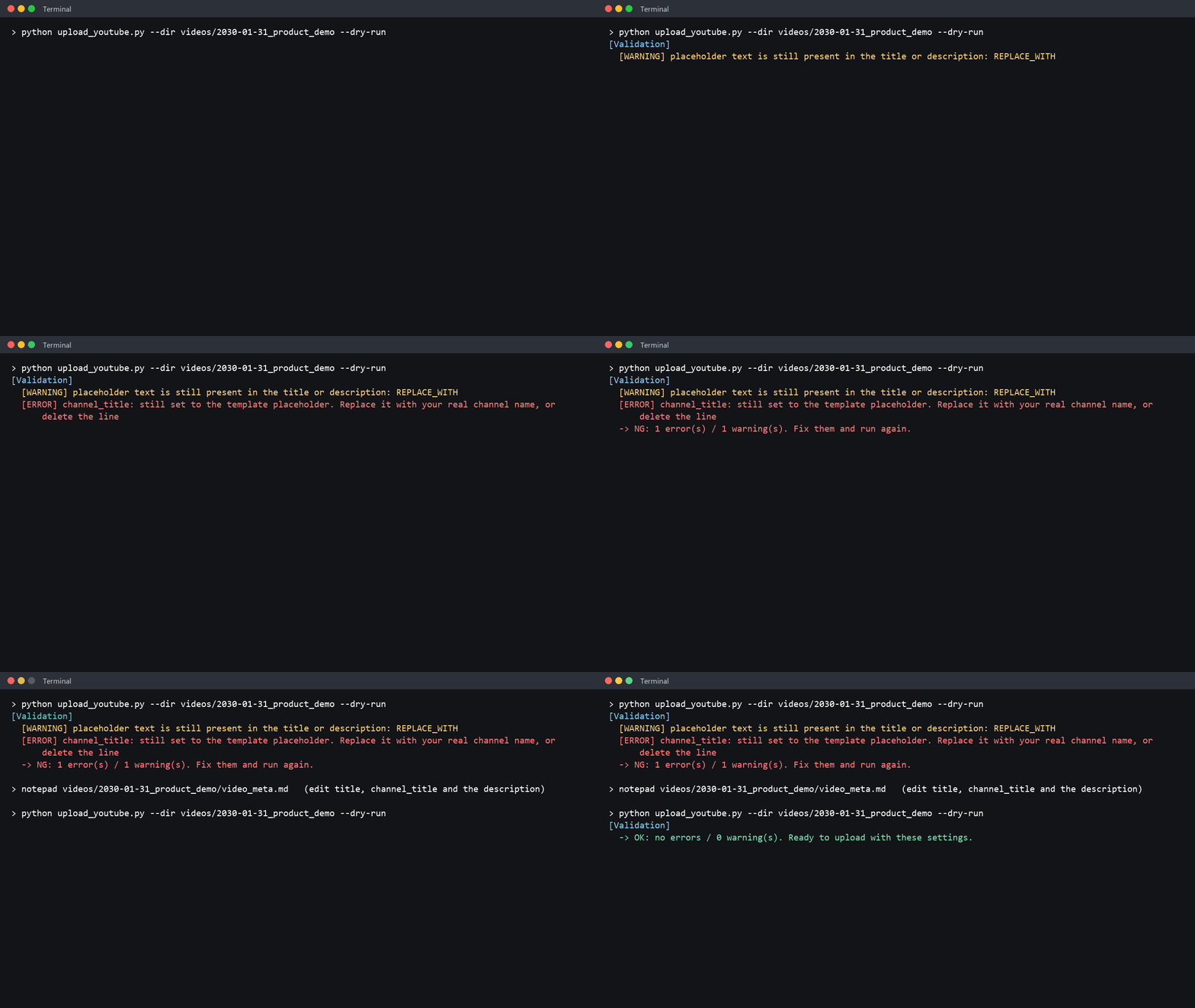
One error is enough to stop a real run too. The command prints the same list and then -> Upload aborted because of 1 error(s). before anything is sent.
Placeholder text in the title or the description is treated differently. If a string such as REPLACE_WITH is still there, you get a warning that begins placeholder text is still present in the title or description. A warning, unlike an error, does not stop the upload. A simple team rule covers the gap: when the last line of the dry run shows a warning count other than 0, read the warnings before you run the real command.
The same validation reports a title over 100 characters, a description over 5000 bytes, tags over 500 characters in total, and the characters < and > in the title or description as errors.
6. When an AI agent builds it: a human approves the real upload
You can build the workflow by pasting the included master prompt into an AI coding agent such as Claude Code or Cursor.
The master prompt contains six security rules that override every other instruction. One of them says the agent must not run a real upload command, meaning one without --dry-run, on its own judgment, and must get explicit approval from a person immediately before running it. The work is laid out as Step 0 through Step 8. Step 0 protects the credential files before the agent reads anything else. Step 5 is verification that uses no quota. In Step 7 the agent asks whether it may upload one private test video, and runs the upload only if you say yes.
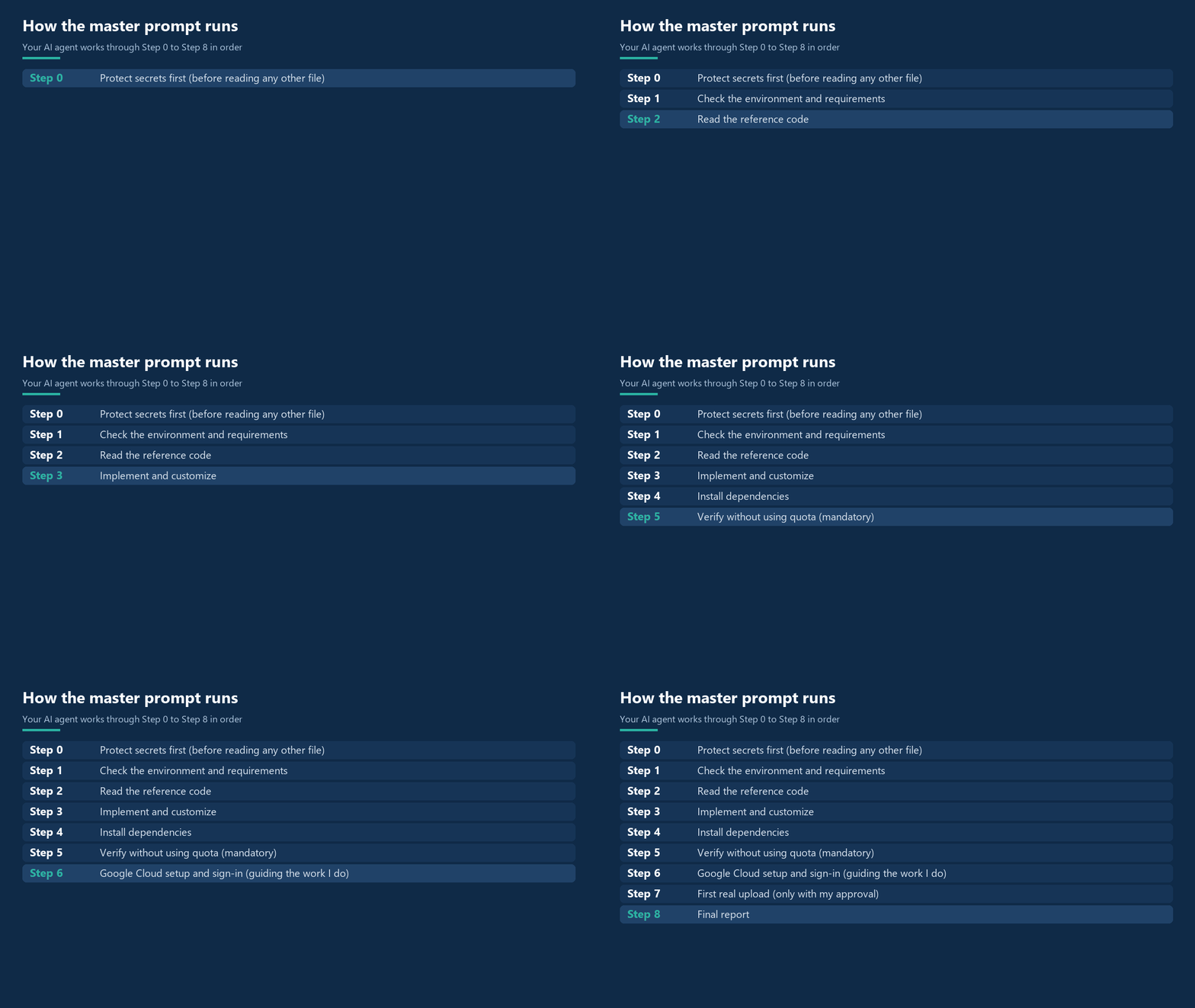
A prompt is not a lock, though. AI agents do not produce the same output every time, and the note at the top of the prompt tells you to review each command and file change before you approve it. In particular, look at any real upload command and at any action that would display the contents of secrets/. Just as important: never hand the credential files in secrets/ to an AI agent or to any third party. They are keys that can act on your channel.
7. What the guards catch, and what people still check
Everything described so far looks at four things: the channel name, the files in the folder, the format of each setting, and the length of the text. None of it looks at meaning. If the video in the folder is last week’s episode, or the title has a typo, the script will not notice.
Some settings are also out of reach. As of November 2026, the “Allow automatic chapters”, “Allow automatic places” and “Allow automatic concepts” toggles, monetization and ad settings, and end screens and cards cannot be changed through the API. So when an upload finishes, the script prints a [Final check] reminder to review them in YouTube Studio, along with the edit URL.
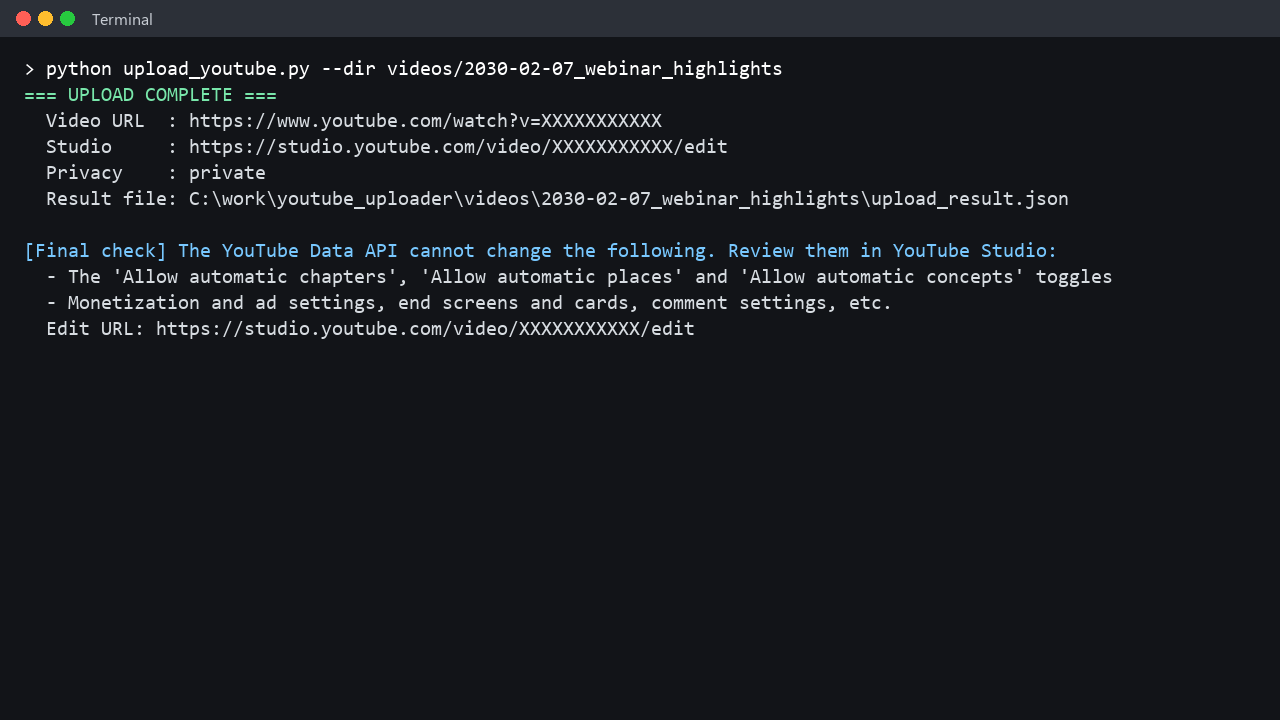
Upload as private, have a person review the video in YouTube Studio, then publish. That order is the core of the protection, and the guards exist to support it.
One more fact for whoever signs off on the purchase: under the license terms, the seller is not liable for damages arising from use of the pack, including unintended publication or uploading of videos. Most of the live tests behind the “verified” statements above were run with the Japanese-language build of the same code; the English build has the same logic with English messages and defaults. After you build the workflow, confirm how it behaves in your own environment with a private test video before you rely on it.
The overview article covers the whole product:
- Overview: YouTube Auto-Upload Builder Pack: What’s Inside and What to Know
- Which manual steps a script takes over: YouTube Upload Busywork, Step by Step: What a Script Can Take Over
- Reducing dependence on a single person: Reduce Key-Person Risk in YouTube Uploads: Team Use and License Scope
- One folder per video, and the dry run in detail: One Folder per Video: Catch YouTube Upload Mistakes with a Dry Run
- Building it with the master prompt: Let Claude Code Build Your YouTube Uploader Without Reading Secrets
The YouTube Auto-Upload Builder Pack for Teams is a build kit with no support, unlimited seats within one organization or team, $79 one-time. Separate legal entities each need their own purchase, and the pack may not be redistributed or resold.
Get it on Gumroad: https://ainavi.gumroad.com/l/youtube-auto-upload-builder-pack
YouTube is a trademark of Google LLC. This product is not provided, endorsed or sponsored by Google LLC or YouTube.
コメント