When a team decides to automate its YouTube uploads, the work often stops before anyone writes a line of code. The Google sign-in screen says “Access blocked”. You fix that and a different error appears. Or everything runs fine, and a week later it stops with an authentication error. All three trace back to OAuth setup.
This article covers the three places where OAuth most often trips people up with the YouTube Data API v3, and what to do about each. It is based on the setup guide and troubleshooting guide included in the YouTube Auto-Upload Builder Pack for Teams, a build kit we sell, and it reflects the situation as of November 2026. The Google Cloud Console layout, its menu names and the underlying rules change from time to time. If something here does not match your screen, look for the closest equivalent or check Google’s official documentation.
- 1. Three Places Where OAuth Setup Stalls
- 2. Pitfall 1: The Account Is Not Listed as a Test User
- 3. Pitfall 2: The Client Type Has to Be “Desktop app”
- 4. Pitfall 3: In Testing Status, Tokens Expire After 7 Days
- 5. Three Ways to Handle the 7-Day Expiry
- 6. Keep Credential Files Away From AI Agents and Third Parties
- 7. What the Builder Pack Provides
- 8. Summary
1. Three Places Where OAuth Setup Stalls
Two terms first. An API is the interface a program uses to operate another service. OAuth is the sign-in standard that lets you grant an app a specific permission, such as “this app may upload videos to this channel”, without handing over your password.
To upload through the API, you create an OAuth client in your own Google Cloud project and download its credential file, client_secret.json. The sequence is: create a project, enable the YouTube Data API v3, configure the OAuth consent screen and add test users, create the OAuth client, put the credential file in place, and complete the first sign-in in a browser. The setup guide says to allow 15 to 30 minutes for this, which is an estimate. The API is free to use within the daily quota, so you normally do not need a billing account.
Three steps cause most of the trouble. The first is adding test users on the consent screen. The second is choosing the application type when you create the client. The third is how long the token stays valid after you have signed in. The first two show up at your first sign-in. The third shows up after you have been running for a while, which makes it the hardest to connect to its cause.
2. Pitfall 1: The Account Is Not Listed as a Test User
On the OAuth consent screen you choose a user type. For regular Google accounts, such as a personal Gmail account, you choose “External”. “Internal” is available only when you use Google Workspace and everyone who will use the app is inside your organization.
With “External”, adding test users is required. The address to add is the email address of the Google account you will upload with. If you try to sign in with an account that is not on the list, the browser shows “Access blocked: this app has not completed the Google verification process” (Error 403: access_denied).
The fix is to open the OAuth consent screen in the Google Cloud Console, go to “Audience”, and add the account under “Test users”. If the account is already listed and you still see the same message, check whether the browser is signed in to a different Google account, and pick the one you added.
One message looks similar but means something else: “Google hasn’t verified this app”. That is not a block. For an app you created yourself, it is expected, and you continue with “Advanced” and then “Go to (app name)”.
Two smaller points save time here. You do not have to add scopes on the consent screen, because the script requests the permissions it needs at sign-in. And when the permission screen shows checkboxes, tick all of them. If your account manages several channels, for example brand accounts, this is also the moment where you select the channel you intend to upload to.
3. Pitfall 2: The Client Type Has to Be “Desktop app”
When you create the OAuth client ID, the console asks for an application type. Choose “Desktop app”. The setup guide states plainly that “Web application” will not work with this kind of script.
With the wrong type, sign-in fails with redirect_uri_mismatch. The fix is to create a new client with the “Desktop app” type and replace the JSON file you downloaded.
After you download the JSON, rename it to client_secret.json and move it into a secrets folder next to the script. The client secret may only be downloadable right after the client is created. If you missed that moment, add a new secret or create the client again.
The reference code in the pack, upload_youtube.py, handles both failure cases without showing what is inside the file. If the file is not there, it stops with this message:
[ABORTED] secrets/client_secret.json not found. Create an OAuth client (Desktop app) in Google Cloud Console and save the JSON file at this location
If the file is there but cannot be read as a client file, the message is different. The parentheses contain only the name of the error type:
[ABORTED] Cannot read secrets/client_secret.json (...). Download the JSON for a 'Desktop app' OAuth client again
4. Pitfall 3: In Testing Status, Tokens Expire After 7 Days
When the first browser sign-in completes, secrets/token.json is created automatically, and later runs no longer need the browser. A token is the saved proof that you already signed in, which the script presents instead of asking you to log in every time.
Here is the catch. When the consent screen’s publishing status is “Testing” and the user type is “External”, the refresh token expires after 7 days. This is how Google designed it. Most reports of “it worked last week and now it fails with an authentication error” come down to this.
When that happens, the reference code prints the following:
[ABORTED] The saved token has expired and could not be refreshed.
To sign in again:
  1. Delete secrets/token.json
       Windows (PowerShell): Remove-Item secrets\token.json
       macOS / Linux       : rm secrets/token.json
  2. Run the same command again and complete the browser sign-in
  Note: while the OAuth consent screen is in 'Testing' status, tokens expire after 7 days.
The immediate fix is exactly what the message says: delete secrets/token.json, run the same command again, and sign in through the browser. Do not delete client_secret.json. It is still valid, and you would have to download or re-create it.
5. Three Ways to Handle the 7-Day Expiry
For ongoing operation, the setup guide lists three options.
Option A is to re-authenticate every 7 days. You delete secrets/token.json and run the command again. It is some manual work, but it needs no extra setup, and it is realistic if you upload about once a week.
Option B is to switch the publishing status to “In production” by choosing “Publish app” on the Audience screen. That removes the 7-day expiry. You can keep using the app with your own account without completing verification, but sign-in shows an “unverified app” warning and the number of users is capped. Full verification requires a privacy policy and other materials.
Option C applies if you use Google Workspace: set the user type to “Internal”. This avoids the 7-day expiry, but only accounts in the same Workspace organization can use the app, and the target channel has to be managed by an account in that organization.
Which option fits depends on your organization’s security policy and on how often you upload. It is a good question to take to your IT team, especially if purchase approval or a security review is part of adopting any new tool. Google’s policies change, so check the current official information before you decide.
6. Keep Credential Files Away From AI Agents and Third Parties
client_secret.json and token.json are keys that can act on your channel. Do not paste their contents into an AI agent’s chat. Do not commit them to Git. Do not share them by email or chat. If your team needs to share the client file, use a secure channel such as a password manager.
This matters more now that many teams build with AI coding agents such as Claude Code or Cursor, because those agents can read files in the working folder. The setup guide describes combining two measures: read-deny permission rules for the secrets/ folder, and an ignore file based on the claudeignore.example included in the pack. How ignore files and permission settings are honored depends on the tool and its version, so settings alone are not enough. When the agent asks permission to run a command, look at it, and decline anything that would display a file under secrets/.
If the contents may have reached an AI agent, a public repository or anyone outside your team, act right away. Reset the client secret of that OAuth client in the Google Cloud Console, or delete the client and create a new one. Remove the app’s access from your Google account’s permissions page. Delete secrets/token.json, place the new client_secret.json, and sign in again. If the file was committed to Git, remove it from the history as well.
7. What the Builder Pack Provides
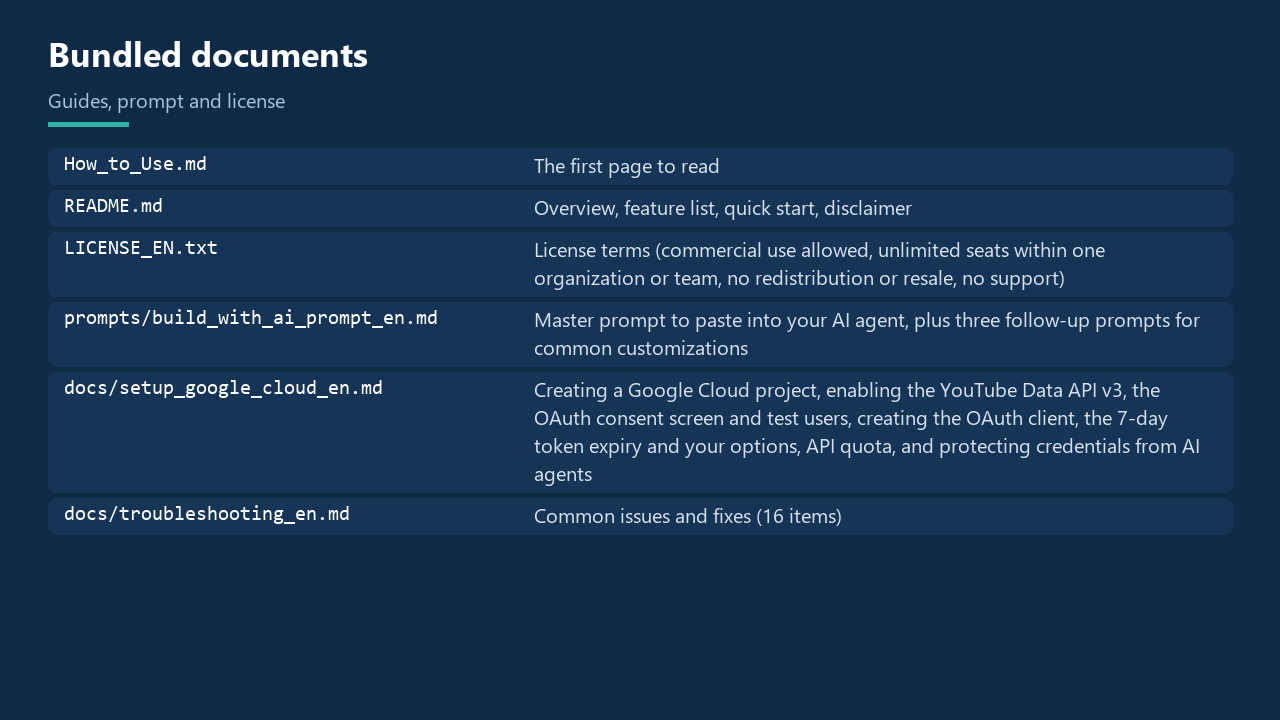
Everything above is written out as step-by-step instructions in two files in the pack: docs/setup_google_cloud_en.md and docs/troubleshooting_en.md, which covers 16 issues.
The reference code also includes --dry-run, a way to catch configuration problems before you get anywhere near sign-in. A dry run validates your settings and files without calling the API, so it uses no quota, which is the daily allowance of API calls for your project, and nothing is uploaded. For the credential files it checks only whether they exist:
[Credentials] (existence check only; contents are never shown)
  secrets/client_secret.json : found
  secrets/token.json         : missing (browser sign-in on first run)
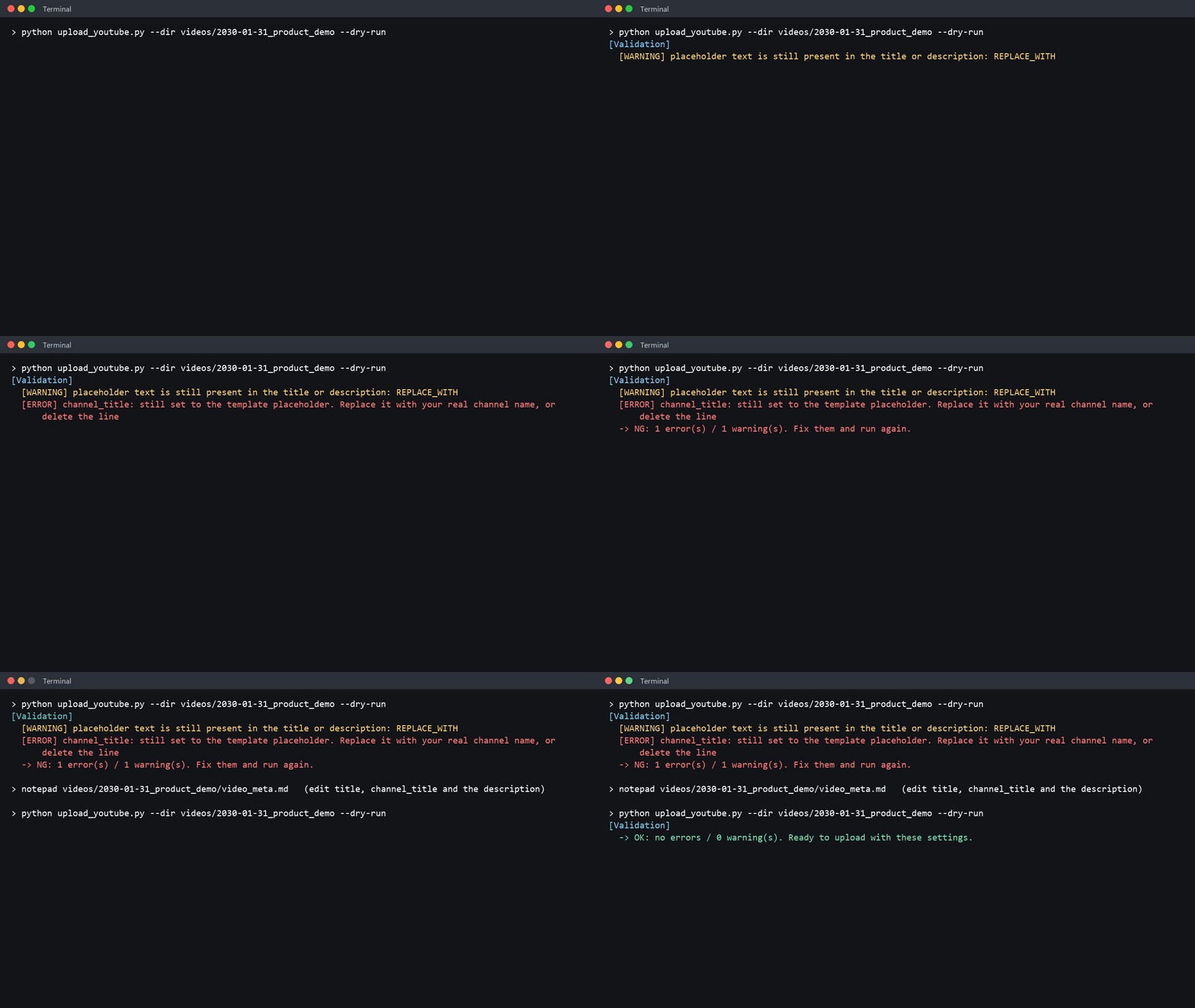
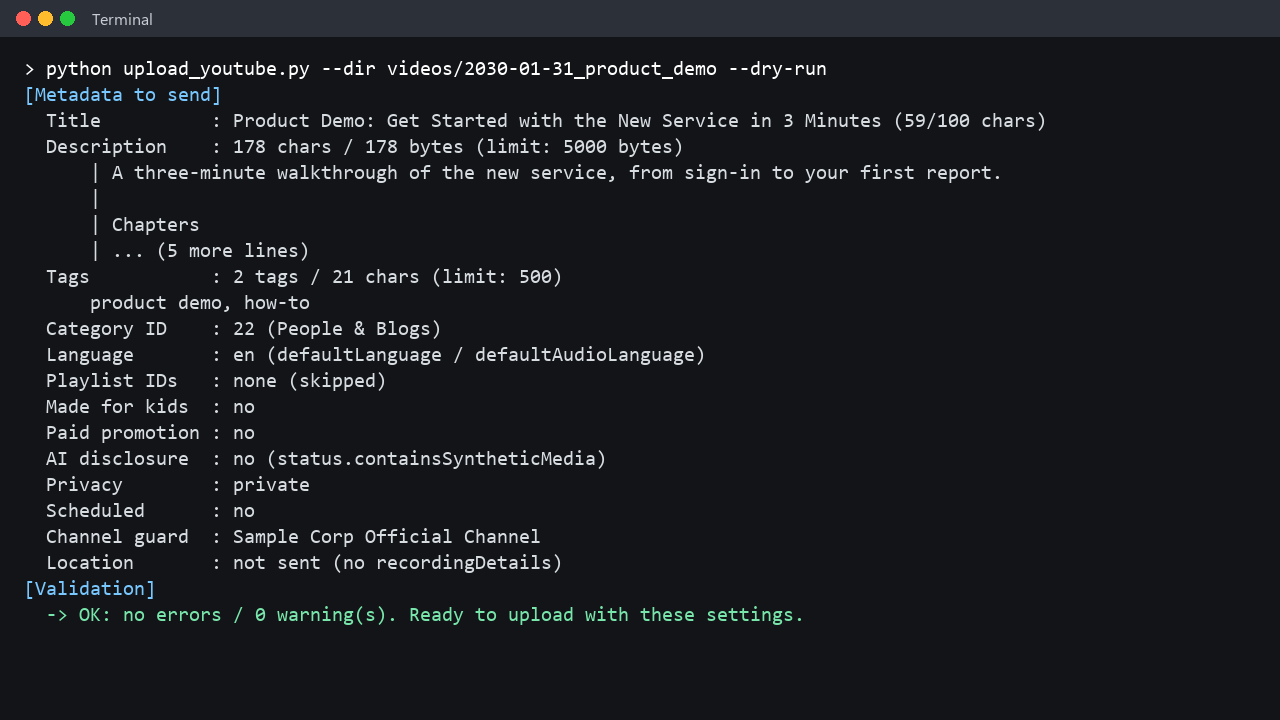
There is one more safeguard that connects to sign-in. If you set channel_title in video_meta.md, the metadata file for each video, and you sign in to a different channel by accident, the upload is aborted before anything is sent.
Now the honest part. Uploads were verified against the live API on Windows with private test videos. The first-time browser sign-in flow is implemented in the code, but it has not been tested against the live API, and neither has macOS. The Google Cloud setup itself is work you do by hand while following the guide. The pack includes no support, so it suits people who are comfortable in the Google Cloud Console and a terminal.
8. Summary
OAuth setup for the YouTube Data API tends to stall in three places: an account missing from the test users, the wrong client type, and the 7-day token expiry in Testing status. The first two go away once you correct the setting. For the third, you choose between re-authenticating every week, switching the publishing status, or using “Internal” with Google Workspace, depending on your organization’s policy.
Related articles:
- What the API can and cannot set, and the current quota rules: YouTube Data API: What You Can Set and Today’s Quota Rules
- Building with the master prompt, and keeping credentials away from your AI agent: Let Claude Code Build Your YouTube Uploader Without Reading Secrets
- Full overview of the builder pack (contents, features, what to know before you buy): YouTube Auto-Upload Builder Pack: What’s Inside and What to Know
The YouTube Auto-Upload Builder Pack for Teams is a build kit with no support, unlimited seats within one organization or team, $79 one-time, sold on Gumroad.
YouTube is a trademark of Google LLC. This product is not provided, endorsed or sponsored by Google LLC or YouTube.
コメント